Tables
A table is a small typed list in the Notes app, such as a workout log, a filament inventory or an expense log. Each column has a type, and every cell is checked against its column. A table holds up to 50 columns and 10,000 rows. Larger data belongs in a spreadsheet.
In Notes, click Tables in the left column, or press g then b. Tables are also listed in the
Notes view and in label views, next to your notes, in the same order. Click a table's card
to open it.
Make a table
- Click the table button in the bar above the grid (New table). Give the table a name and its columns: a name and a type for each. Log and Inventory are starting sets of common columns. Without changes, the table has one text column, Name.
- In the command palette (
Ctrl + K), type New table: Workouts. - Use New from template above the grid to start a table from a template: the Expenses starter, or a table you saved as a template (Notes: Templates).
- Use Import CSV in the same dialog to make a table from a CSV file (see below).
Column types
| Type | A cell holds | Input |
|---|---|---|
| Text | Any text, up to 10,000 characters. With Long text, a box is shown | Anything |
| Number | An exact number, with the column's decimals and format | 82.5, 1,250 |
| Currency | An amount in the column's currency | $12.40, 1,120 |
| Date | A day | today, fri, 12 oct, 2026-10-12 |
| Date and time | A day and a time | fri 3pm, 2026-10-12 14:30 |
| Checkbox | Checked or not | A click, or Space |
| Select | One option, shown as a coloured chip | The menu, with a filter line |
| Multi-select | Several options | The same menu, with checkboxes |
| Link | Rows of a table, emails, events, tasks, or notes and tables | A search picker |
A value that does not fit its column is kept as text, with a warning mark. The tooltip shows what went wrong ("Not a number: 'about 80'"). It is replaced by the next valid value.
A link to something you cannot see is shown as Not shared with you. A link to something deleted is shown as Deleted, and comes back if it is restored. The rows that link to a row are listed under Links → Linked from in its form, and those that link to an email, an event or a task on that item.
How a date such as 12/10 is read, and the currency of a new currency column, are set under Settings → You → Region.
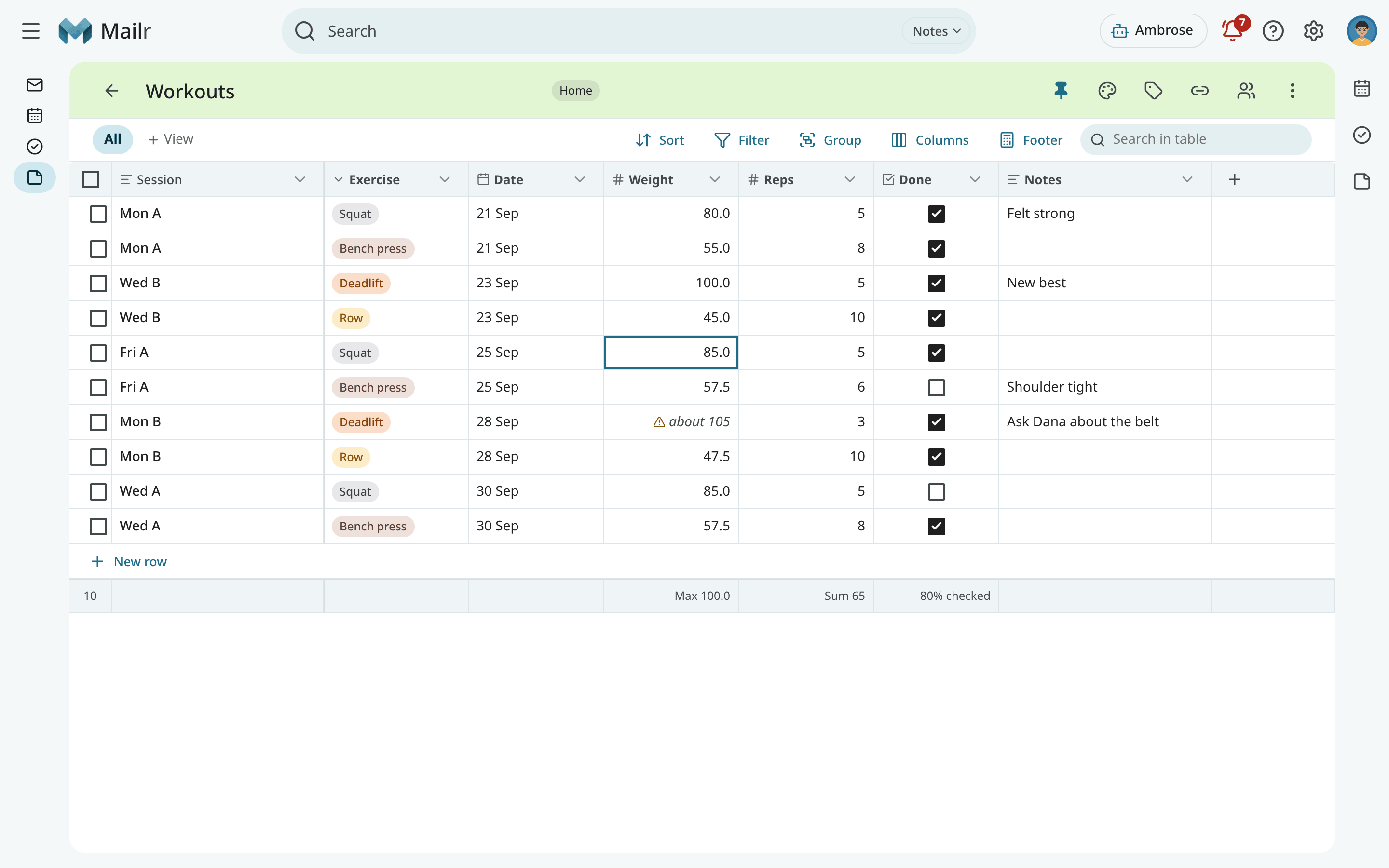
The grid
The first column holds the name of each row and stays in place when you scroll sideways. Click a cell to focus it and start typing to change it. Click + New row at the bottom to add a row. In a view with filters the new row is given their values, so it stays in view. A date column named Date is filled with today.
| Key | Action |
|---|---|
| Arrows | Move the focused cell |
Enter, F2 |
Edit the cell; Enter again saves and moves down |
Tab, Shift + Tab |
Save and move right or left |
| Typing | Start editing with that character |
Esc |
Cancel the edit; then clear the selection |
Space |
Check a checkbox; open a select menu |
Delete, Backspace |
Clear the cell, or the selected range |
Shift + arrows, Shift + click |
Select a range of cells |
Ctrl + C, Ctrl + V |
Copy and paste a range as tab-separated text. Rows are added when you paste past the last row |
Ctrl + D |
Fill the first row of the range down |
Shift + Enter |
A new row below |
Ctrl + Enter, o |
Open the row's form |
x |
Select the row |
Ctrl + Shift + Backspace |
Delete selected rows |
Alt + ↑, Alt + ↓ |
Move the row, in the manual order |
/ |
Search in the table |
z, Ctrl + Z |
Undo |
? |
These keys |
Right-click a cell for Earlier values, Copy, Paste, Clear, Insert row above, Insert row below, Duplicate row and Delete row. You can also drag a row by its handle in the manual order.
Every change is followed by a toast with Undo for 7 seconds. A paste, an import or a bulk change is undone as one step. Several edits to one row in a few seconds share one toast, such as "Hotel row changed", and all of them are put back with its Undo.
The row form
Press Ctrl + Enter or o, or tap a row on a phone, to open its form. It appears where
details appear in your style. Each field is saved on its own.
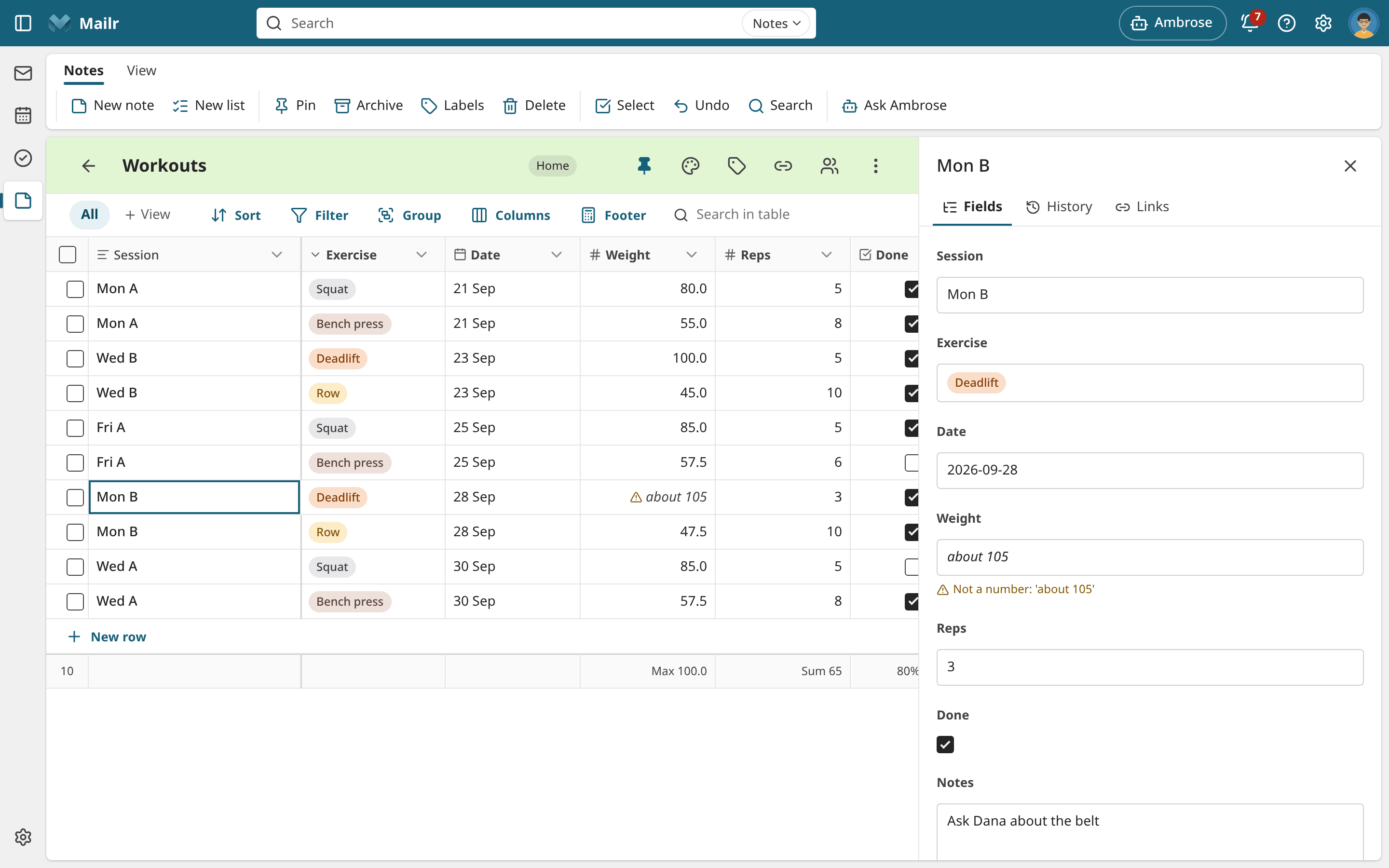
- Fields: one per column. Hidden columns are under Hidden fields.
- History: each change of the row, who made it and when ("Dana · 3 Oct 14:02 · Weight 80 → 82"). With Restore row to this point, the whole row is put back.
- Earlier values of one cell: each value with its author and time. With Use this value, it is put back.
- Links: the rows that link here, and the row's own links.
Columns
From the ⌄ menu on a column's header you sort, filter, group or hide by that column. The menu also has:
- Rename, Settings (decimals, number format, currency, long text, required), Options (add, rename, recolour, reorder, merge or delete the options of a select column).
- Change type, with a preview first: "48 cells convert, 3 do not (kept as text)". After an undo, the old type and the old values are back. A link column keeps its type.
- Insert left, Insert right, and Make primary: the primary column holds each row's name in links, history and on a phone.
- Delete, with the number of values and a CSV copy offered first. A deleted column can be brought back with its values under ⋮ → Deleted columns for 30 days.
Drag a header to move the column; drag its right edge to change the width, or double-click the edge to fit the content.
Views
The bar above the grid holds the views of the table, and Sort, Filter, Group, Columns and Footer:
- Sort by up to three columns. Empty cells always come last. Without a sort, rows keep the order you give them by hand.
- Filter with the operators of each type: contains, is, between, in the last 7 days, is any of, links to, is empty, and more. All filters must match. Dates such as "today" stay relative. The active filters are shown as chips; click × to clear one.
- Group by a select, multi-select, checkbox, date (by day, week, month or year) or single link column. Each group has its count and footers.
- With Columns you hide columns and pick the one or two columns shown under each row on a phone.
- With Footer you total a column: sum, average, median, minimum, maximum, count, earliest, latest, checked, a count per option, filled, empty or unique.
After a change, Unsaved changes · Save · Reset is shown. Use Save as view to keep the changes
as a new view. Right-click a view's tab to rename it, make it the default or delete it. Search in the table
(/) to find text in any cell.
History and restoring
Under ⋮:
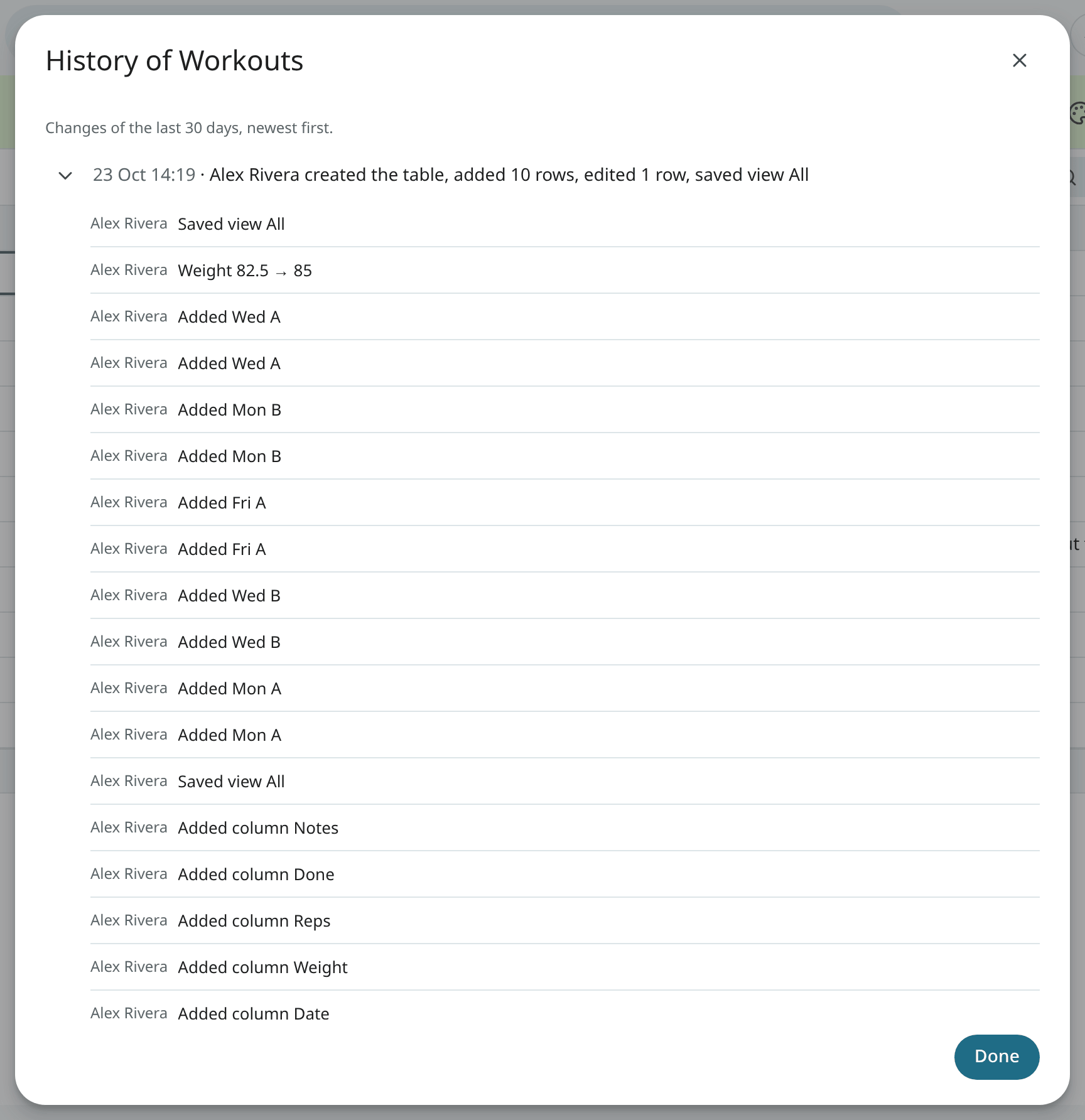
- History lists the changes of the last 30 days in sessions ("Today 14:02 · Dana edited 12 rows"). Open a session to see each change.
- Deleted rows lists rows deleted in the last 30 days, with who deleted them and when. Select them and click Restore.
- With Restore to a point in time…, the whole table is put back as it was at a moment of the last 30 days. A summary of the changes is shown first: "4 rows come back, 12 rows change, 2 rows are removed". The restore is one step in the history and is reverted with one undo. It can also be started from a session or a change in History.
CSV and Excel import and export
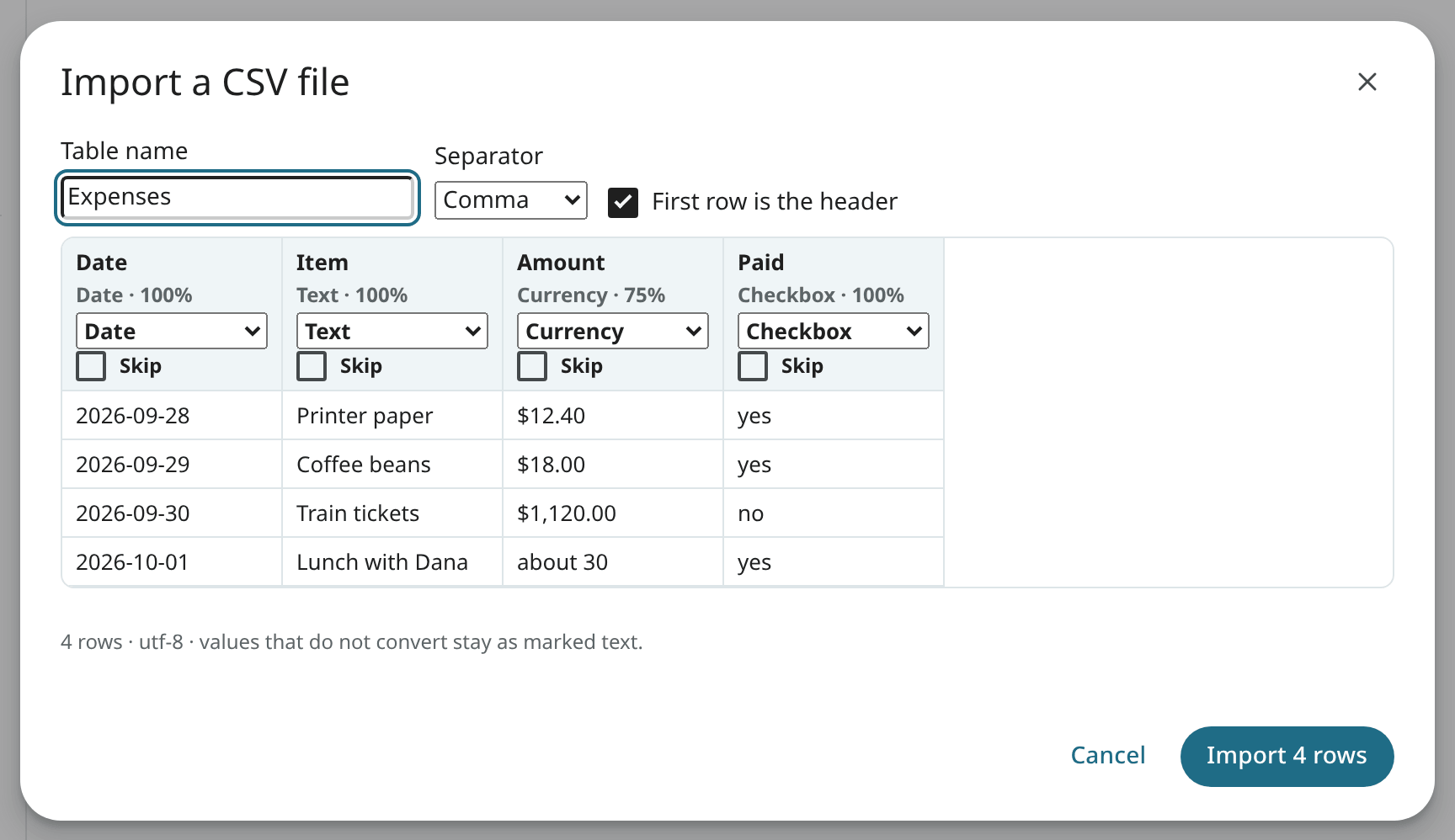
With Import CSV (in a table's ⋮, or in the New table dialog) you bring in a file or pasted text: UTF-8 or Latin-1, separated by commas, semicolons or tabs. The preview shows the first 20 rows and the type found for each column with the share of values that fit ("Number · 98%"). Change a type, or skip a column. Rows added to an existing table are matched to its columns by name; other columns are added. Values that do not convert are kept as text with a warning mark. At the end, "Imported 480 rows · 3 cells kept as text" is shown, with Undo.
With Export CSV you save the current view (its filters, sort and visible columns) or the whole table.
Numbers come without separators, dates in ISO form, and the currency in the header ("Amount
(USD)"). Tick the spreadsheet option to add a byte-order mark (required by some spreadsheet programs).
Text that a spreadsheet would read as a formula (it starts with =, +, - or @) gets an
apostrophe in front, so a cell such as =HYPERLINK(…) stays text when the file is opened. Negative
numbers are left as they are.
With Export to Excel (.xlsx) you save the current view or the whole table as a workbook for Excel, LibreOffice or Google Sheets. The cells keep their types: numbers and amounts stay numbers (an amount in its currency's format), dates and times are dates, checkboxes are TRUE or FALSE, several options are joined with "; ", and links are shown by their titles. Text is always saved as text, never as a formula. The header row is bold and stays in place as you scroll. To export the whole table, you can also use the ⋮ menu of a table's card in Notes.
The table itself
Click the name to rename the table. From the header you also pin the table, set its colour and labels, and link it to an email, an event, a task or a recording: search for it, or paste its Mailr address. The table is listed in the links of the email, event, task or recording in turn. ⋮ has Duplicate, Save as template (the columns, with no rows), Archive and Delete. A deleted table stays in Trash for 30 days with its rows, views and links; a CSV copy is offered first. In Trash, restore it or delete it forever.
On your calendar
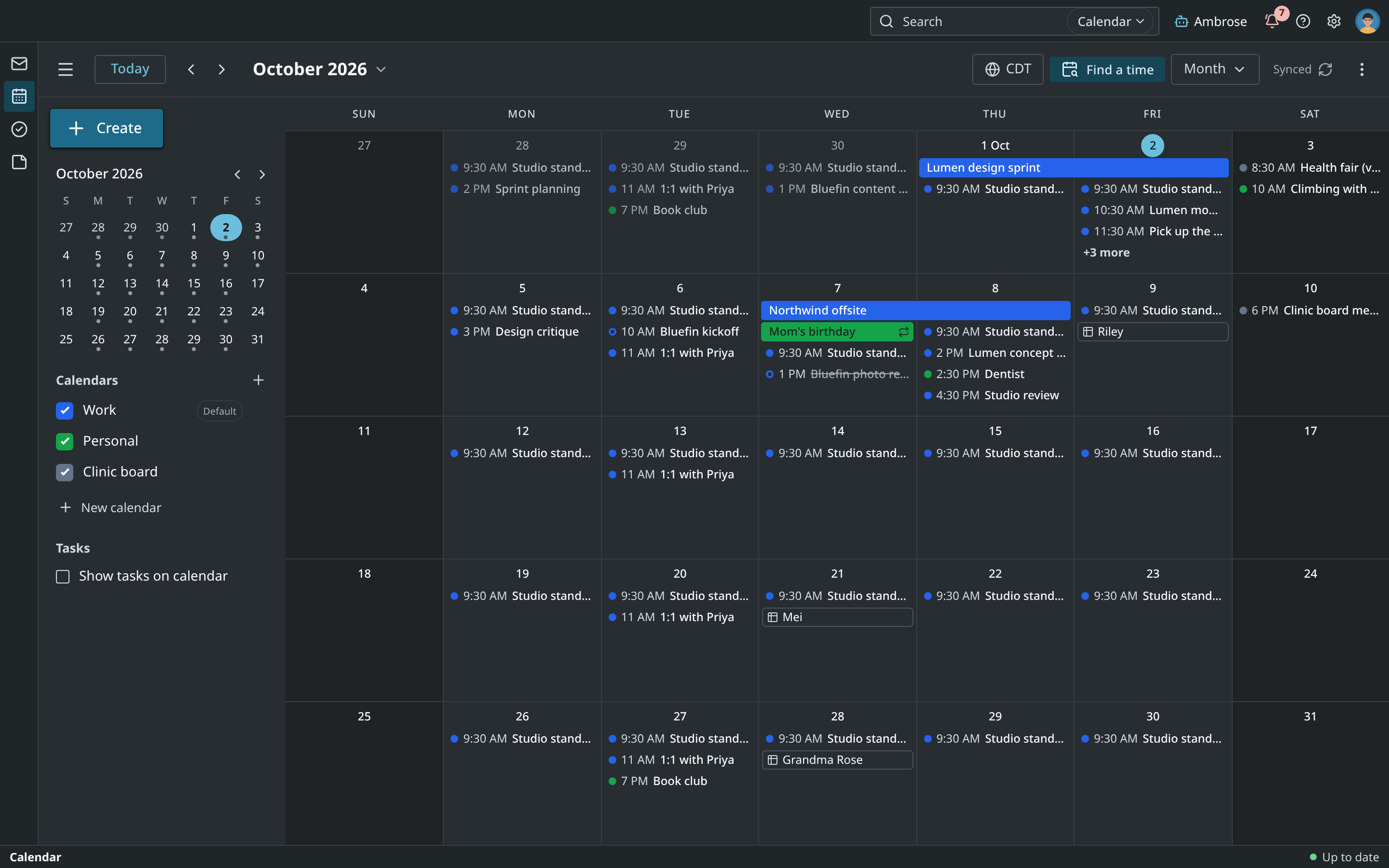
The dates of a table with a date column, such as birthdays, bin days or a lending log, can be shown on the calendar. In the table's ⋮ menu, under On your calendar, choose the date column (Show Day dates). Each row with a date is shown on that day as an all-day chip with the row's title, beside your events. Click a chip to open the row. A date-and-time column is shown by its date. Only your own calendar changes, even on a shared table. Choose Not on the calendar to take the dates off.
The Add-a-row form
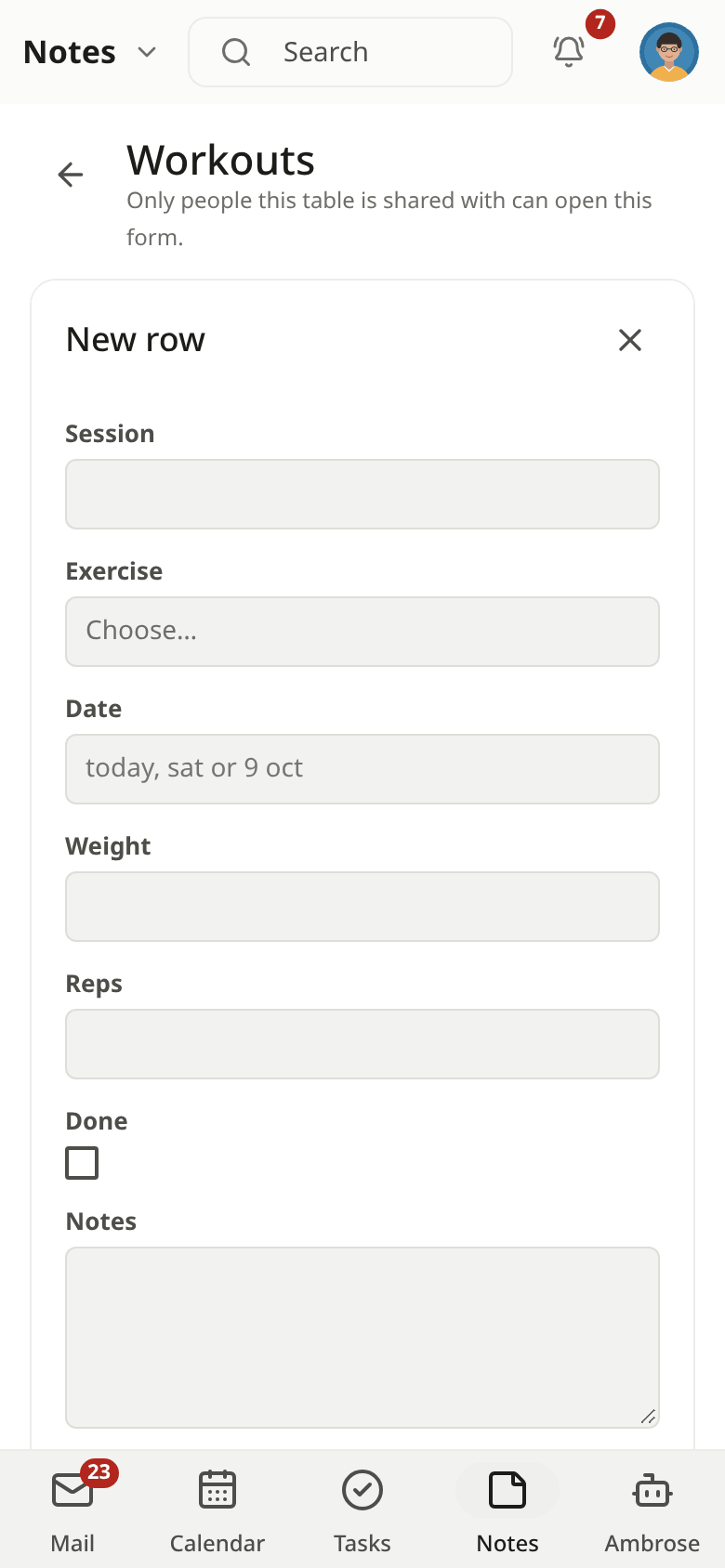
Choose Open the “Add a row” form or Copy the “Add a row” link in the table's ⋮ menu. With the link, only the row form is opened, for someone in your group to log a row quickly, such as a chore done, a meter reading or a book lent. The form is never public. Whoever opens the link signs in first, and only the people the table is shared with at Edit can add a row. Anyone else is shown the reason. After Save the form is cleared for the next row.
Local models only and presence
Local models only in the ⋮ menu works for a table as for a note (Local models only). While someone else has a shared table open, the table shows "Dana is in this table".
Share a table
Tables are shared as notes are (Share a note). On the table screen, click the people button in the header, or choose Share… in a table card's ⋮ menu. Edit covers rows, columns and views. Someone at View sees "View only · shared by Dana"; they can still sort and filter for themselves. Only the owner, or for a group's table its maker or an administrator, can delete the table. Use Remove from my notes in the ⋮ menu to take a table someone shared with you out of your notes, with Undo. The row form shows who added and who last changed a row, and "Dana is editing" while another person writes.
On a phone
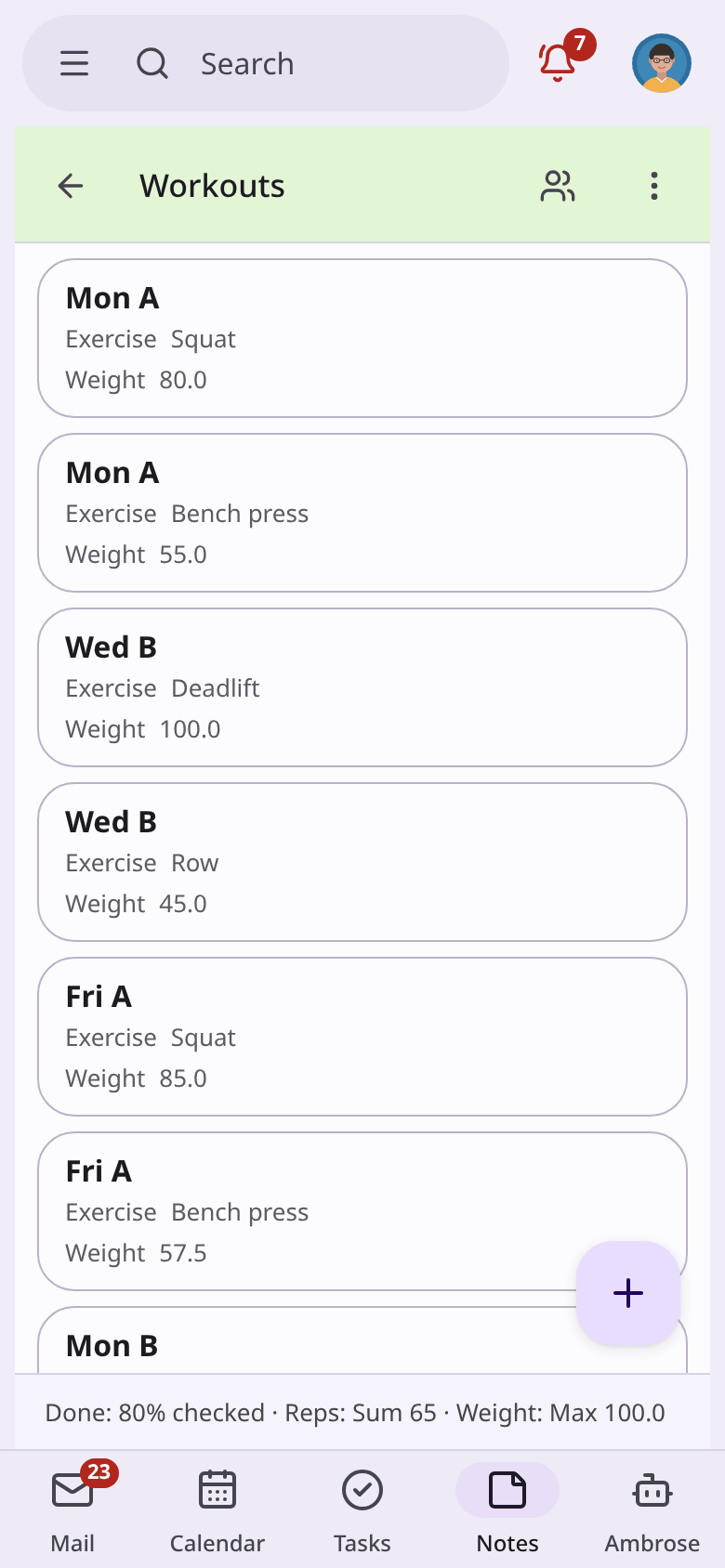
The table is a list of cards: the first column in bold and the phone columns under it. View chips and filter chips sit at the top, the footers at the bottom. Tap + for an empty form; with Save and add another it stays open for logging several rows. Tap a row to open its form full screen.
Ambrose
Ambrose reads and changes your tables with your own access. Answers cite a table or a row; click the chip to open the table with that row's form.