People & groups
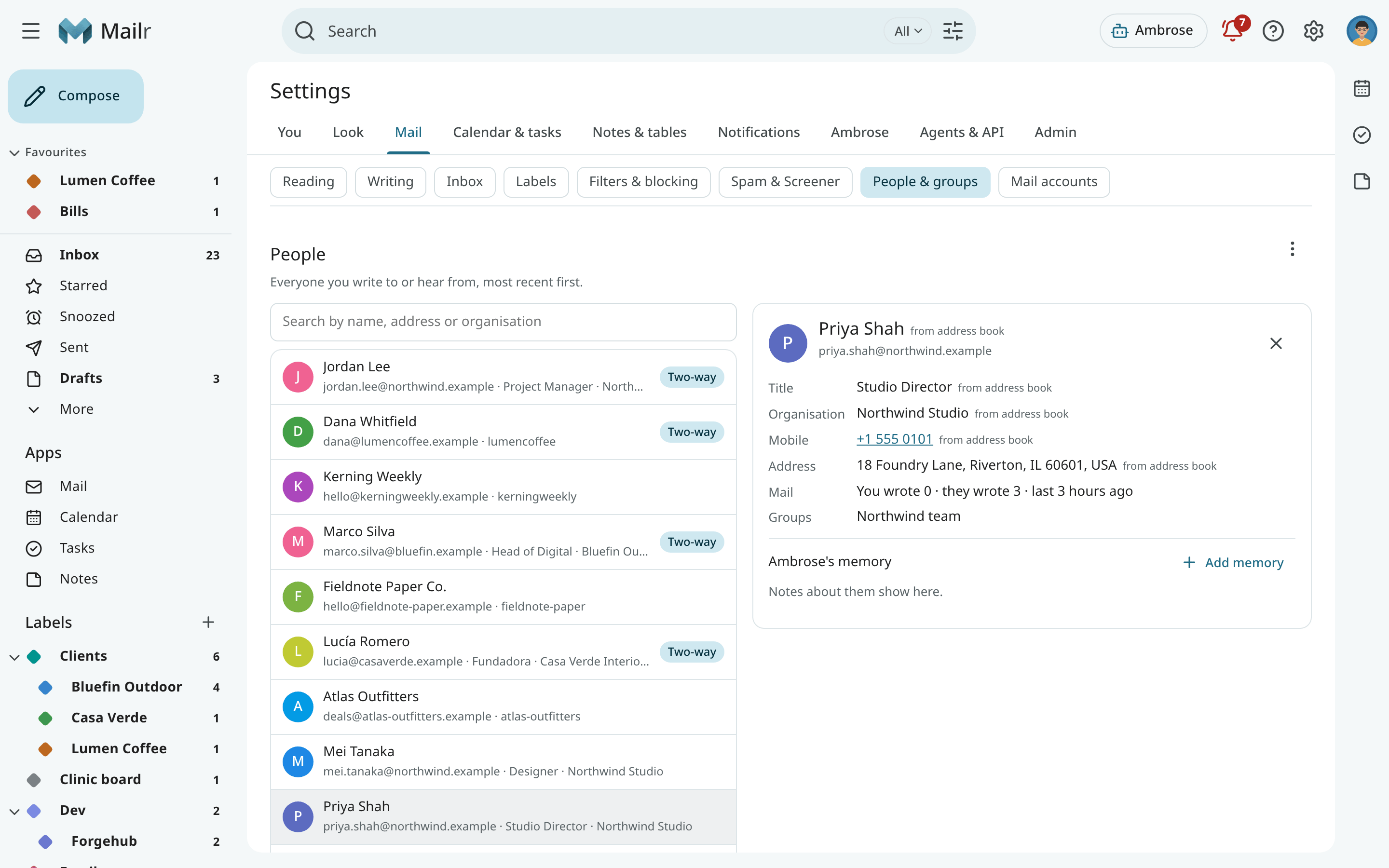
A list of the people you correspond with is built from your mail. They are ranked by how much and how recently you write to each other, their details are filled in from your address book and their signatures, and groups of people you often write to together are suggested.
Open Settings → Mail → People & groups to see them.
Find a person
Search by name, address or organisation in the People list. In this order, the people you write to most, and most recently, come first; people who write back rank higher than those who never do. The same order is used for the suggestions in the To, Cc and Bcc fields, the guest field of the calendar, and Ambrose's people search.
A person's card
Click a person to open their card. It shows:
- their name, addresses, organisation, title, phone numbers, postal address and birthday;
- how often you exchange mail, and whether it goes both ways (Two-way);
- your recent conversations with them;
- their meeting recordings, when you use Speakr;
- Ambrose's memory: Ambrose's memories about them. Use Add memory to add one; each can be edited, pinned or deleted.
The same card opens from Settings → Ambrose → Memory (Open card) and from a chat where Ambrose looked the person up. People in Ambrose's memory who are not in your mail are in the list too, marked No mail.
Details found in signatures
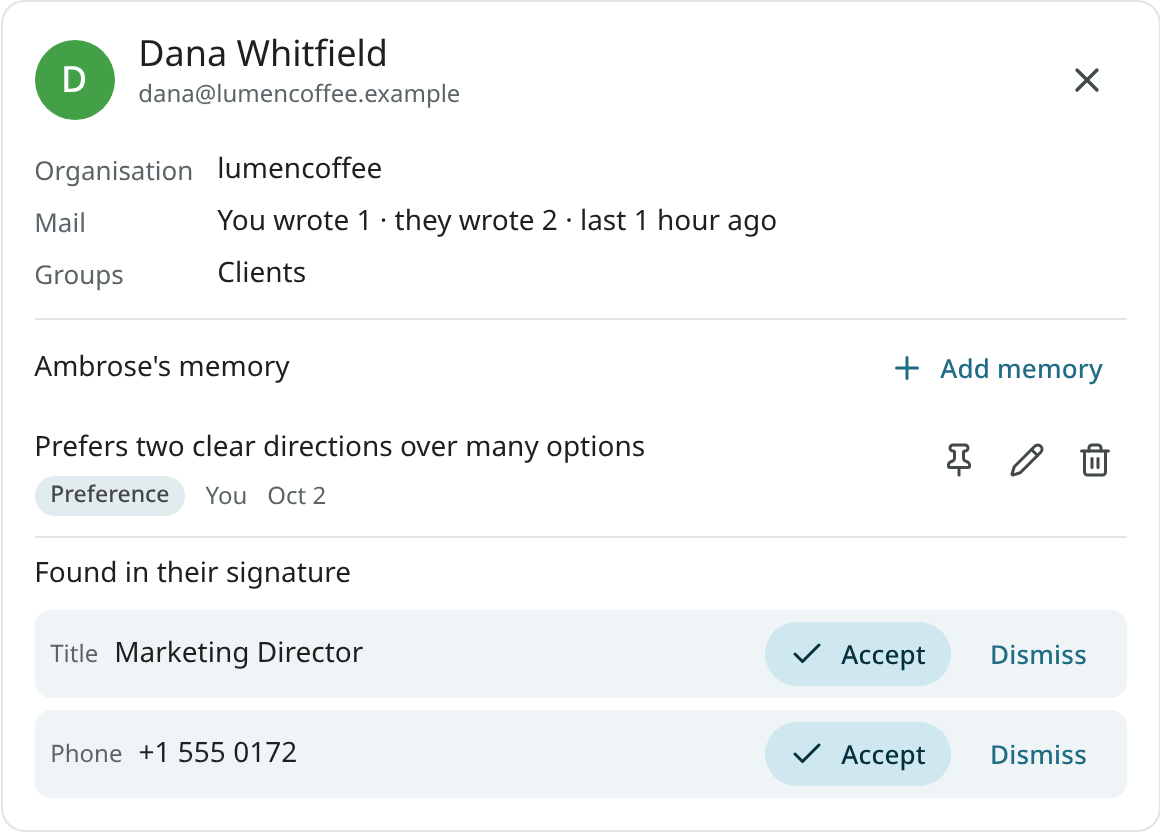
The signatures of the people you write to most are read, and the details found there are suggested: a phone number, a title, an organisation or a postal address. They are shown under Found in their signature, with the message they came from.
Click Accept to add a detail to the person.
Click Dismiss to drop it. A dismissed detail does not come back.
Local-only mail
A detail found in a local-only account's mail stays local: it is available only to local models and local-only tokens.
Groups
A contact group is a named set of addresses, such as "Northwind team" or "Clients". Groups are listed under Groups on the same settings page, each with its colour and members.
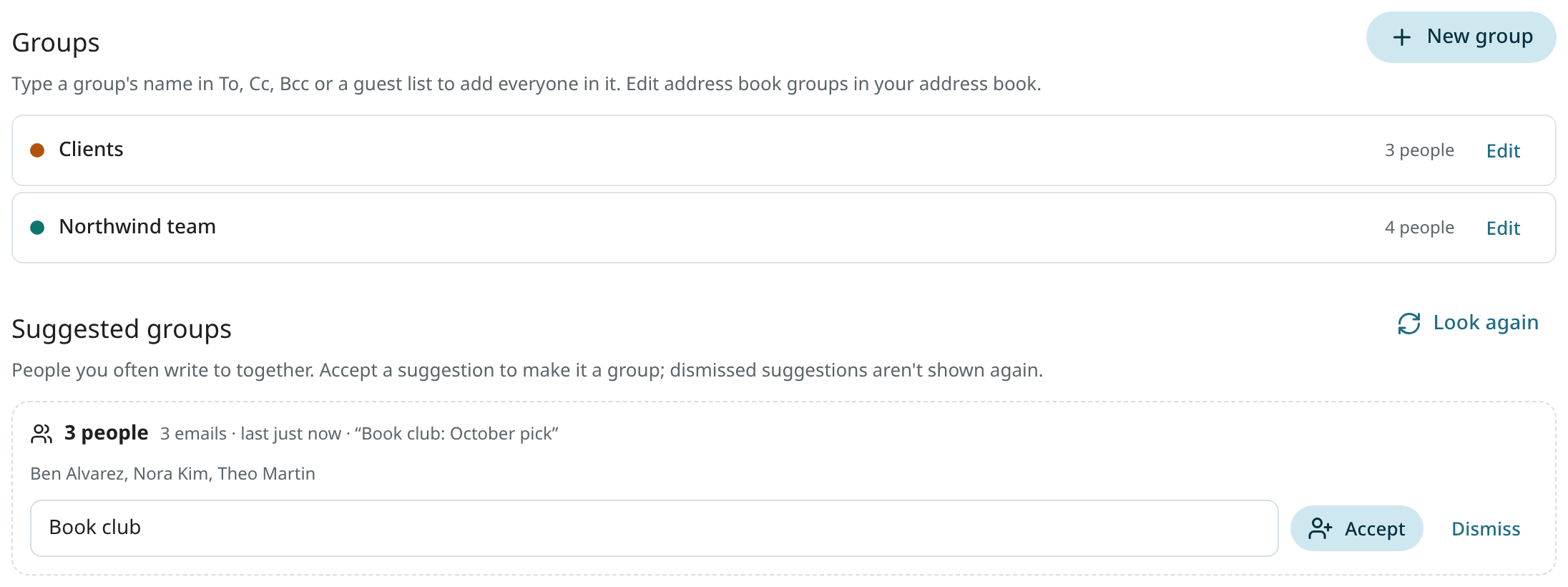
Ambrose can list them too.
Create and edit groups
- Click New group.
- Enter a Group name and pick a colour.
- Add members: type a name or an address in Add a person or address.
- Click Save.
Click a group to edit it. Change its name to rename it.
Add more people in Add member.
Click × next to a member to remove them.
Use Delete to remove the group. The people stay in your People list.
Groups from your address book have a lock: they are read-only in Mailr. Change them in your address book, and the change is picked up in Mailr.
Write to a group
Type a group's name in To, Cc or Bcc, or in an event's guest field, and choose it. Every member is added under one chip, such as "Northwind team · 4 of 4". Click the chip to see the members and remove anyone you want to leave out. Ambrose can address a group too ("send the agenda to the Northwind team").
The normal send rules still apply to every member. A person you have never written to is treated as a new address, even inside a group.
Suggested groups
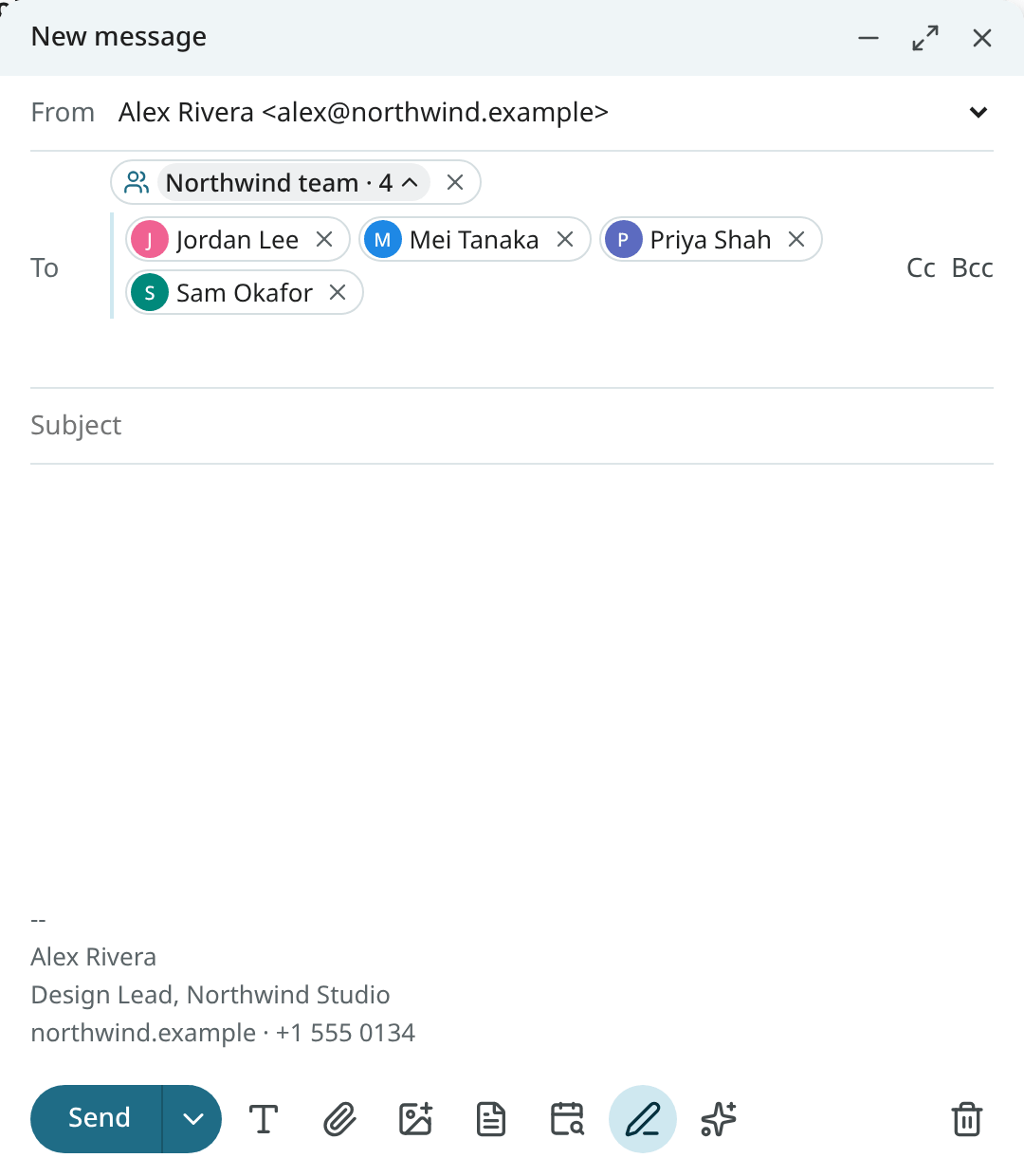
People you often write to together are found from the mail you send. They are suggested as groups under Suggested groups, with a proposed name taken from the subjects or a shared organisation. The suggestions are refreshed every day.
Name the suggestion and click Accept to make it a group.
Click Dismiss to drop it. A dismissed suggestion does not come back.
Address books
When your calendar server also holds address books (CardDAV), they are read with the same account. Names, organisations, titles and birthdays from a card take precedence over what was learned from mail. Phones and postal addresses from the card are added to those you accepted from signatures. Groups in the address book become read-only groups in Mailr.
Address books are only read, never written to.
The Address book section shows each address book and when it was last read. It is read every 30 minutes. Click Read now to read it at once.
Import contacts
The ⋮ beside People has Import contacts (.vcf)…. Use a contacts file from Google Contacts (Export → vCard), from your phone or from another mail program.
Each contact is matched by its email address. Before anything changes, the counts are shown: new people, people already known, and cards left out because they have no email address. For a person already known, only empty details are filled in, such as a phone number or a birthday; no value set by you or by the address book is replaced. A card's details are marked "from an import" on the person's card.
The message afterwards has Undo. With it, the people added by the import are removed (unless mail with them has arrived since), and the details filled in by the import are emptied.
Blocked senders
To block a sender, open their message and choose Block followed by their name from the message menu. Their future mail is marked as spam. Blocked addresses are listed, and can be removed, under Blocked addresses in Settings → Mail → Filters & blocking. See Labels, filters and favourites.