Calendar sharing and import
This page covers the Mailr calendar on the server, sharing, connecting another CalDAV account, importing files, calendar links and moving calendars into Mailr. Using the calendar day to day is covered in Calendar.
The Mailr calendar
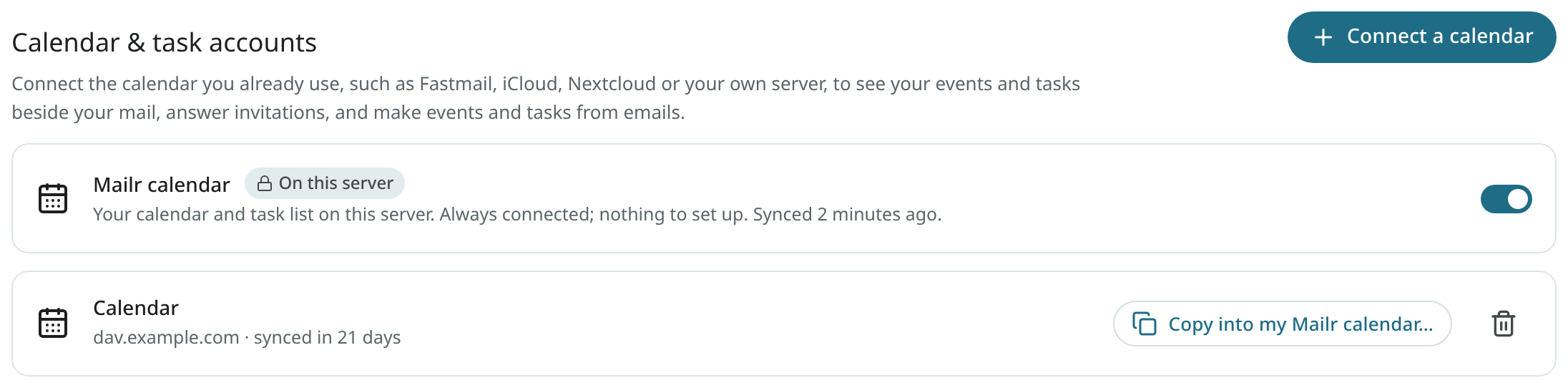
The administrator can provide every user with a calendar on the Mailr server itself. It is then listed as Mailr calendar under Settings → Calendar & tasks, with the badge On this server. It is connected from the start; no setup is required.
- It holds a calendar named Calendar and a task list named Tasks. They are your default calendar and default task list, unless you already used another calendar for events or tasks.
- You can rename, recolour and add calendars and task lists in it, as in any other account.
- It cannot be removed, and its address and sign-in cannot be changed. To hide it, turn off the switch on its card. Its events and tasks are then hidden, and they stay on the server. Turn the switch on again to bring them back.
- Existing calendars can still be connected next to it.
Shared group calendars
The administrator can attach calendars to a group, such as a family or a team. They are listed under Shared in the calendar list, each with the line Shared with the … group.
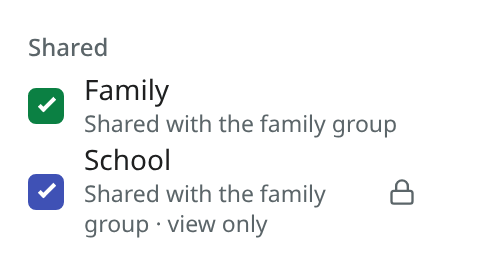
- In most group calendars every member can add and change events.
- Some are view only: they are marked view only and have a lock. Only the editors named by the administrator can change it. A view-only calendar is not offered when you create an event, and Ambrose does not write into it either.
- You can hide a group calendar with its box, like any calendar, and give it a colour of your own. Other members keep theirs.
- A group calendar cannot be renamed or deleted by members. Only the administrator can.
- When you leave the group, its calendars are removed from your list. Your own calendars stay as they are.
Share a calendar
Your own calendars in the Mailr calendar can be shared with other people on this server. The administrator sets who calendars can be shared with: anyone on the server, only people in the same groups, or nobody.
- In Calendar, open the menu of a calendar in the left column (the three dots) and choose Share…. In Settings → Calendar & tasks you can use the share button next to the calendar instead.
- Type part of a name or an address to find someone.
- Choose what they can do, then select Add:
- View: they see every event and change nothing.
- Edit: they add, change and delete events.
- Edit and share: they edit, and they can share the calendar with other people too.
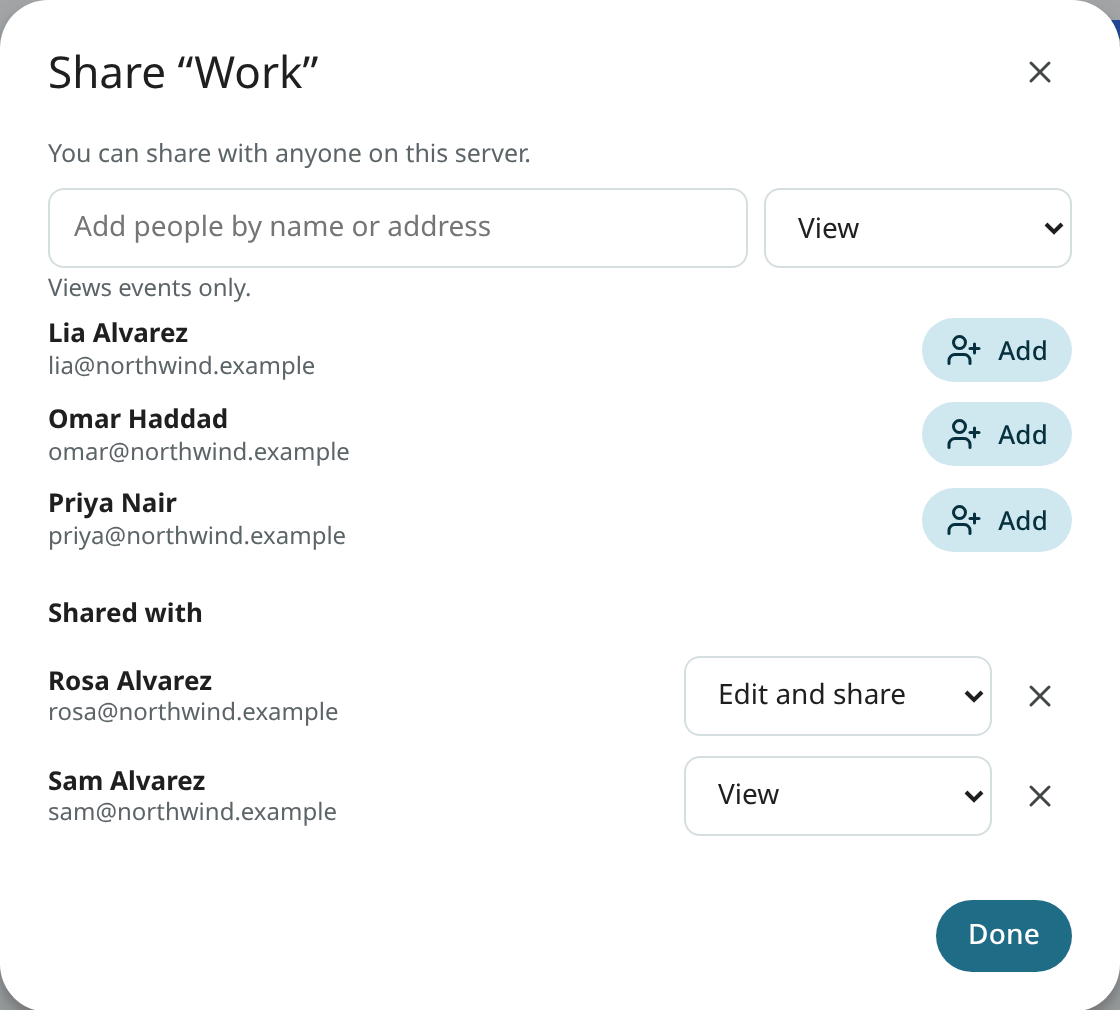
- To change what someone can do, choose another level next to their name.
- To stop sharing with someone, select the cross next to their name. The calendar is removed from their list within a minute or two.
- Under your calendar, the calendar list shows Shared with 2 people, for example.
- Only calendars can be shared, not task lists. Calendars from other accounts you connected (Google, Fastmail, your own server) are shared in those services, not in Mailr.
- If the administrator later limits sharing, the people you already shared with keep the calendar until you stop sharing it.
Calendars shared with you
When a calendar is shared with you, a line is shown above the calendar list, for example Rosa Alvarez shared “Clinic rota” with you. Select the cross to dismiss it. If Mailr is open, a short message also appears. No email is sent about it.
The calendar is listed under Shared, with the line Shared by and the owner's name.
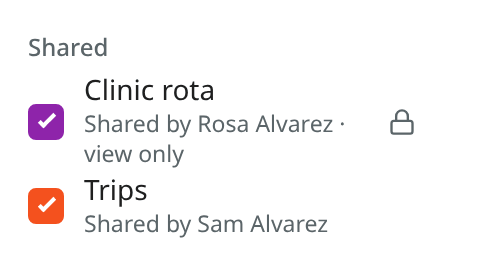
- If you can only view it, it is marked view only and has a lock. It is not offered when you create an event, and Ambrose does not write into it either.
- You can hide it and give it a colour of your own. The owner and other people keep theirs.
- You cannot rename or delete it. Only the owner can.
- If the owner allows resharing, Share… appears in its menu, and you can add people within the same limits as your own calendars. You cannot change your own level.
- Ambrose reads shared calendars like the user's own, and it never shares a calendar.
Move your calendars into the Mailr calendar
If you already keep your calendars on another server, such as Davis, Nextcloud or Fastmail, you can copy them into the Mailr calendar. Connect that account first (see Connect a calendar). Then:
- Open Settings → Calendar & tasks.
- On the card of that account, click Copy into my Mailr calendar….
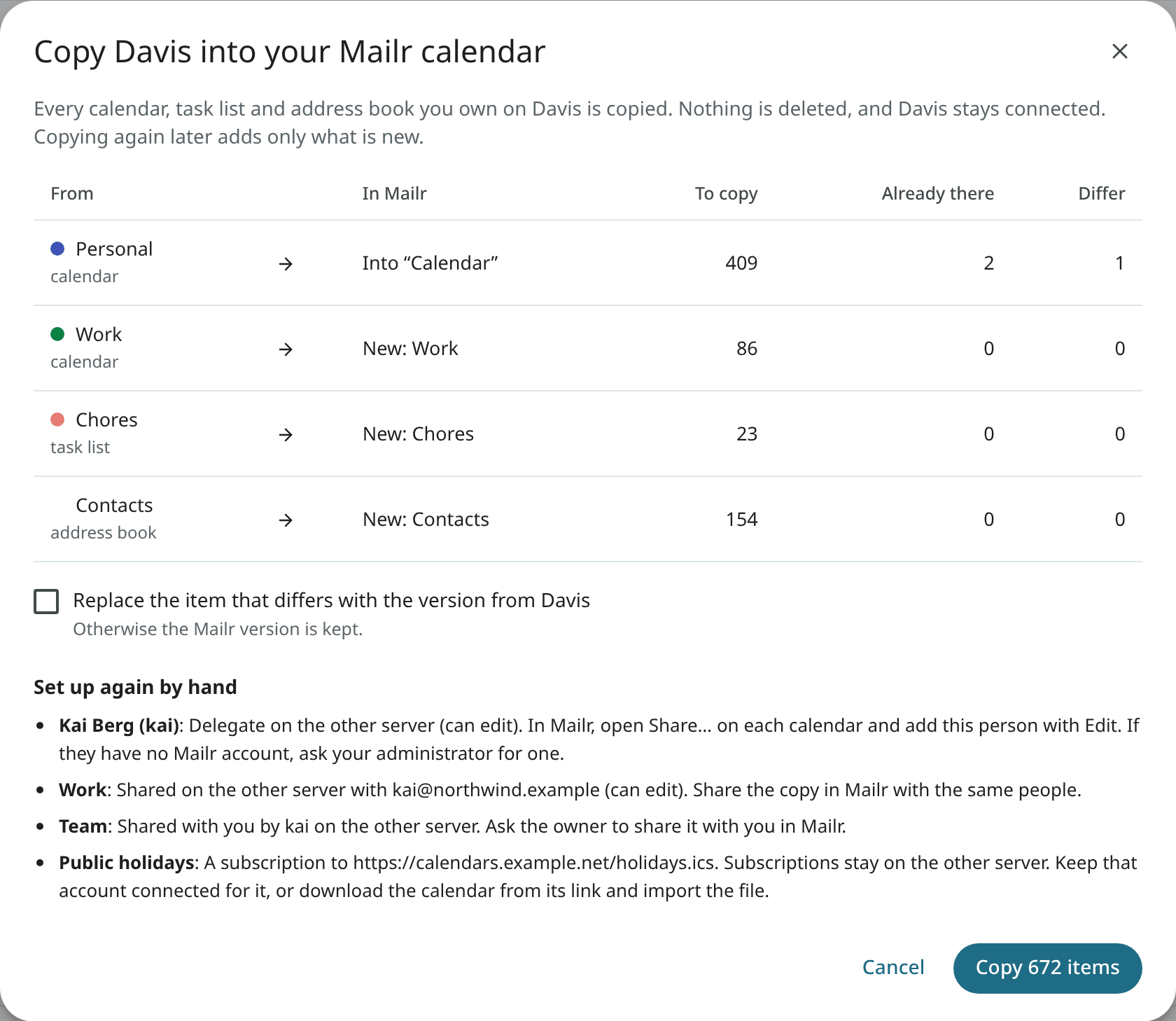
- Read the preview. It lists each calendar, task list and address book, where it goes in the Mailr calendar and how many items it holds. A calendar with the same name as one of yours is merged into it. Any other one becomes a new calendar with the same name and colour.
- Click Copy. A progress bar is shown during the copy. Closing the window does not stop the copy.
Details of the copy:
- Events are copied with their repeats, the changed and cancelled dates of a series, time zones, reminders, guests and links to attachments. Tasks are copied with their subtasks, and contacts with their photos.
- Nothing is deleted, here or on the other server. The other account stays connected and unchanged.
- The copy can be repeated later. Items already there are skipped.
- When an item differs between the two places, the version in the Mailr calendar stays. These items are counted under Differ in the preview. Tick the Replace box below the table to take the other server's version instead.
- Some things cannot be copied. They are listed under Set up again by hand, each with instructions: people you shared a calendar with, assistants who could act for you (delegates), calendars other people shared with you, subscriptions to calendar links, and invitations still waiting on the other server.
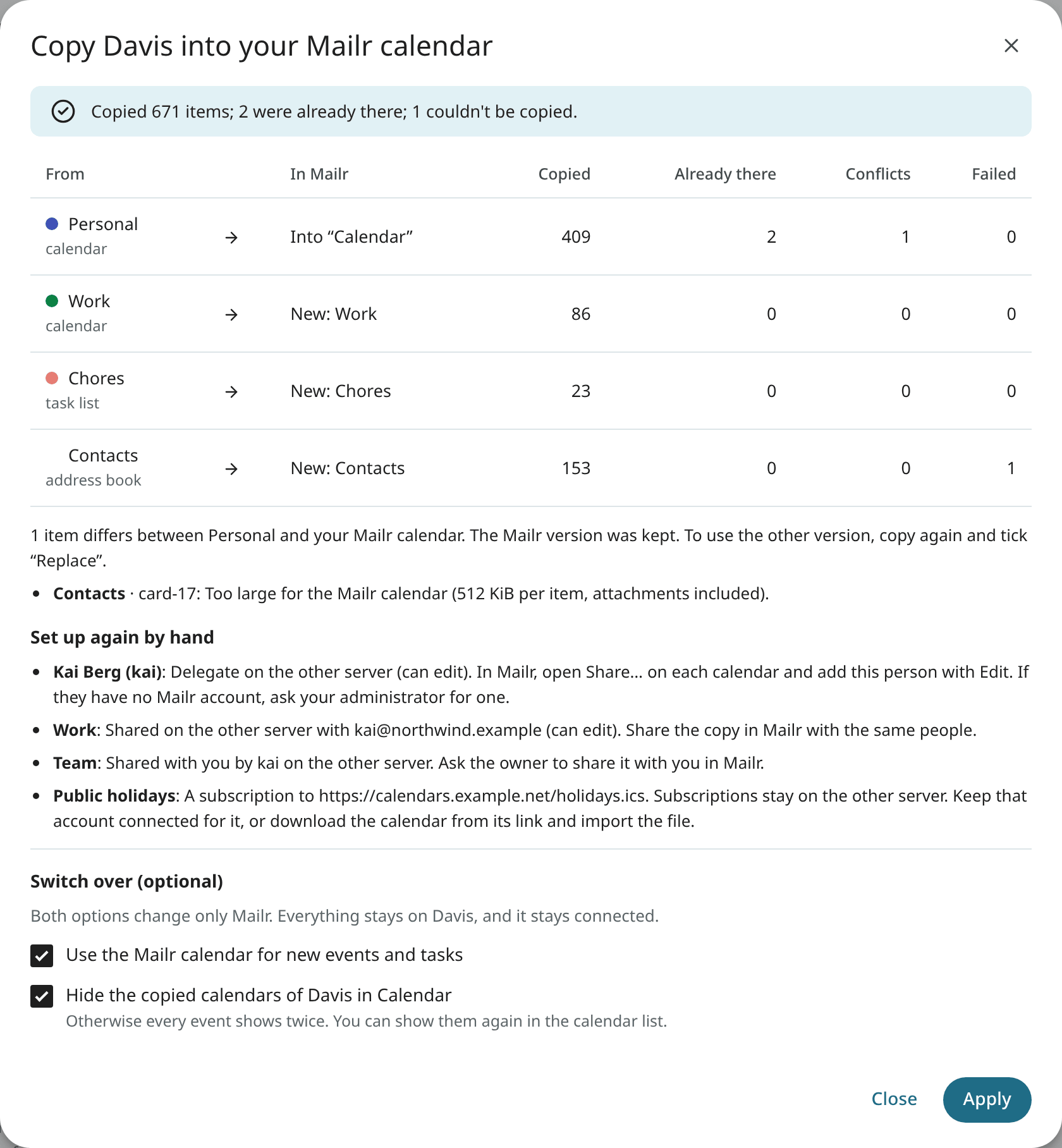
After the copy, the same events are shown twice, once from each account. To avoid the duplicates, tick one or both choices under Switch over. Both are off until you tick them, and both apply to Mailr only:
- With Use the Mailr calendar for new events and tasks, the copies become your default calendar and default task list.
- With Hide the copied calendars of …, the other account's calendars are hidden in Calendar. Show them again with their boxes in the calendar list.
Click Apply. The other account can be disconnected later.
Connect a calendar
- Open Settings → Calendar & tasks.
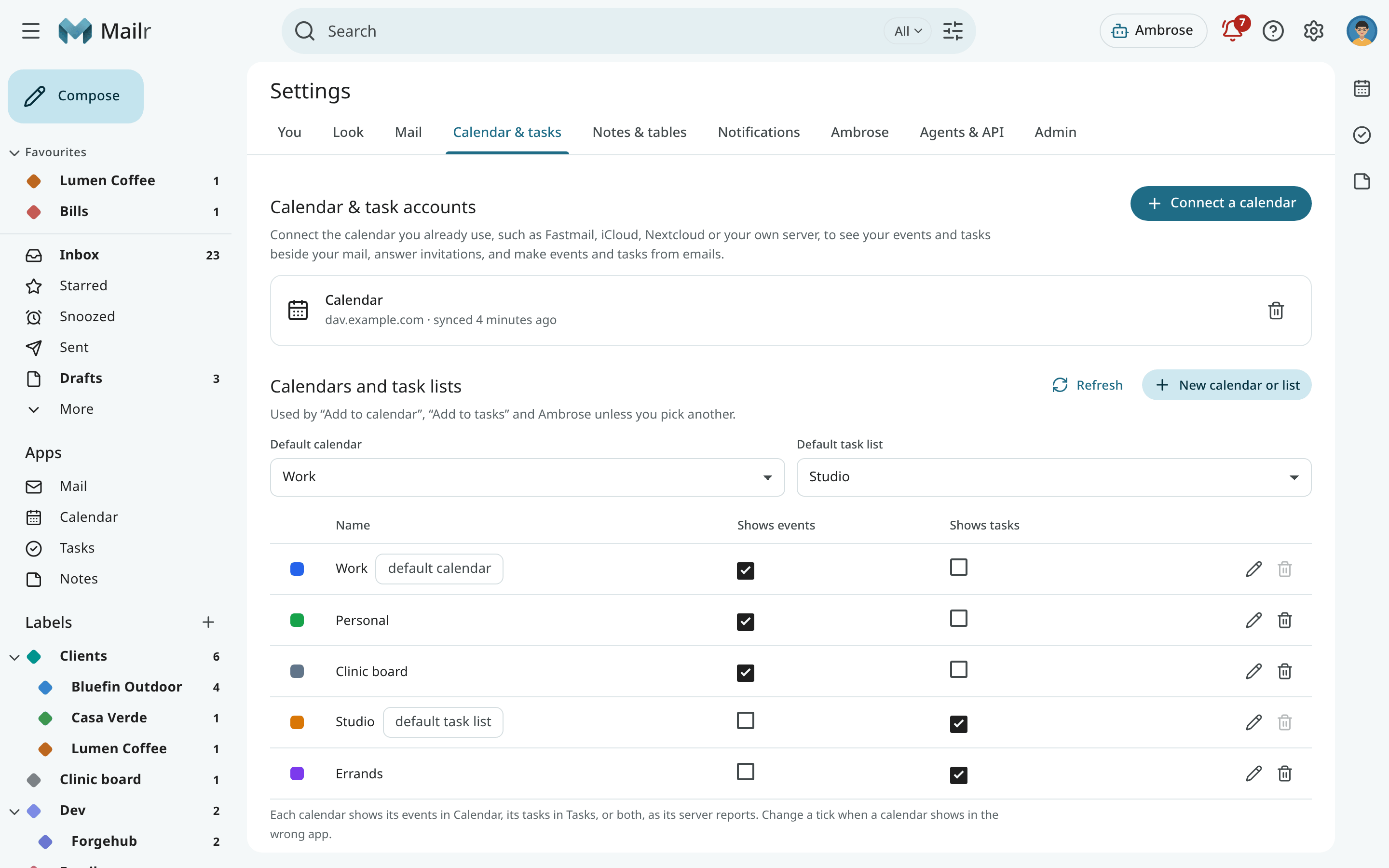
- Choose Connect a calendar. In the dialog "Connect a calendar", enter the Calendar server address (the CalDAV address the provider gives for other apps, or the server's address, for example
https://dav.example.com/), your Username and your Password. A name left empty takes the server's name, such as fastmail.com. - Save. Your calendars and task lists are found automatically.
Several accounts can be connected. Each account card shows the server's host, not the full address. The calendars and task lists of each one are listed on the same settings page, where they can be renamed, recoloured or deleted. The columns Shows events and Shows tasks say where each calendar appears: each calendar shows its events in Calendar, its tasks in Tasks, or both, as its server reports. Change a tick when a calendar shows in the wrong app. If the same server also holds address books, contacts are read from it too (see People & groups).
Import and calendar links
The ⋮ at the right of the calendar's top bar has Import an .ics file…, Subscribe to a calendar link… and Calendar settings.
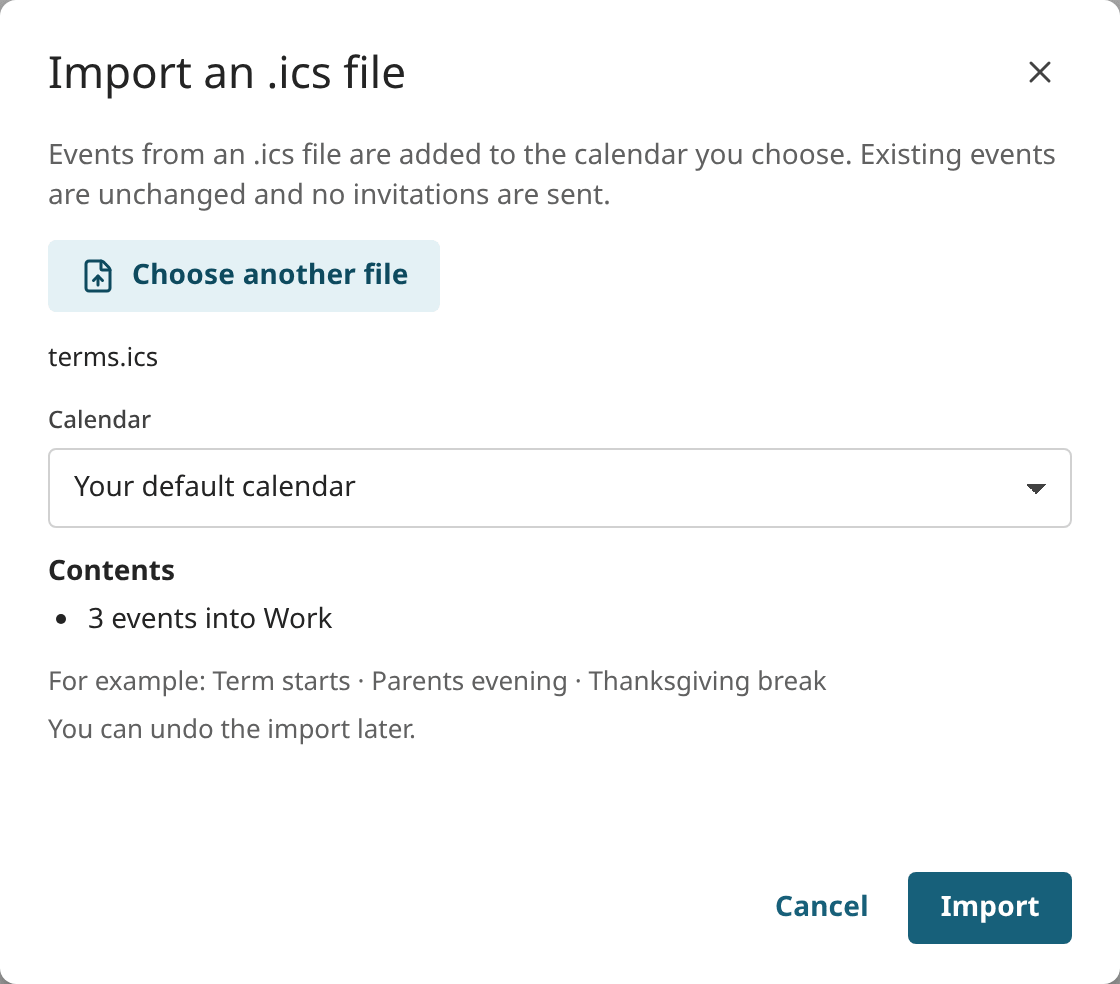
Use Import an .ics file for a calendar file, for example a Google Calendar export (Google Takeout, or Settings → Import & export in Google Calendar). Choose the file and the calendar it goes into. Before anything changes, a summary shows how many events come in and how many are already in the calendars, with a few examples. Click Import to add them. Events already in the calendars are left alone, and no invitations are sent. The message afterwards has Undo, to delete every imported event.
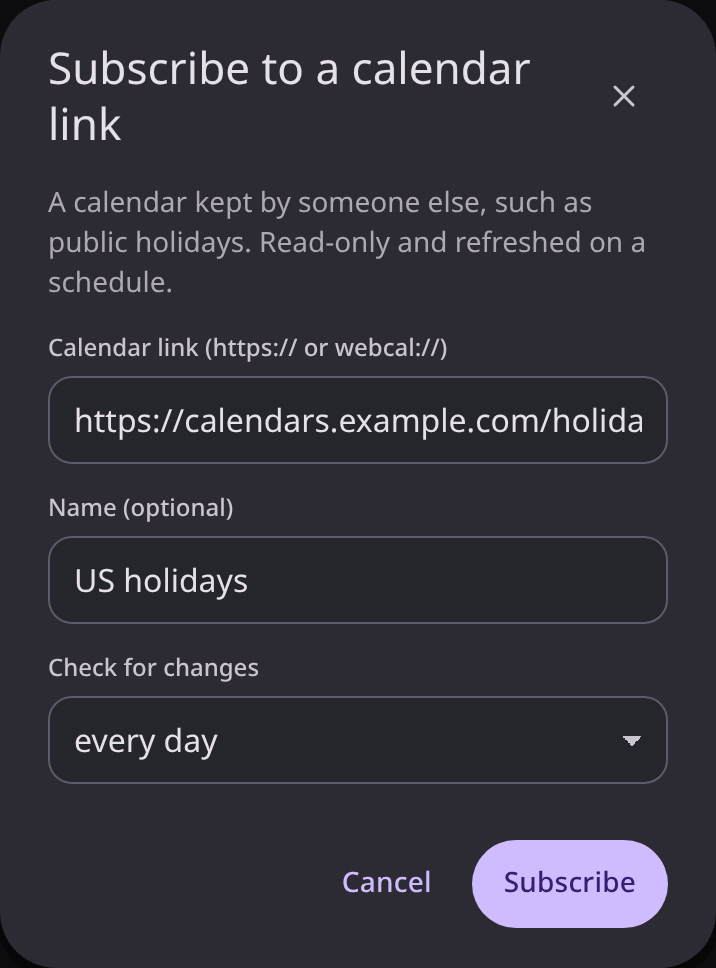
Use Subscribe to a calendar link to add a calendar that someone else keeps, such as public holidays
or your children's school terms. Paste its address (https://… or webcal://…), optionally give it a
name, and choose how often it is checked for changes (every 6 hours to once a week). It is listed
in the left column with your other calendars, read-only: its events cannot be edited, and they do
not count as busy when people look for a free time. Its menu shows where it comes from, and has
Refresh now and Remove. The link is fetched by the server, under the same guard as every
other outside address the administrator allows. Without a calendar yet, Calendar shows "No calendar connected yet" with Connect a calendar and Subscribe to a calendar link….
A few limits apply to calendar links:
- The address must start with
https://orwebcal://. A plainhttp://address works only for a calendar on the local network, and only when the administrator allows private addresses. A link that redirects fromhttps://tohttp://is refused. - The file can be at most 5 MB, with at most 10,000 events, and the link may redirect at most 5 times.
- At most 30 calendar links can be subscribed to.
- The feed's own reminders are not used. Its events get your default reminders, as set in Settings → Calendar & tasks.
- A time zone the file defines for itself is used only when it is simple. Otherwise its events use that zone's fixed offset. See Invitations.
- When a link fails, its next try waits longer: a day after the first failure, then twice as long after each failure in a row, up to a week. Refresh now tries at once.
When an email has a calendar file that is not an invitation, such as a conference schedule, Add to calendar is shown in the reader, with a calendar picker. One event is added for each event in the file. See Invitations.
To export, use Download .ics first in a calendar's delete dialog, in the left column or in Settings → Calendar & tasks. On Android, the calendar and task list menus also have an export.