Activity
Activity lists the recent changes in the account, newest first and grouped by day:
- changes you made in mail, the calendar, tasks, notes and tables;
- changes made by Ambrose;
- changes made by agents through their API tokens (each under its token's name);
- changes made by the administrator, such as your name, your groups or a password reset.
Open it from the bell: click the bell at the top of the page, then Activity at the bottom (see Waiting for you). It is also in Settings, under You → Activity. It is there for every user, in simple mode too. Nothing is added to the main navigation.
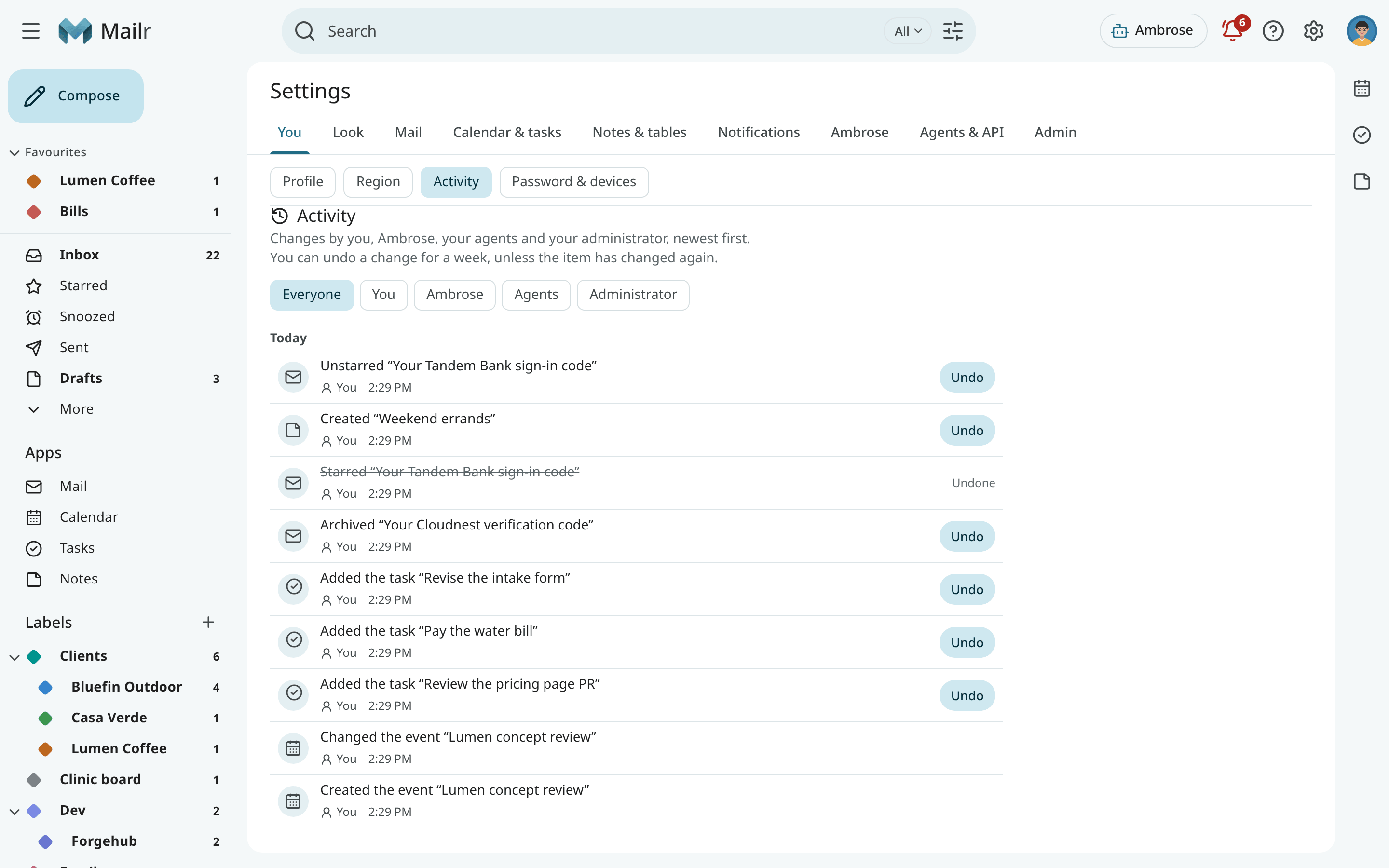
Row contents
- What changed, in a few words: Archived “Lunch on Friday”, Completed “Pay the plumber”, Created the event “Piano lesson”. Click it to open the conversation, event, task, note or table.
- Who made the change: You, Ambrose, an agent's name, or Your administrator.
- When it happened.
- Small edits that follow each other (typing in a note, checking items in a list, editing cells in a table) count as one row, with the number of changes.
Use the chips at the top to show the changes of one person or agent only: You, Ambrose, Agents or Administrator.
Reading mail is not listed: a conversation is marked read when opened, and those rows would hide the other changes.
Undo
Most rows have Undo. With it, that one change is taken back: an archived conversation returns to the inbox, a completed task opens again, a deleted event comes back, a note leaves the Trash. The row then shows Undone, and the undo is listed as a change of its own.
Undo is offered:
- for a week after the change;
- while the same item has not changed since (otherwise the newer change could be overwritten);
- once.
It is not offered for changes that would mean mailing other people again (an event with guests), for changes to a repeating event, or for an administrator's change. A note's or a table's own history holds every edit; open the note or table to go back further.
On the phone
In the Android app, the same list is under Settings → Activity, read-only. See Settings on Android.