The web app on your phone
Mailr's web app can be added to a phone's home screen as a progressive web app (PWA). It then opens full screen, with a tab bar at the bottom, swipe actions, notifications and recently read mail available without a connection. This page covers the iPhone and Android. On Android, the native Android app is also available (see Install the phone app).
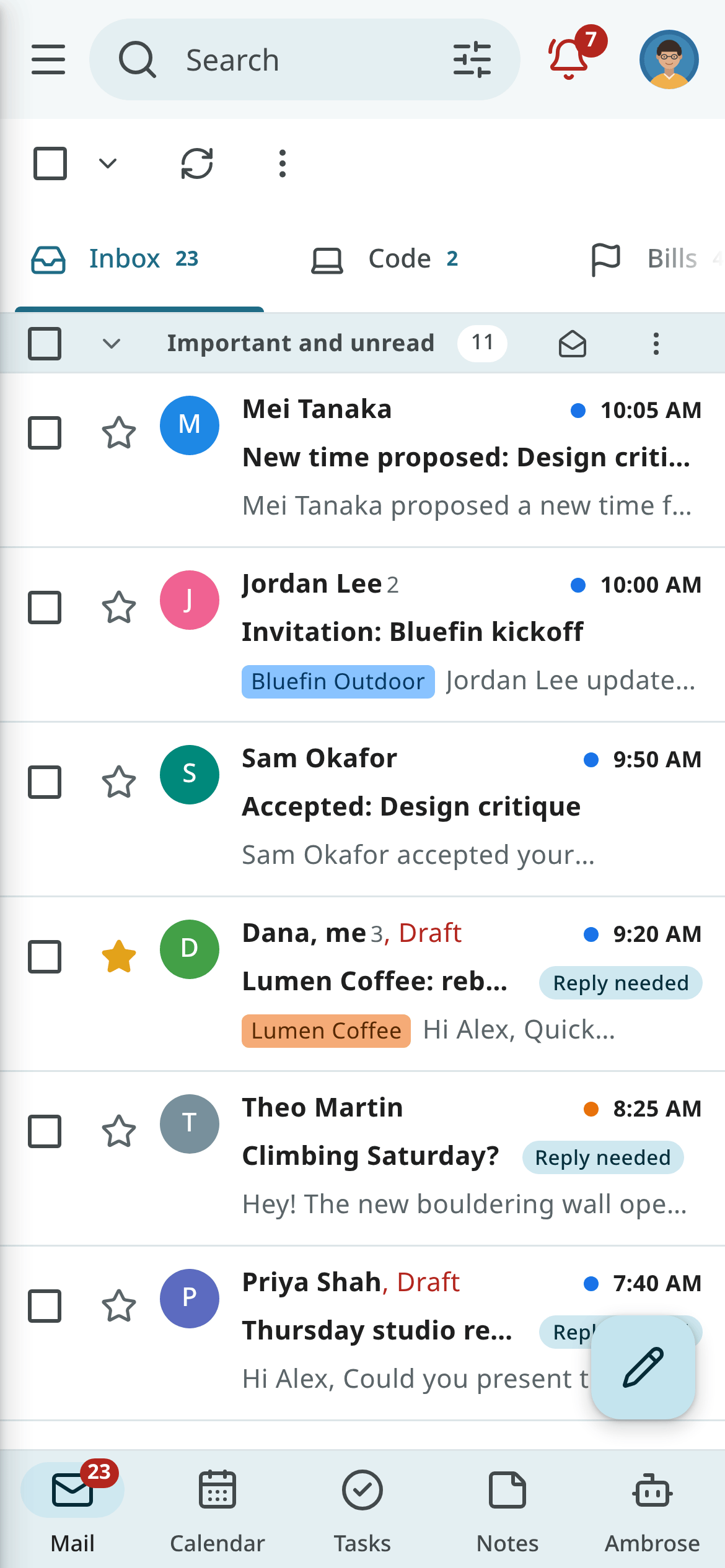
Add Mailr to your home screen
Open your Mailr address in the phone's browser, for example https://mail.example.com, and sign
in. On a phone, a banner, Use Mailr like an app, is shown with Show steps. The steps are also
under your picture (top right) → Install app and in Settings → You → Password & devices → App installation.
iPhone and iPad
- Open Mailr in Safari.
- Tap Share (the square with an arrow). In newer versions of iOS it is in the ⋯ menu next to the address.
- Scroll down and tap Add to Home Screen.
- Leave Open as Web App on if you see it, and tap Add.
- Open Mailr from your Home Screen.
On iOS 16.4 and later, Chrome, Edge and Firefox on the iPhone have Add to Home Screen in their Share menu too.
Android
- Open Mailr in Chrome (or Edge, or Samsung Internet).
- Tap Install in Mailr's banner or in Settings → You → Password & devices → App installation. If there is no Install button, open the browser menu (⋮) and choose Install app or Add to Home screen.
- Open Mailr from your home screen or app drawer.
Long-press the Mailr icon for shortcuts to Compose, Calendar and Tasks.
Computers
Mailr can also be installed from Chrome and Edge on a computer, with the install icon at the end of the address bar or with Settings → You → Password & devices → App installation. Mailr then has its own window.
Navigation at phone width
At phone width every style has the same frame:
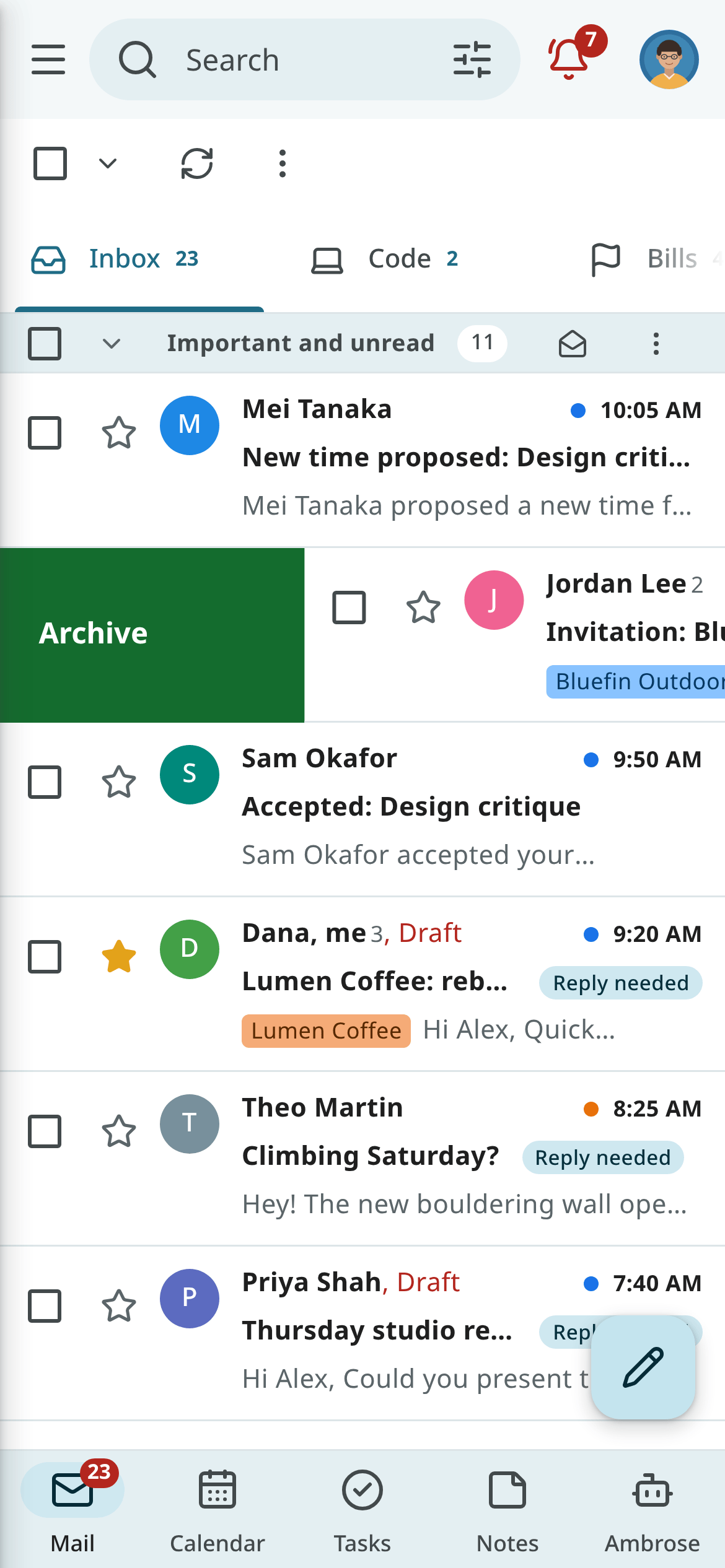
- The tab bar at the bottom: Mail (with the same number as Inbox in the navigation, see The Inbox count), Calendar, Tasks, Notes and Ambrose, always in this order, with Ambrose at the right. Tap Mail again to go back to the top of the list. The bar holds at most five tabs.
- Tap the menu button at the top left to open the mail drawer: every mailbox (Starred, Sent, Drafts, Spam, Trash …), the categories and your labels. In the Focus style, tap the name of the list at the top left instead.
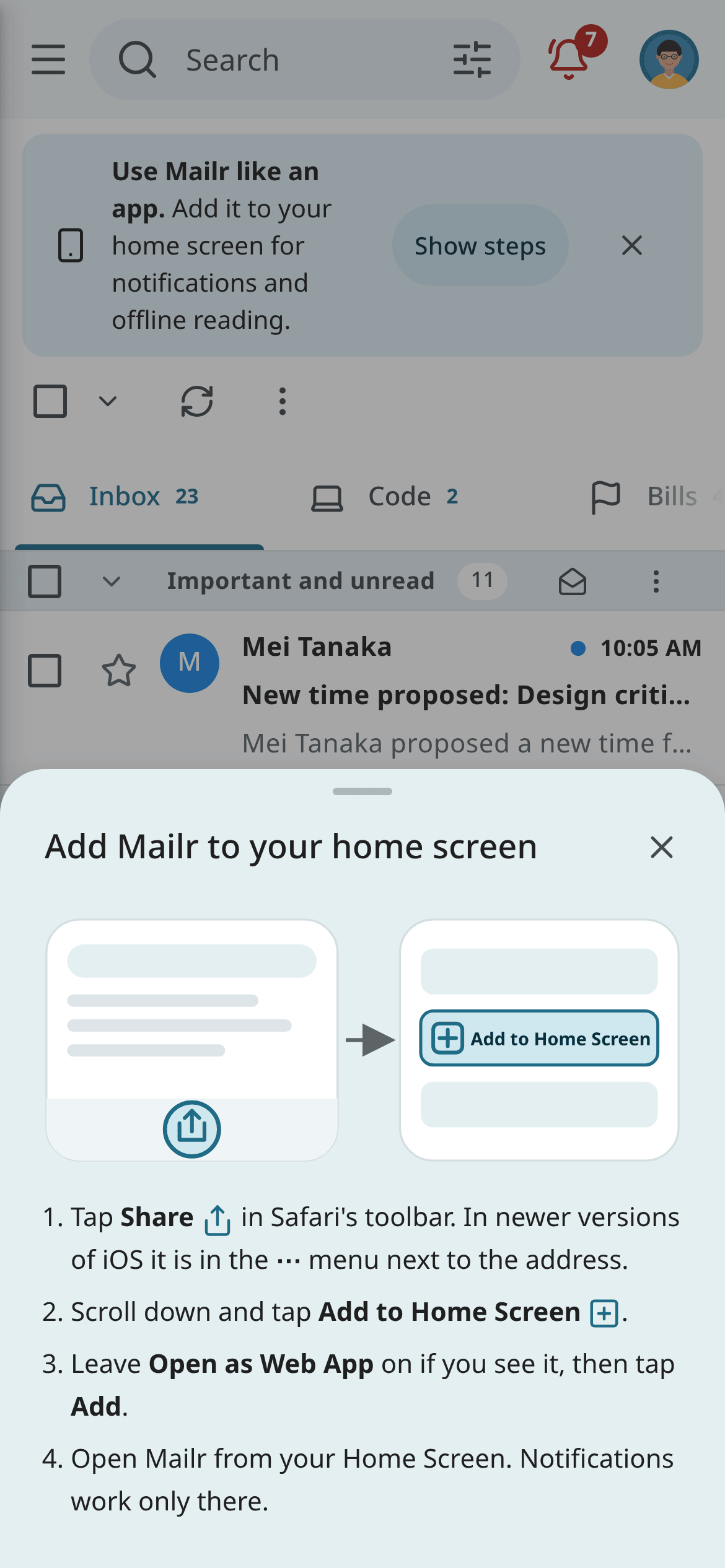
- Tap your picture at the top right to open a menu with Settings, Accounts & identities, Recordings when you use them, Pending changes when some wait, Install app and Sign out. A small dot on your picture means changes made offline wait to be sent.
- Menus are shown as sheets from the bottom of the screen. Drag a sheet down, or tap outside it, to close it.
- The ⋮ menu of a conversation, and of a selection in the list, has the common actions first, then the groups Create from email (in a conversation), Organise and More (Mute, Report spam). A long sheet scrolls.
- An open conversation has the whole screen; go back to see the tab bar again.
- Ambrose fills the screen above the tab bar. Tap a citation, a source or a link in an answer to hide the Ambrose panel and show the email, event, task or note. Tap Back to Ambrose, the Ambrose tab or go back to see the same chat again. Links to other websites open in a new tab.
Gestures
| Gesture | Effect |
|---|---|
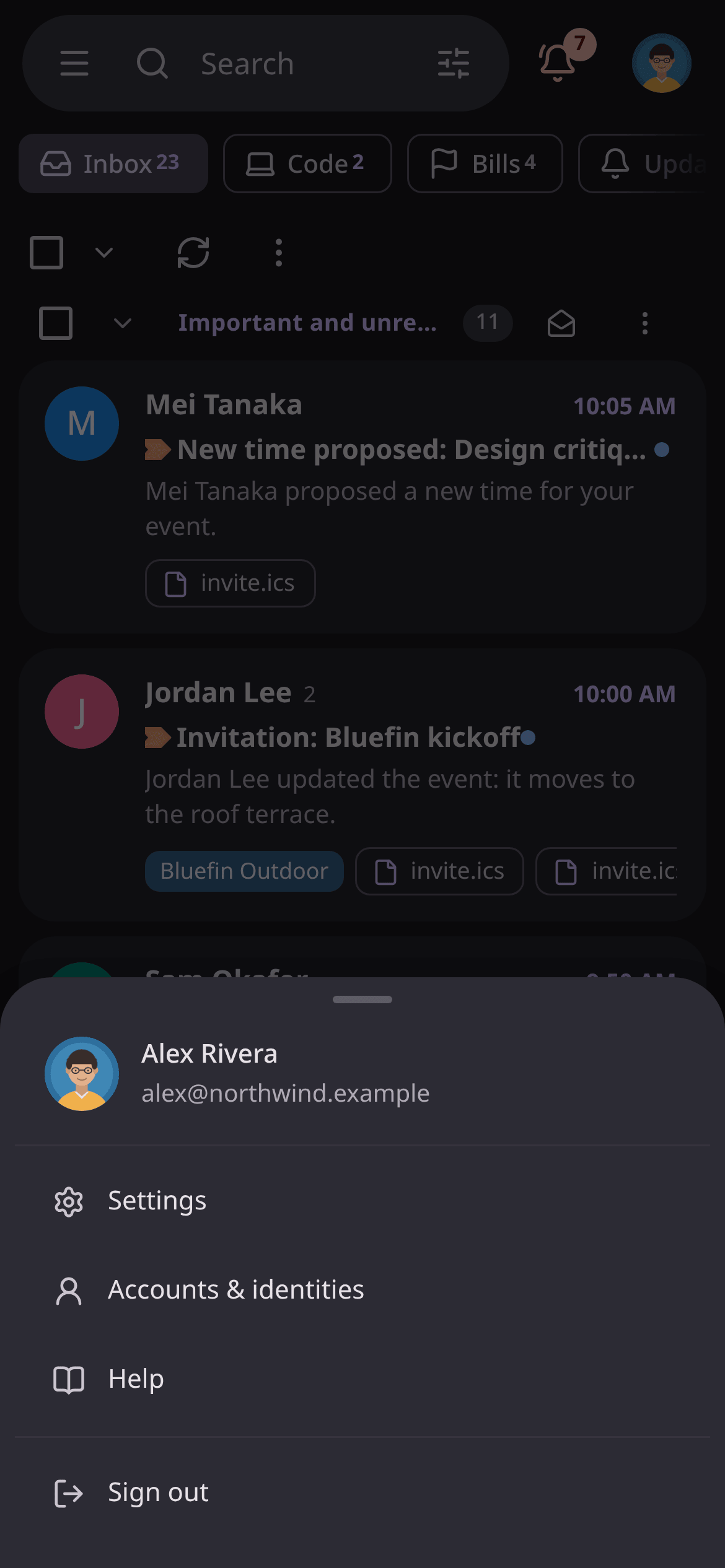
| Swipe a conversation to the right | Archive (not in the Inbox: move to Inbox; in Trash: restore; in Spam: not spam) |
| Swipe a conversation to the left | Delete (move to Trash) |
| Press and hold a conversation | Its menu: read or unread, star, labels, move, snooze and more |
| Pull the list down from the top | Refresh it |
Change the swipe actions in Settings → Mail → Reading → Swipe actions: Archive, Delete, Mark read/unread, Snooze, Star or None, for each direction. The choice belongs to the device, as in the Android app. A swipe that is not far enough slides back. Use Undo in the message at the bottom to take a swipe back.
When the phone is set to reduce motion, rows and sheets appear and disappear without sliding.
Notifications
Turn them on in Settings → Notifications on the phone itself; each phone and each browser is set up on its own. You are asked for permission the first time.
| Setting | Notifications |
|---|---|
| New mail | Off, VIP senders only, Important mail, Important and Primary or All new mail |
| Waiting for you | An agent or Ambrose asks for your approval, or a message wasn't sent |
| Messages from Ambrose | Messages and results from Ambrose and your standing orders |
| Push to this browser (under On this computer) | The notifications above, and event and task reminders, on this phone (see Notifications) |
A notification shows who wrote, never the text of the message. Tap it to open the conversation. Where notifications have buttons (Android), new mail has Archive and Mark read. Once you read a conversation, in Mailr on any device, its notification is removed the next time you open Mailr on the phone.
The app icon shows the number of unread conversations in your Inbox, where the phone supports it.
On an iPhone
- Notifications work only for Mailr added to the Home Screen and opened from there, on iOS 16.4 or later. In Safari, Settings → Notifications says so, with a link to the install steps.
- Turn notifications on from inside the Home Screen app: permission is asked for only after a tap.
- On iOS, web notifications have no buttons. Tap a notification to open Mailr on the conversation or the reminder.
- To stop them, turn the settings off in Mailr, or turn Mailr off in the iPhone's Settings → Notifications.
Offline use
Recently viewed content is kept on the phone:
- the app itself, so it opens without a connection;
- the last list pages you opened (up to 40), the conversations you opened (up to 150) and their message bodies, and the session, labels and counts needed to start.
When the phone has no connection, the line You're offline. Showing what's cached. is shown. For a conversation never opened, its subject and sender are shown with a note that it opens when the connection is back. Search, attachments and new mail are available only with a connection.
Actions taken offline are kept and sent later:
| Kept for later | Not offline |
|---|---|
| Archive, delete, move back to the Inbox or restore from Trash | Sending mail (the draft stays on the phone and is restored) |
| Mark read or unread, star, important | Snooze, move to a label, report spam |
| Add or remove a label | Calendar, tasks and Ambrose |
A pending changes chip shows how many changes wait. Tap it to see them. When the connection is back, they are sent in the order they were made, and a note says so. A change that cannot be made (the conversation was deleted on another device, for example) is dropped; one that is refused stays in Pending changes as failed, with Retry and Discard. A change and its opposite (star, then remove the star) cancel each other before anything is sent.
When you sign out, the mail kept on the phone is deleted. Changes that have not been sent wait until you sign in again as the same person.
Limits
The storage allowed for an app depends on the phone. On iOS, the stored mail of a Home Screen app you have not opened for some weeks may be cleared, and changes are not sent in the background: they are sent the next time you open Mailr.
Updates
When the server has a newer version of Mailr, New version of Mailr is shown with Reload. The update is applied only when you tap Reload; open drafts are kept.
Returning to the last page
Mailr may be closed while it is in the background. When it is opened again within an hour, the last page is shown again.