Set up the first admin
This page covers the first sign-in to a new server with the admin account from .env, for the
person who installed Mailr. Every user, including the admin once the server runs, sets up mail with
the setup guide.
Sign in as the first admin
Open the MAILR_BASE_URL in a browser. The sign-in page is shown.
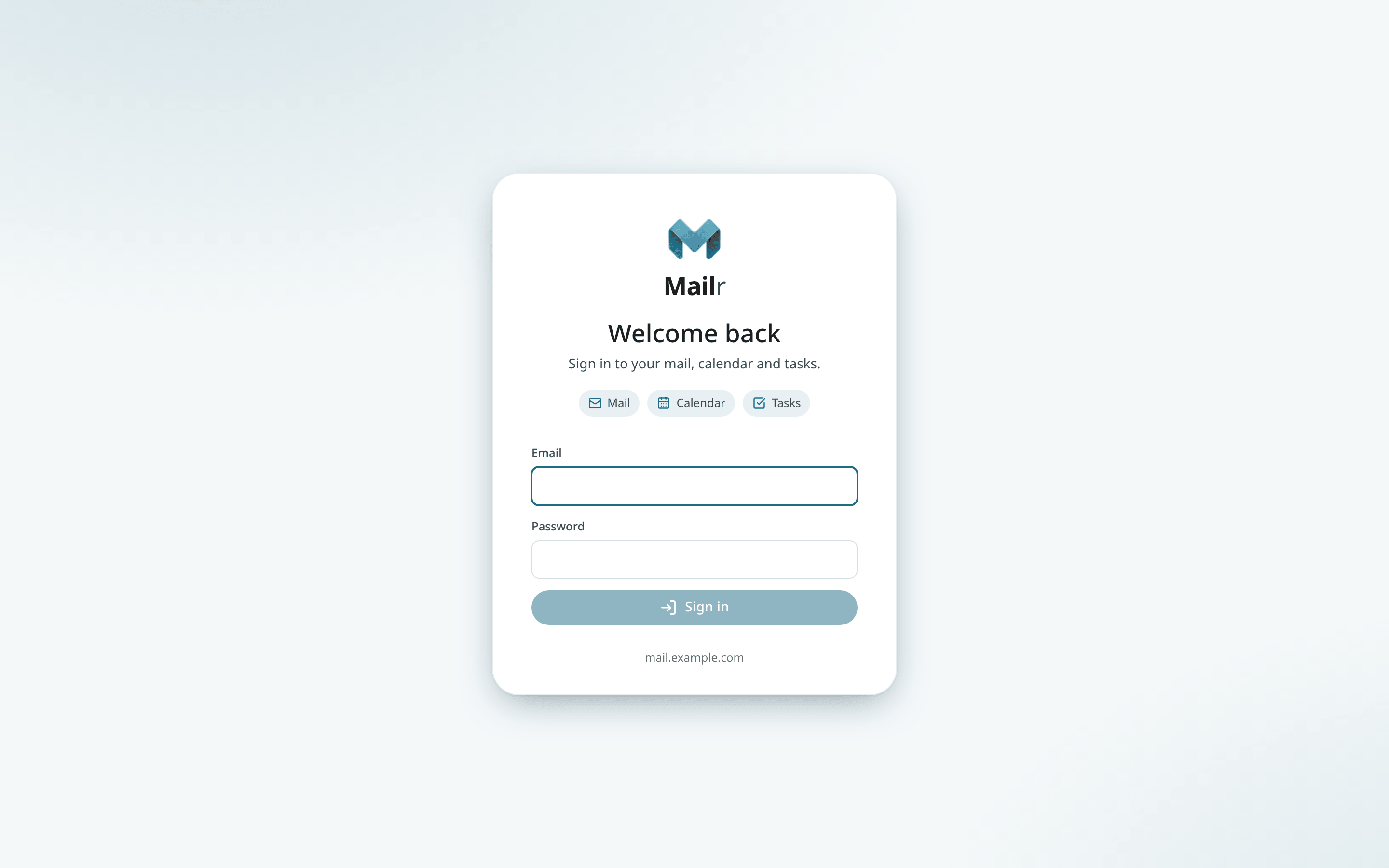
Enter the MAILR_BOOTSTRAP_ADMIN_EMAIL and MAILR_BOOTSTRAP_ADMIN_PASSWORD from your .env. This account is created by the app on its first start, when there are no users yet, with the password from .env. Changing these values later does not change the account. For an admin who signs in only with single sign-on, leave MAILR_BOOTSTRAP_ADMIN_PASSWORD empty.
Change the password
After you sign in, open Settings → You → Password & devices and pick a new password. You can then remove MAILR_BOOTSTRAP_ADMIN_PASSWORD from .env.
Email and password, or single sign-on
One or both sign-in methods can be turned on.
By default, each user signs in with a password stored in Mailr. Password sign-in stays on with MAILR_LOCAL_LOGIN=true. With MAILR_ALLOW_SIGNUP=true, people can create their own accounts; sign-up is off by default, so an admin adds every user.
Set MAILR_OIDC_ISSUER and MAILR_OIDC_CLIENT_ID, and a Continue with … button, named after your provider's host, is shown on the sign-in page. Any OIDC provider works, such as Pocket ID, Authentik, Keycloak or Authelia. See Sign-in and OIDC.
Once single sign-on works, you can set MAILR_LOCAL_LOGIN=false so that single sign-on is the only way in.
The app's main areas
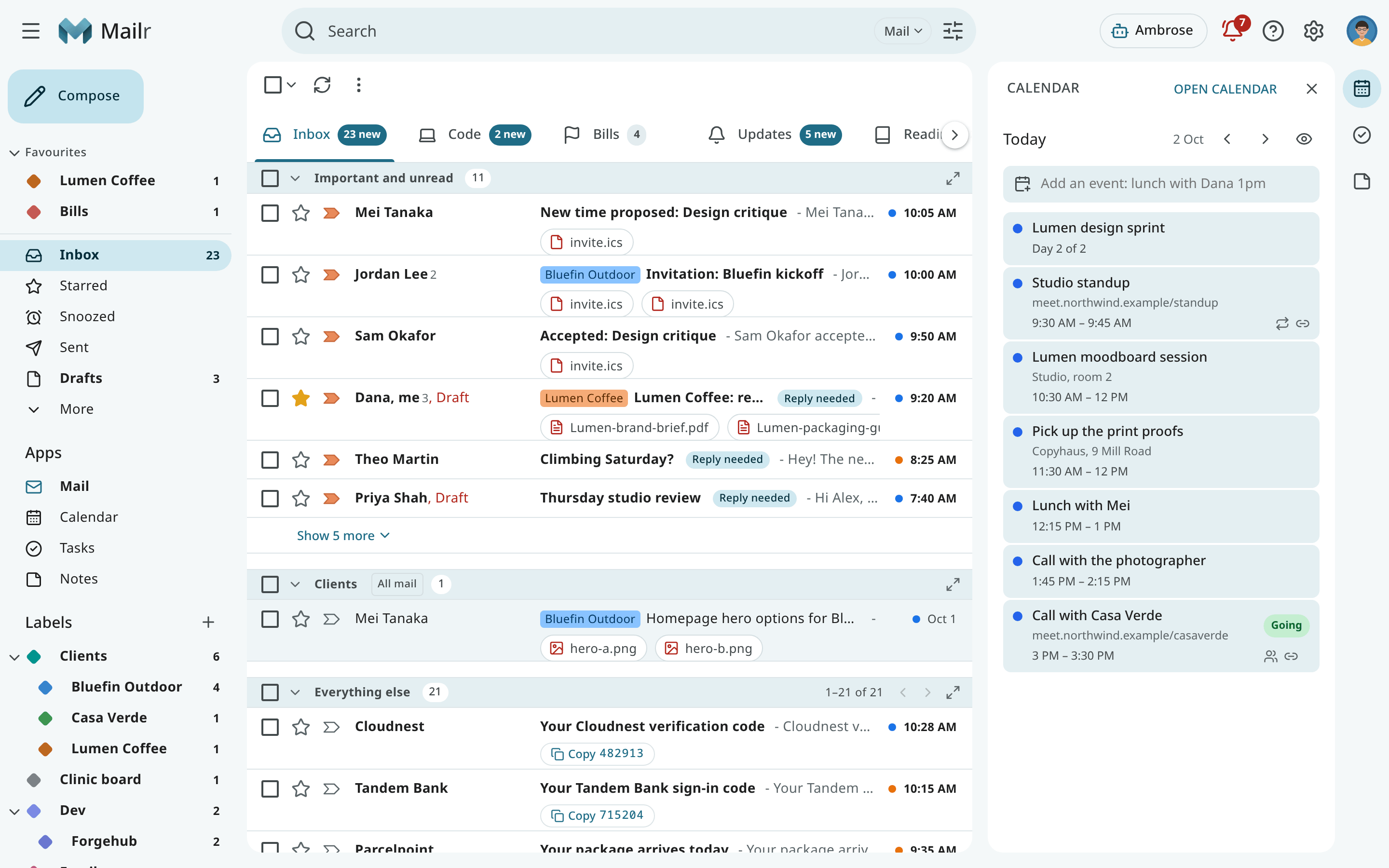
- Navigation on the left: Compose, the mailboxes, the apps, labels and Favourites.
- Search across the top. Gmail-style operators are supported there, such as
from:andhas:attachment. - Apps: Mail, Calendar, Tasks, Notes and, once Speakr is connected, Recordings, in this order in every style.
- Top bar buttons: Ambrose, the assistant (
Ctrl + .), waiting approvals, help (press?for the keyboard shortcuts), Quick settings for style, text and spacing, and reading pane, and the account menu. - Panels on the right (Classic): a small calendar, tasks or notes beside the mail.
- Settings: everything else, in nine groups: You, Look, Mail, Calendar & tasks, Notes & tables, Notifications, Ambrose, Agents & API and, for admins, Admin. See Settings.
Until a mail account is added, the inbox shows "No mail account connected yet" with Connect an email account, which opens Settings → Mail → Mail accounts with the Add account wizard.
Before the setup guide
Two admin settings are worth making first, because the setup guide and the apps use them:
- Built-in calendars. Turn them on under Settings → Admin → Calendars → Give users a Mailr calendar. Without them, Calendar and Tasks show "No calendar connected yet" until someone connects a calendar. An admin sees "Built-in calendars are off…" there, with Turn on built-in calendars. See Calendars.
- A model, if you use one. Add it under Settings → Admin → Models (see Models). The setup guide's "About you" step is a chat with Ambrose, which needs a model; without one, the step is skipped and can be done later.
Set up your own mail
For the admin account from .env, the setup guide is not opened automatically. While the account has no mail
address to send from, a Set up Mailr card is shown in the inbox. Choose Start to connect your
mail, pick a look and get the phone apps, as every new user does. You can open the guide at any
time from Settings → You → Profile → Setup guide.
Next
- Turn on built-in calendars and add a model, if you have not yet.
- The setup guide, or connect the mail accounts directly.
- Add the other users. Each of them gets the setup guide at their first sign-in.
- Publish the phone apps, so new phones can download them from the server.