Notes and checklists
Notes are short cards, as in Google Keep. A note holds text, or it is a checklist: a list of items you check off, such as a shopping list or a packing list. A note can switch between the two at any time. Notes are stored on the Mailr server, next to mail, events and tasks.
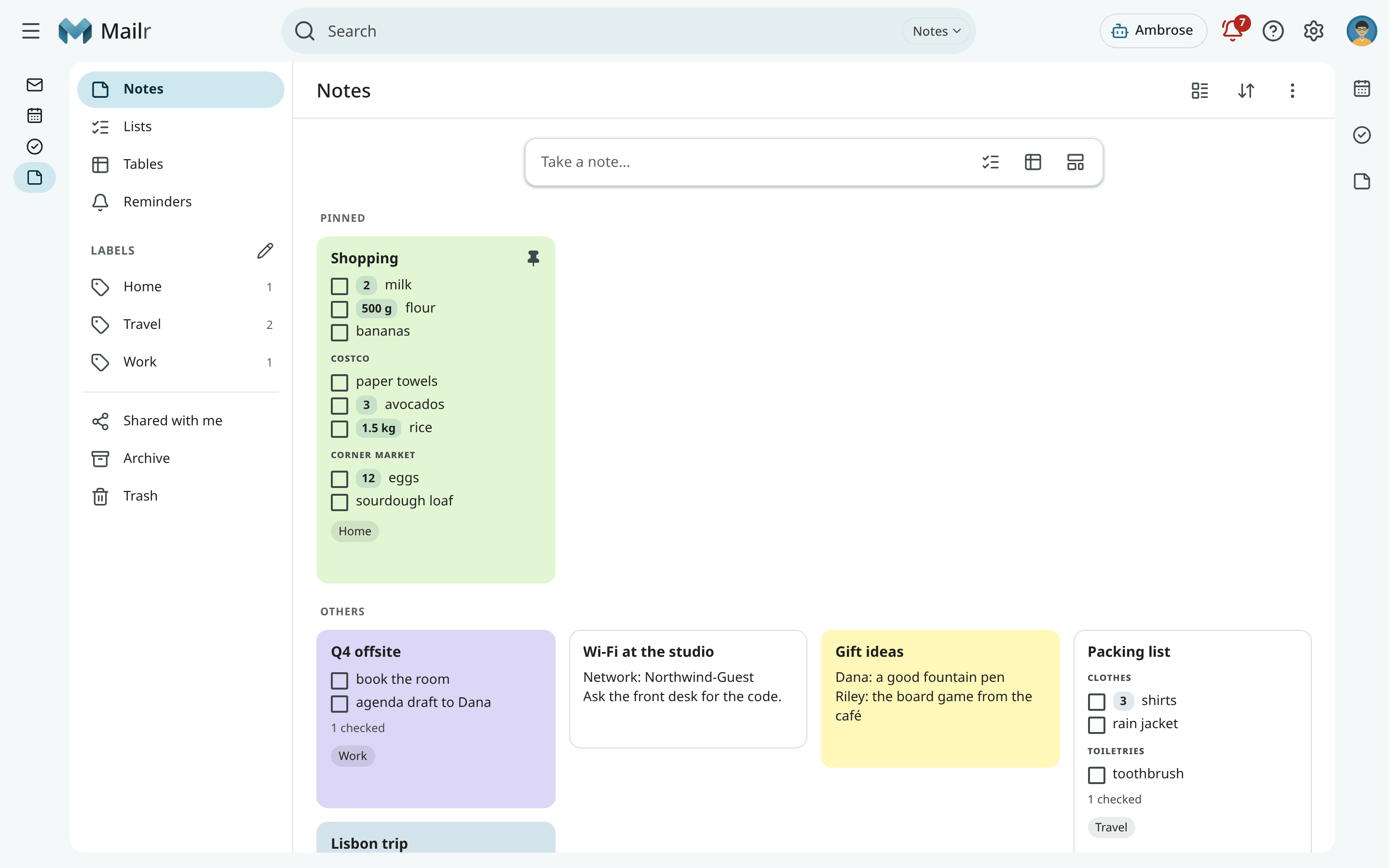
Click Notes in the navigation, or press g then n from anywhere. In the Focus style,
click the note icon in the top bar, or choose Go to Notes in the command palette. On a phone,
tap Notes in the bottom bar. Tables are part of Notes, under Tables in its left column.
Tap Notes in the bottom bar of the Mailr app. See Notes, lists and tables.
Notes are separate from Ambrose's memories, which are under Settings → Ambrose → Memory.
The grid
The views are listed in the left column:
| View | Contents |
|---|---|
| Notes | Every note not archived or moved to Trash. |
| Lists | Checklists only. |
| Tables | Tables only (Tables). |
| Reminders | Notes with a reminder of yours, the next one first. See Reminders. |
| Labels | The notes with one of your note labels. The number is how many notes have it. |
| Shared with me | Notes and tables other people share with you, and your groups' lists, by owner. |
| Archive | Notes you archived. |
| Trash | Deleted notes, for 30 days. |
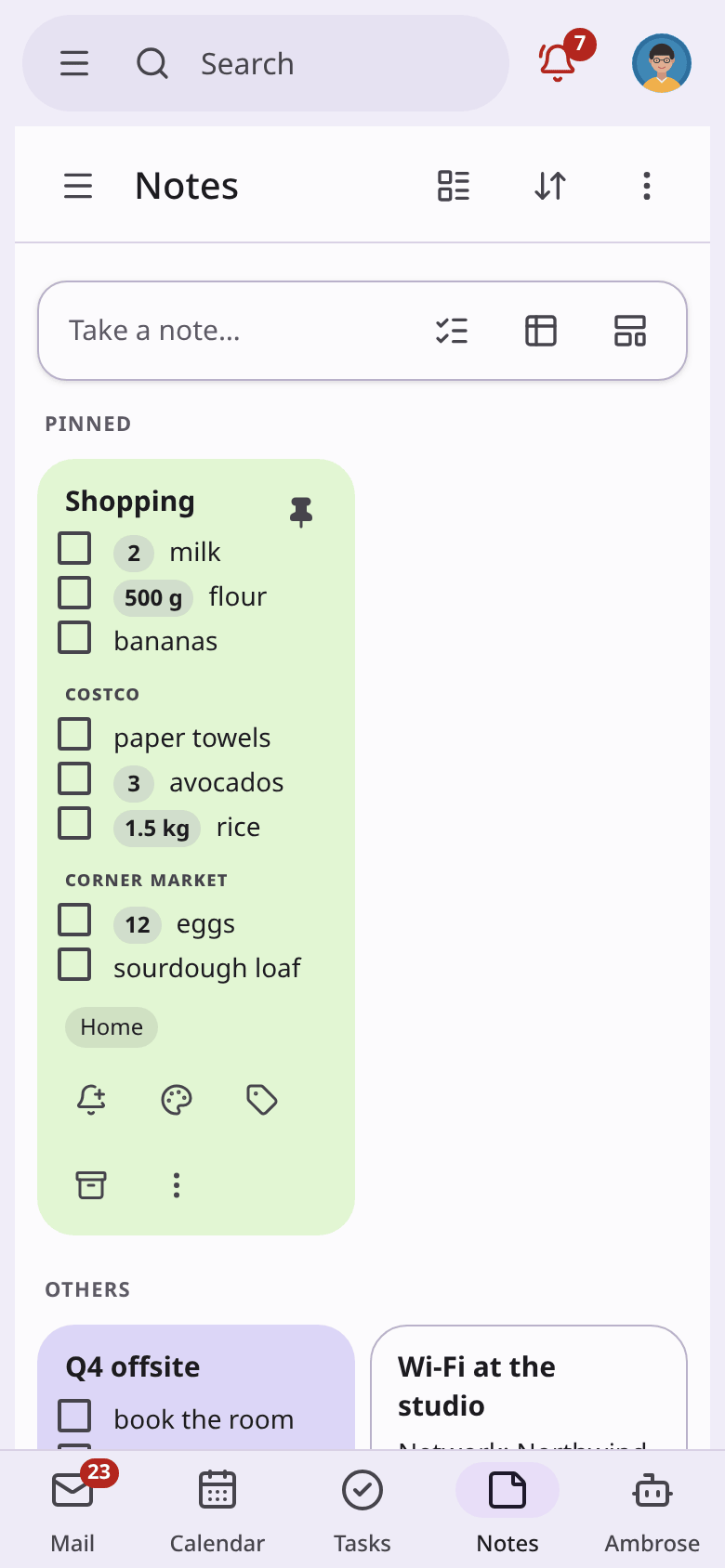
Pinned notes sit at the top, under Pinned. The rest follow under Others. With the buttons in
the header, you switch between a grid and a single column and change the sort: Manual (your own
order), Edited, Created or Title. In Manual sort you drag a card to a new place, or
press Alt + ← and Alt + → on the focused card.
A card shows the title, the first lines of a text note, or the first eight open items of a list with their quantities and section names. Items left off the card are summed up in a line such as "+ 6 more · 4 checked". Click a checkbox on a card to check the item in place.
To act on several cards at once, click the round tick at a card's corner, or press x on the
focused card. With the bar above the grid, you then pin, archive, label, colour or delete them all. One
toast shows what changed, and with its Undo every card is put back as it was.
Take a note
Click Take a note… above the grid, type a title and the text, then click anywhere outside the
card or press Esc. The note is saved. An empty card is not saved.
- Use New list (the checklist button, or
l) to start a list instead. A list has a Title field and an Items field, and it opens with the cursor in Items. Type one item per line, or separate items with commas. Click Title above the items to name the list. - In a label's view, a new note gets that label.
- Use New list in a group (the people button) to make a list that belongs to one of your groups, such as "Team". Everyone in the group can edit it. See Share a note.
- In the command palette (
Ctrl + K), you can type New note: … and New list: …. Under "New list" you also see a task list; pick the checklist for Notes. - Use New from template (the template button) to start a note, a list or a table from a template. See Templates.
Edit a note
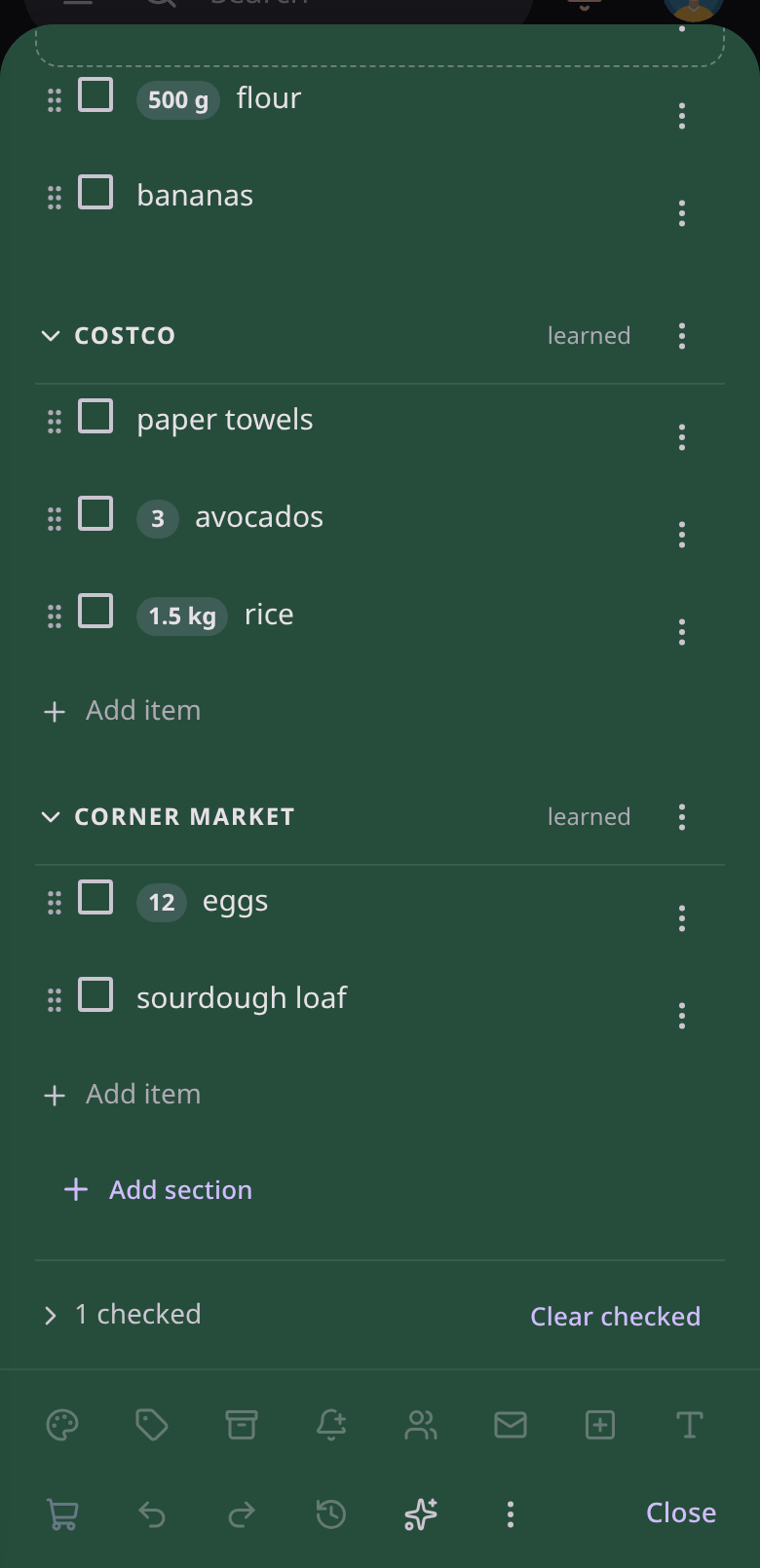
Click a card to open it. Where it opens depends on your style: a card over the grid (Classic and Focus), the reading pane (Workspace), the pane below the grid (Desk), or a sheet from the bottom (Cards, and every phone).
A note that opens over the grid works like any dialog. The rest of the page is unavailable until
you close the note, and with Tab you move only between the note's own controls. Press Esc to close it (in an
item you are editing, the first Esc leaves the item). The keyboard focus goes back to the card. An
open Ambrose panel stays usable beside the note. In the reading pane and the pane below the grid,
the notes stay usable while the note is open.
Changes are saved 1.5 seconds after typing stops, and at once when you leave a field or
close the note. There is no Save button. In a text note, bold, italics, links and -
bullets are shown formatted when you are not typing in the text.
If the note changed somewhere else while you typed (in another tab, or on your phone), the two versions are merged. Only when both versions changed the same line are you asked, in a bar, to keep theirs or use yours.
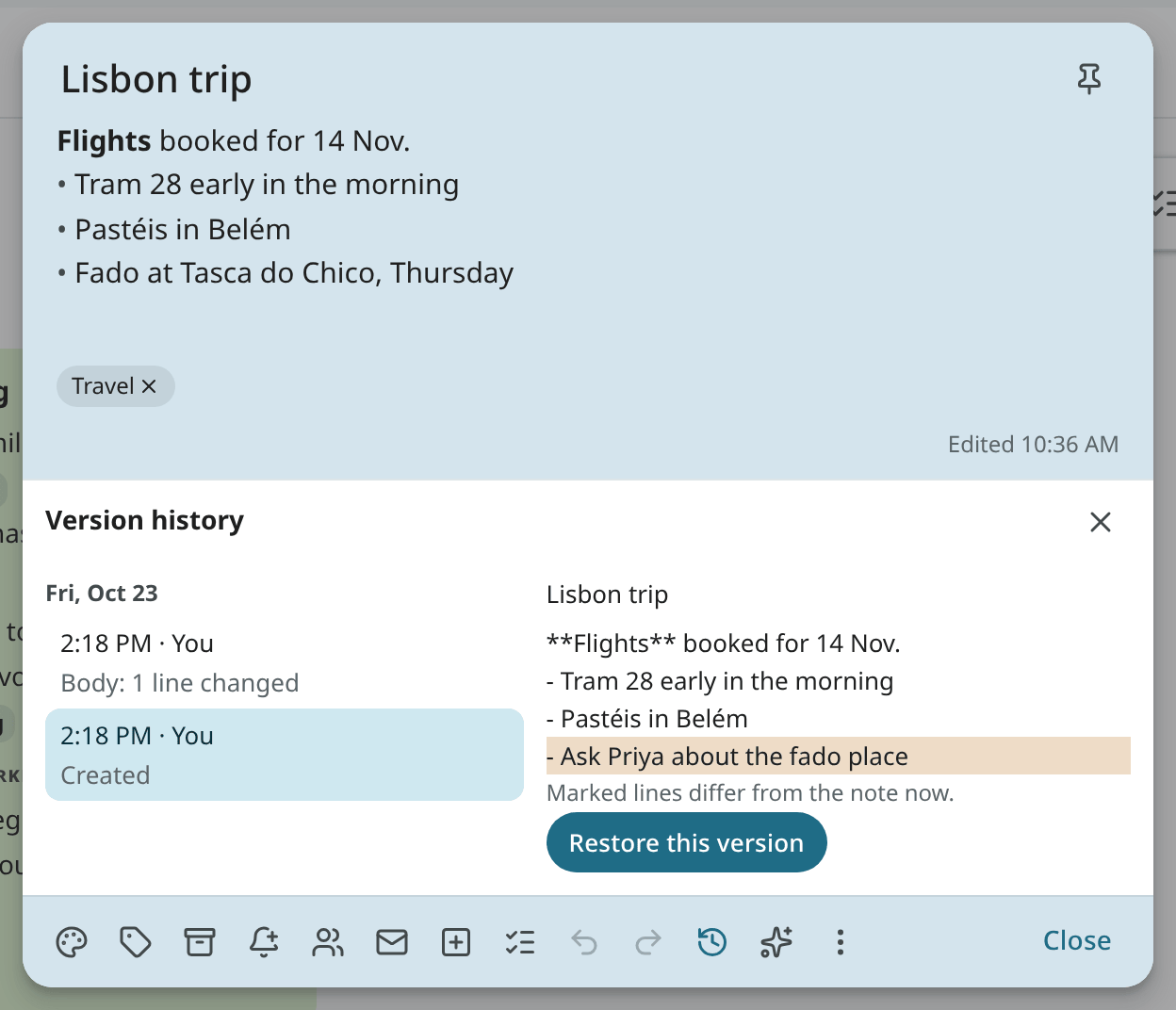
Version history (the clock button) lists the saved versions of the last 30 days, by day, with who made each one and what changed. Select one to see it, with the lines that differ from now marked. With Restore this version, it is saved as a new version, and the restore can itself be undone.
Undo and redo
While a note is open, its changes are kept in a list and can be undone and redone one at a time. Use the Undo and Redo buttons at the bottom of the note, or the keys:
Ctrl + Z(⌘ Zon a Mac) undoes the last change.Ctrl + Shift + Z(⌘ ⇧ Z) orCtrl + Yredoes it.
Each of the following counts as one change:
- Typing is undone a word at a time, or up to a pause of about a second.
- A paste, a cut, a spelling correction, a replace, a dictated phrase or a rewrite by Ambrose is one change. When you paste over the whole text by mistake, the old text is back after one undo.
- On a list, each tick, added or deleted item, move, section change and Clear checked is one change. So are a new colour, a label and Make it a list.
An undo or a redo is saved like any other edit, as a new version. A new change after an undo clears the redo. The list holds the last 200 changes.
When one change removes more than three lines, or clears the note, a message says Text removed with Undo.
While you type a new item, or change an item's text and have not left it yet, Ctrl + Z undoes
your typing in that line only. Outside a note, z still undoes the last action in the Notes app.
Switch between text and list
Use the list button in the editor (Ctrl + Shift + 8) to turn a text note into a checklist. Each line
becomes an item, and a line such as Costco: becomes a section. Use the same button to turn a list
back into text: items become - [ ] lines, checked ones - [x]. Switching back restores
the same items, with their order and history.
Checklists
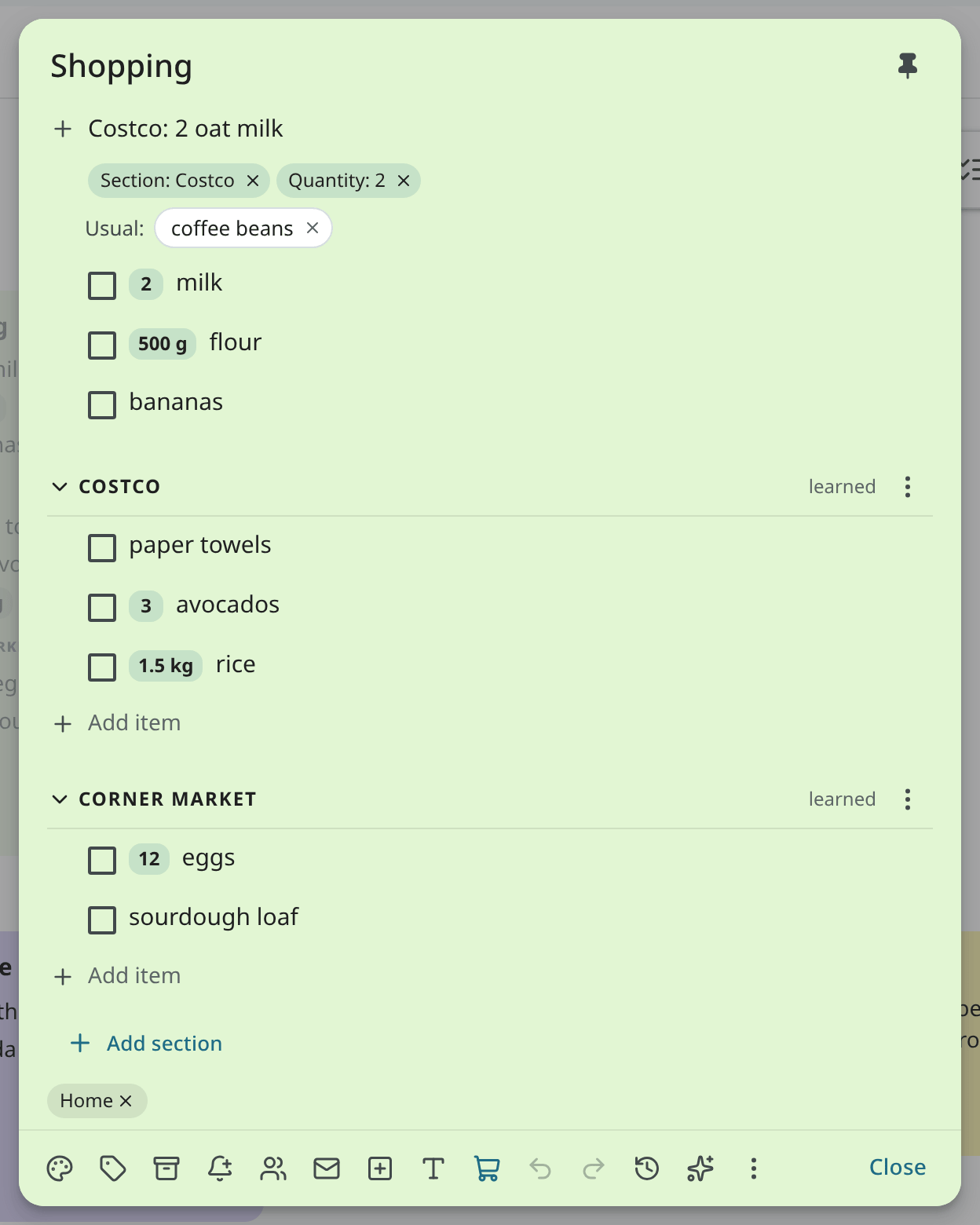
- Add. Type in Add item and press
Enter. Separate items with commas or new lines to add several at once. Each section has its own Add item line. PressEnterin an item to add a new one after it. - Quantities. Type "2 milk", "milk x2", "500 g flour", "Coke 2L" or "rice (2 kg)" to give the item a quantity, shown as a chip. "2% milk", "2026 planner" and "2 x 4 lumber" stay text. Chips under the add line show what will be read; click × on a chip to keep those words as text. Click a quantity chip to change it with − and +, or to remove it.
- Duplicates. When you add an item that is already on the list, the quantities are added up ("milk 1 → 3"). If the item is there but checked, it is unchecked. When the quantities cannot be added, a toast has Add anyway.
- Paste. When you paste several lines, a prompt shows what will be added, such as "Add 7 items to
Shopping (Costco 3, Corner market 4)?". Press
Enterto add them. - Check. Click the box, or press
Ctrl + Enterin the item. The item is struck through and is moved into the "n checked" group at the bottom a moment later. Click it there to uncheck it. - Edit. Click the text. Type "x2" at the end to turn it into the quantity chip. Press
Shift + Enterto add an extra line under the item ("the ripe ones"). - Delete. Empty the text and press
Backspace, or use the item's ⋮ menu. - Move. Drag the handle, or press
Alt + ↑andAlt + ↓. PressAlt + Shift + ↑orAlt + Shift + ↓to move the item to the previous or next section.
Use Clear checked to remove the checked items (they stay in the version history). Use Uncheck all in the ⋮ menu to start a list over, for example a packing list. Use Turn into a task in an item's menu to make a task with the item's text, linked back to the list.
Sections
Use sections to split a list, for example one per shop. Make one with Add section, with a line such
as Costco: when you add items, or with Alt + Enter in an item. Click a section's name to fold
it. Use its ⋮ menu to rename, move or delete it. When a section is deleted, its items are either kept
(moved to the top of the list) or deleted too.
Type Costco: milk, eggs to add both items to Costco. The first letters of a section are enough
when only one section starts with them ("Cor: eggs" for Corner market). In a new list, a section is made
for a name you have not used yet. Costco: 2 milk, eggs makes a Costco section with milk (2)
and eggs. In a list that already exists, add the section first. When items such as "Costco: towels" are
already in the list, the toast after Add section has Move them in.
Shopping lists
Use the cart button to mark a list as a shopping list. Two helpers are then turned on. Both are based on counts of the items checked on this list; no model is involved.
- Learned order. Inside each section, items are sorted in the order in which they are usually checked, so the order of the list follows the route through the shop. Checks less than 45 minutes apart count as one trip. In a section's menu, you switch between Learned and Manual order and see how many trips the order is based on. Use Reset learned order to start again. The items above the first section have their own choice in the list's ⋮ menu, under Order of the items above the sections.
- Usual items. Items you check every so often are suggested again under the top add line: "Usual: coffee beans". Click one to add it to its last section with its last quantity. Click × to hide it until it is due again; right-click it for Never suggest. To turn the suggestions off for the list, use Suggest usual items in the ⋮ menu.
Repeating lists
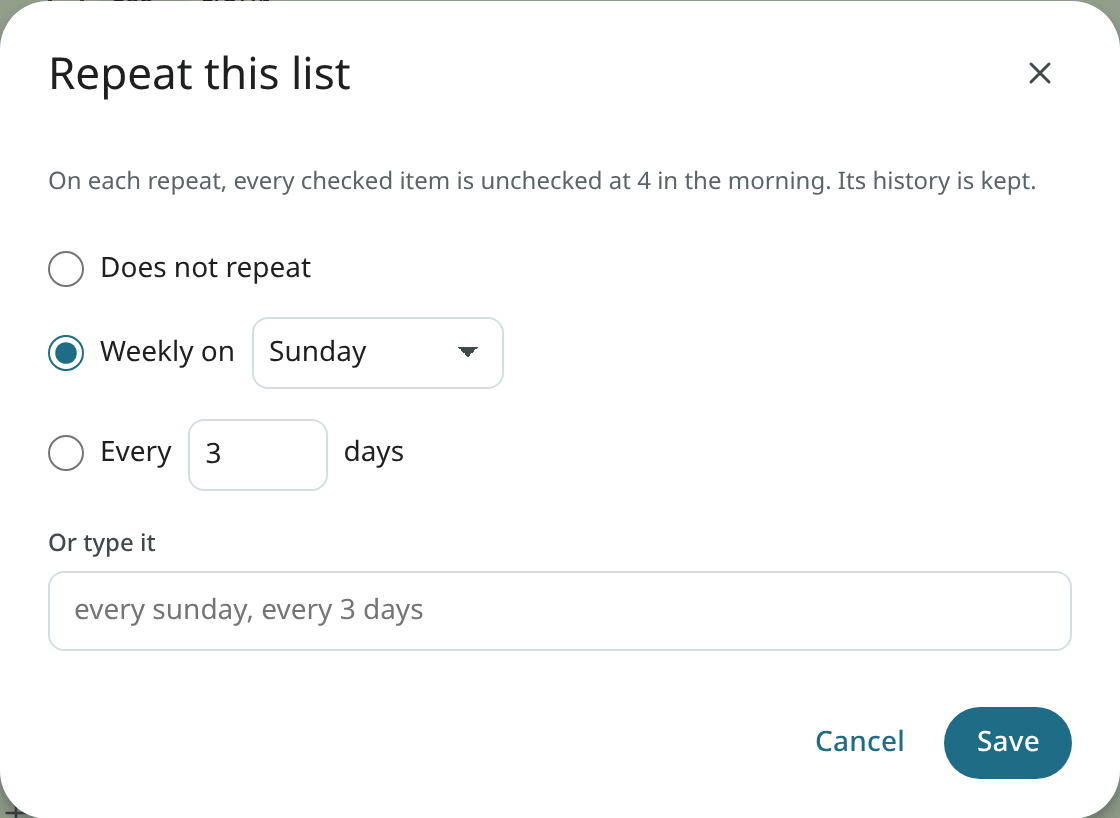
A list of weekly chores, or a packing list for a trip you make often, can be started over automatically. Choose Repeat… in the list's ⋮ menu:
- Weekly on a day, for example Sunday.
- Every few days, for example every 3 days.
- Or type it the way you type a task's repeat: "every sunday", "every 3 days".
On each repeat, every checked item is unchecked at 4 in the morning in your time zone. Nothing is deleted: the checks stay in the list's history, and the repeat is a version of its own, so the checked state can be restored from Version history. Under its items, the list shows "Repeats weekly on Sunday · next Sun 11 Oct", and its card has a repeat mark. To stop it, choose Repeat… again, then Does not repeat.
Reminders
A reminder is a notification about a note at a set time. Open the note and click Reminder (the bell in the toolbar), or click Remind me on a card. Pick Later today, Tomorrow, Next week or Pick a date and time…. The time is shown as a chip on the note, and on its card too. Click × on the chip to remove the reminder; the toast has Undo.
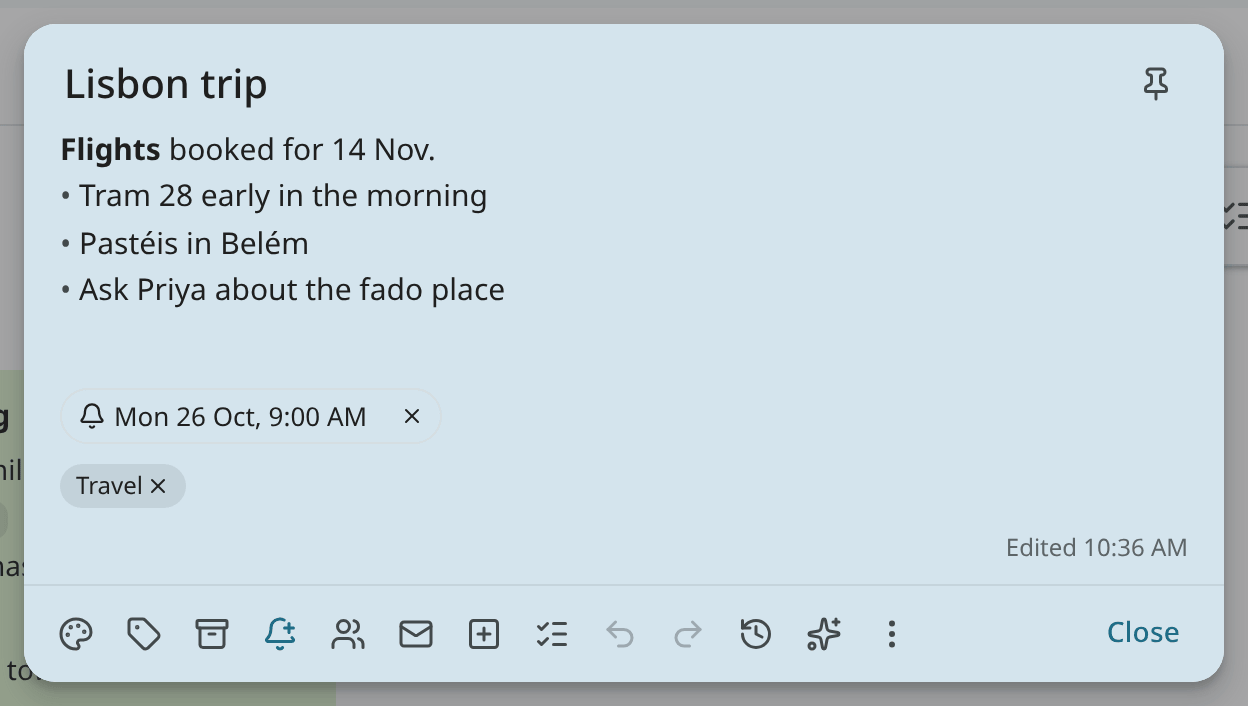
At the set time, the reminder arrives like other reminders: in the bell (Waiting for you), as a browser notification, and on the phones that receive reminders. Use Snooze to bring it back later, or Dismiss to end it on every device at once. See Snooze and reminders.
- A reminder is personal. Other people on a shared note do not receive it, and one can be set on a view-only note.
- Notes with a reminder are listed under Reminders in the left column, the next one first. A note taken there gets a reminder; pick when in the card's footer.
- To find them in search, use
has:reminder. - Items of a list have no reminders of their own. To give an item a time, make it a task (Turn into a task in the item's menu).
- Ambrose can set or remove a reminder on a note ("remind me about the passport note on Friday at 9"). It never snoozes or dismisses one.
Templates
Use a template to start a new note, list or table with the same content each time, such as a weekly shopping list with your shop's sections, a packing list, meeting notes, or the columns of a table.
Click New from template above the grid to open the templates. A few starters are included: a Shopping list with store sections, a Packing list, Meeting notes and an Expenses table. Your own templates follow under Your templates. Click one to make a new note, list or table from it. A list from a template has every item unchecked.
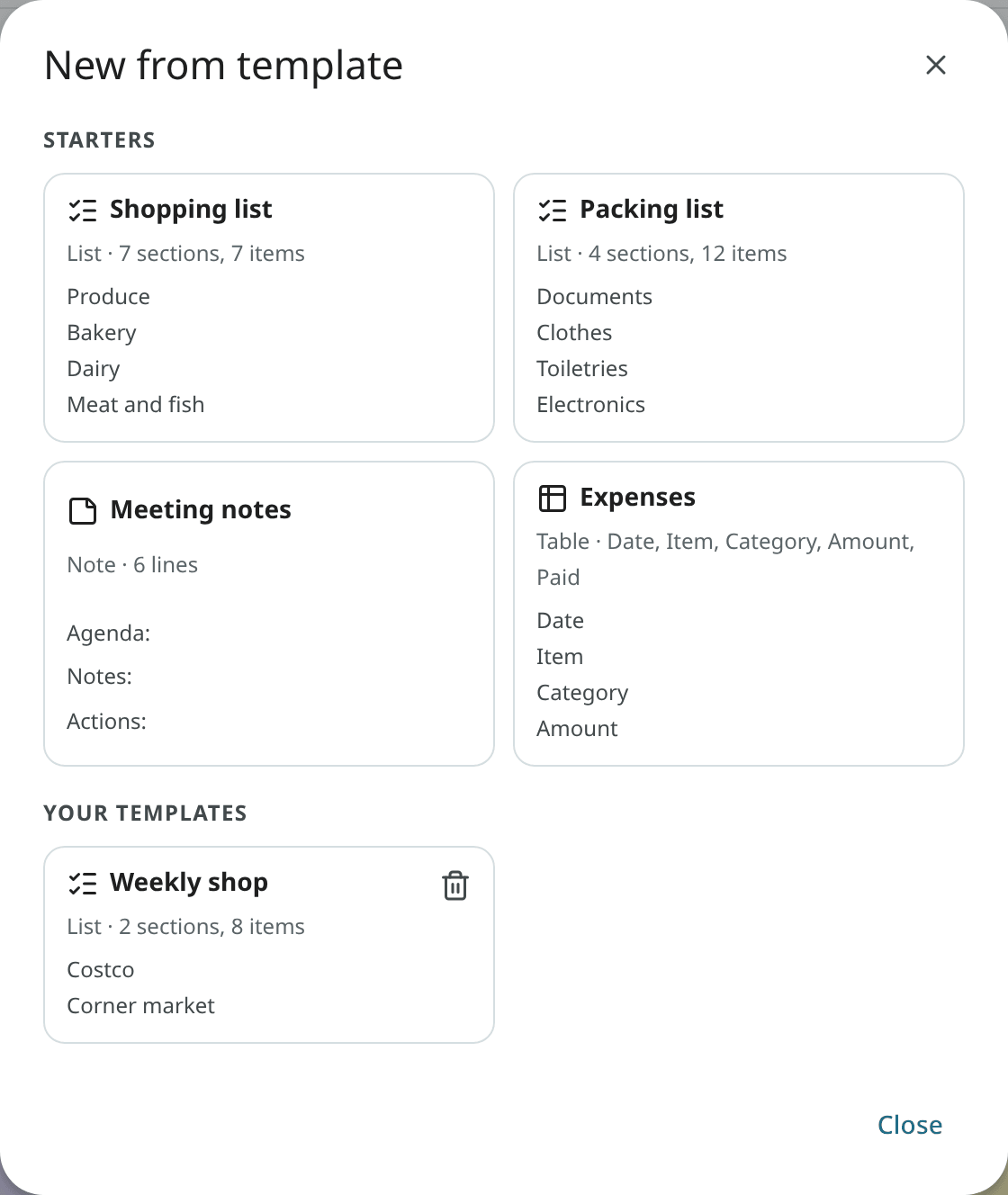
To make your own, open a note or a list and choose Save as template in its ⋮ menu. Name it and click Save template. A template holds the title and the text, or the sections and the items with their quantities. Labels, shares, links and history stay with the note. In a table, use Save as template in the ⋮ menu to keep the columns. Rows and link columns stay with the table. A template made from a note, a list or a table with Local models only keeps that mark: anything made from it is local-only too, and it is hidden from API tokens that are not local-only.
Click the trash button on one of your templates to delete it; the toast has Undo. The starters stay. The template a note came from is never changed when you change the note.
Colours, pins, labels and archive
Hover over a card, or use the editor's toolbar:
- Use Colour to give the card one of 12 named colours.
- Use Pin (
f) to keep the note at the top. - Use Labels (
t) to add your note labels. Type a new name to create one. You can also drag a card onto a label in the left column. Note labels are separate from mail labels and task tags. - Use Archive (
e) to take the note out of the grid; it stays in Archive and in search.
Click the pencil next to Labels to open Edit labels: rename a label (every note keeps it under the new name), give it a colour, move it up or down, or delete it (the notes stay).
Trash
Use Delete (#) to move a note to Trash. A toast has Undo for 7 seconds. In Trash each card
shows how long ago it was deleted and how many days it has left. Use Restore to bring it back
with everything it had. With Delete forever and Empty Trash, you are asked first and offered
a Markdown copy of the notes before they are gone.
Use Make a copy in a note's ⋮ menu to duplicate it, and Make a copy as a list or Make a copy as text to make a copy of the other kind.
Share a note
You can share a note, a list or a table with other people on your Mailr server. Open the note and click Share (the people button in the toolbar), or choose Share… in a card's ⋮ menu.
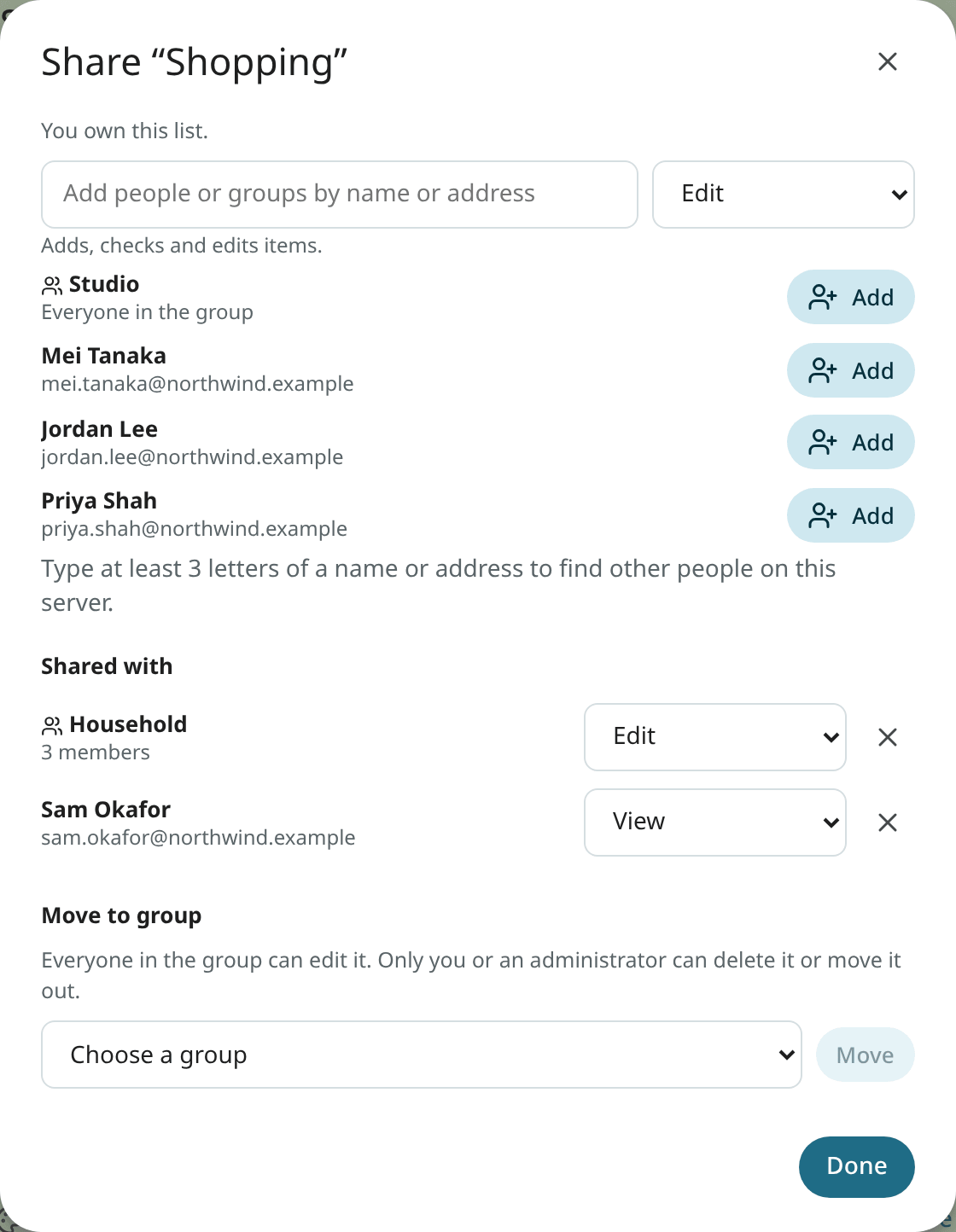
- Type a name or an address. The list shows the people in your groups and the groups you can add. Other people on your server show up once you type at least three letters of their name or address; the full list of people on the server is never shown.
- Pick a level: View (reads it, changes nothing), Edit (adds, checks and changes items), or Edit and share (edits, and shares it with other people too).
- Click Add.
Change a level in the menu next to a person. Click × to stop sharing with them; the note is removed from their notes at once. Someone at Edit and share manages the other people as you do, but cannot change your own access.
The administrator sets whether sharing is allowed with anyone, only with people in the same groups, or with nobody. A narrower setting is noted in the dialog.
Groups. You can share with a group you are in: everyone in it gets the level you pick. Use Move to group in the dialog to hand the note to one of your groups. Everyone in the group can then edit it. Only you, as the person who made it, or an administrator can delete it or Move out of the group. Someone who leaves the group loses access to the note; the note itself stays.
Receiving a share. When someone shares a note with you, you see a short notice in the left column ("Dana shared “Groceries” with you") until you dismiss it, and the note is listed under Shared with me. A note at View is marked "View only · shared by Dana" and its checkboxes are off. A card shows the initials of the people on it, and a dot when someone else changed it since you last opened it. While another person writes, the open note shows "Dana is editing", and their items are marked "Added by Dana". Pins, labels, archive and grid order are kept per person.
Use Remove from my notes (⋮, or in the dialog) to take a note someone shared with you out of your notes. It stays for everyone else. The toast has Undo. A group's list is removed from your notes when you leave the group. In the owner's dialog, the people who removed it are listed, with the day, under Removed it from their notes. Use Share again to give it back to them at View. When you stop sharing with someone who removed it, their Undo no longer brings it back: only a new share from you does.
A link in a shared note (to an email, an event, a task or a recording) is shown with its title only to people who can open the linked item. Everyone else sees "Email (not shared with you)" or "Not shared with you". An API token is shown a title only when the email or the event is inside its limits: a local-only account's mail stays hidden from a token that is not local-only.
Ambrose has the same access to each shared note as its user, and it never shares one. To find
shared notes and tables in search, use is:shared.
Hand a list over. The ⋮ menu of an open list has Share with Mei for up to two people who are in one of your groups and do not have the list yet. With one click, you share it at Edit; the toast has Undo. To share with anyone else, use Share….
Presence. While someone else has a shared list open, you see "Dana is in this list" on yours. You see her ticks as they happen, with her name beside the row for a moment. When she closes the list, the line is removed. Presence is not stored.
Local models only
Turn on Local models only in a note's ⋮ menu to exclude that note, list or table from hosted models: only a model that runs on your own server is used on it, for Ambrose, search and summaries. Anyone who can edit it may turn it on. Only its owner may turn it off; for a group's list, the person who made it. Someone else sees the switch on and locked, with "Only the owner can turn this off." When another person turns it on, the owner is notified. A card has a lock.
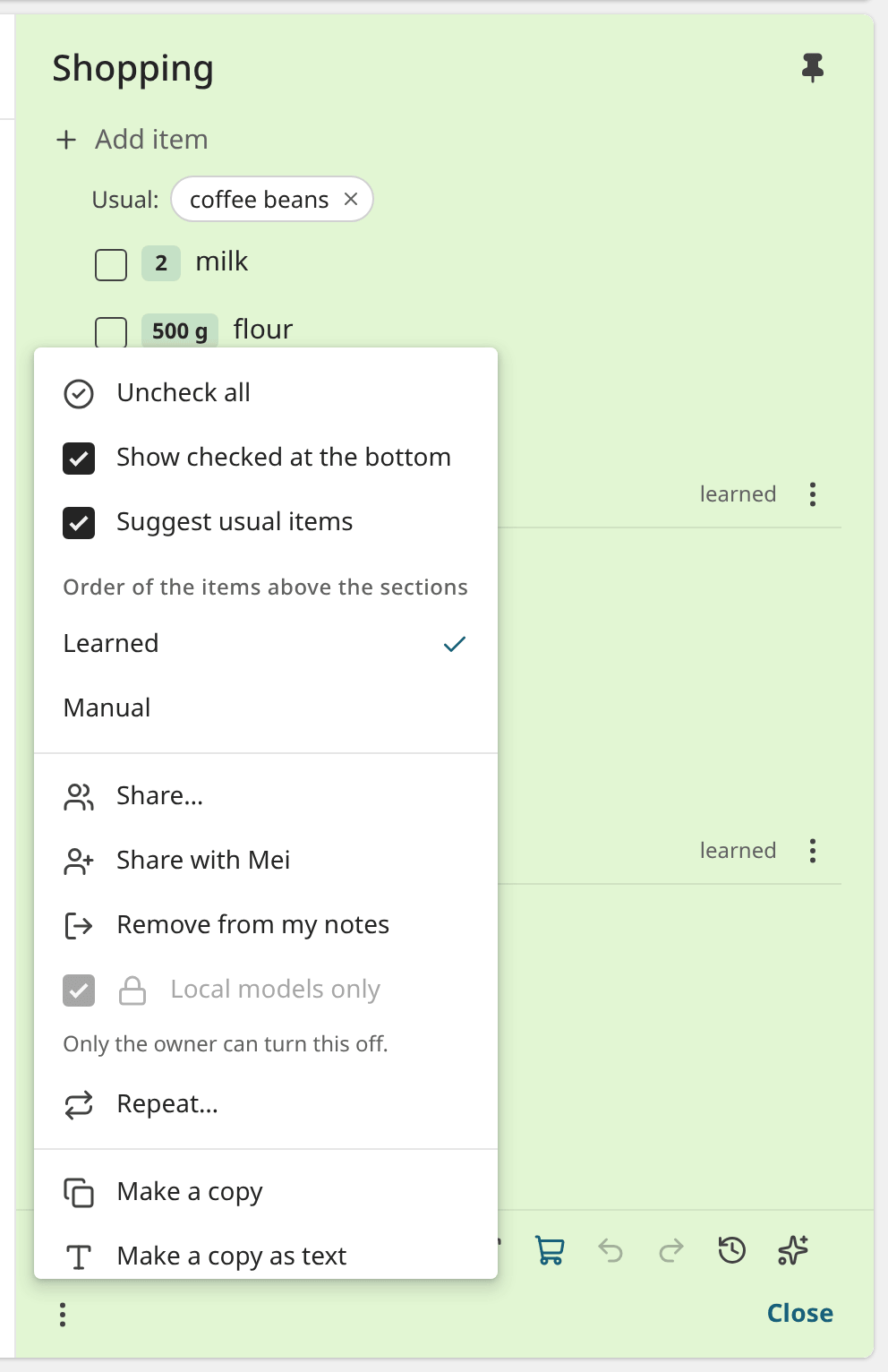
Your own Local models only for me switch, and your administrator's rule for everyone, are described in Local models only. With either one on, every note is treated more strictly, whatever its own switch is set to.
Search
Press / in Notes, or use the search box at the top while its chip says Notes (see
Search). Titles, text, items and section names are searched as you
type. A search with the All chip shows a Notes section above the mail results with
the first three matching notes and See all in Notes. The command palette has Search notes for … and Go to a note by
its title.
Notes from email, and links
In a message's ⋮ menu, use Save to a note to make a note with the subject and a link back to the conversation; text you selected in the message is put into the note. Use Make a checklist from it to turn the selected lines into items. A note or a checklist made from the mail of a local-only account is local-only too, like a note from a local-only recording.
A note's links are shown as chips under the text. Click Add a link (the mail button in the toolbar) to open a search: type a few words, and pick an email, an event, a task or a recording from the results. A pasted Mailr address works too. Click × on a chip to remove the link; the toast has Undo.
The link is shown on the other side as well, as chips you can click. Click × on a chip to remove the link; the toast has Undo.
- On an email, they are shown on its subject line, after the labels. Create from email in the reader's toolbar and in the row's right-click menu has Note, Checklist and Link to a note or table… (search your notes and tables, and pick one). On a phone, it is in the ⋮ menu. See Create from email.
- An event's details, a task's pane and a recording's Links tab have the chips and one Link a note or table button. With it you open the same search; use its last row, New note, to make a note named after the event, task or recording, linked to it.
Create from note
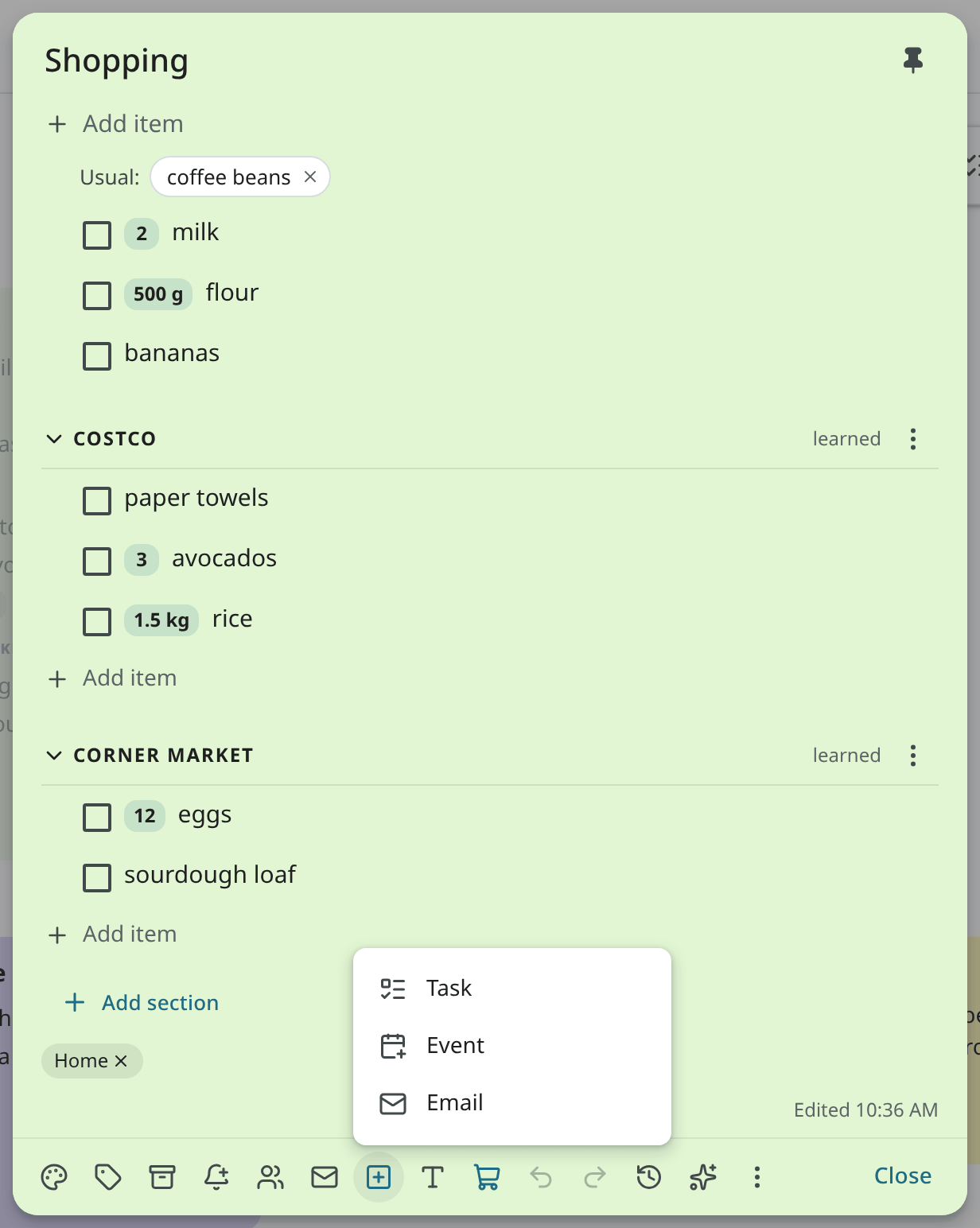
Use Create from note (the square with a plus in a note's toolbar) to make something from the note:
- Task: the task editor is opened with the note's title, and its text with a link back. Once saved, the task is linked to the note, and the message has Open and Undo.
- Event: the event editor is opened the same way. Once saved, the event is linked to the note.
- Email: a new email with the note's title as its subject and its text as the message. For a checklist, the open items are used.
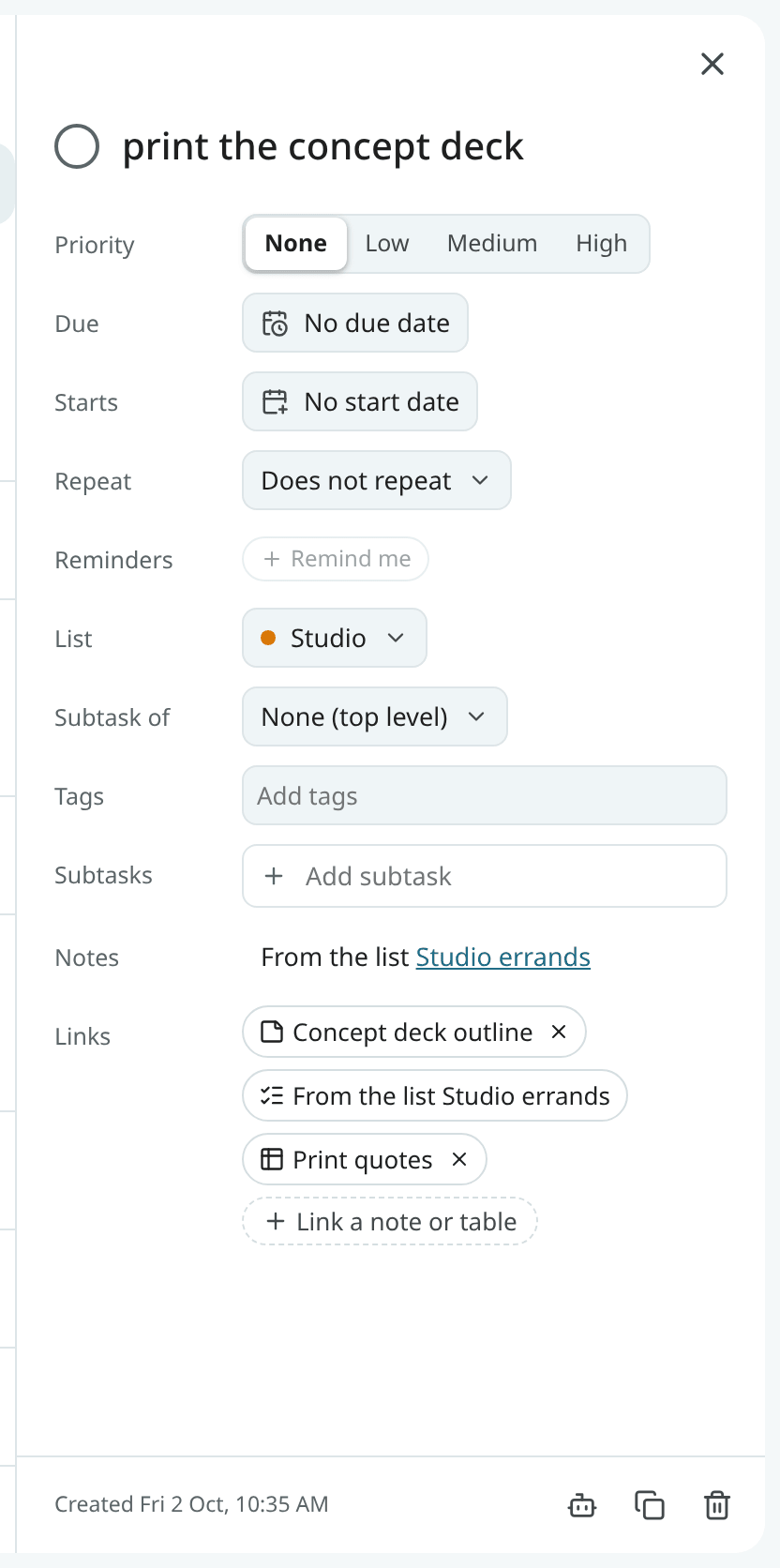
A list item you turned into a task (Turn into a task) is shown on the task as From the list …; click it to open the list at that item.
Use Create note from recording (under the chips in a recording's Links tab) to write a text note from what is known of the recording: its title, the date and time, the people in it, Speakr's summary and the action items. The action items are the summary's own list and the tasks you already made from the recording. The transcript is never included. The note is linked to the recording, and each can be opened from the other. A note from a local-only recording is local-only too. Click the toast to open the note. You can also ask Ambrose: "Make a note from this recording".
Notes beside the page, and the palette
Click the Notes icon on the right (Classic), or choose Notes beside in the command palette in every style, to open a panel next to your mail: your pinned lists with their open items, which you can check, and a line for adding items to a list you choose. In the palette, type Add to Shopping: milk, eggs to add items to a list by its name.
A quick note from anywhere. Press Shift + N anywhere in Mailr, or choose New note… in the
palette. Type a note and press Enter: the first line is its title. Start with # and a list's name
to add items to that list instead. For example, type #Shopping Costco: milk to add milk to the
Costco section of Shopping. The line under what you type shows what will happen ("Add to Shopping: milk", with a chip
"milk · Costco"). For a name that is no list yet, a new list is made. The toast has Open
and Undo.
Ask Ambrose
The assistant can also manage notes and lists. Ask it in plain words, from any screen:
- "Add milk and 2 eggs to my shopping list under Costco." It finds the list by its name, makes the Costco section when the list has none, and reads "2 eggs" as a quantity. Without a section, an item goes where it was the last time you had it.
- "Check off bread and butter." "Move the hinges to Hardware." "Clear the checked items."
- "Make a checklist from this email." It reads the email and proposes a new list that links back to it.
- "Turn these into tasks." The items you selected become tasks, each linked back to its list.
- "What was on the packing list last week?" It reads the list's versions.
Use Ask Ambrose (the sparkle button in the note's toolbar, or Shift + A) to open the ask box
with the note attached. Select items first to ask about those items only.
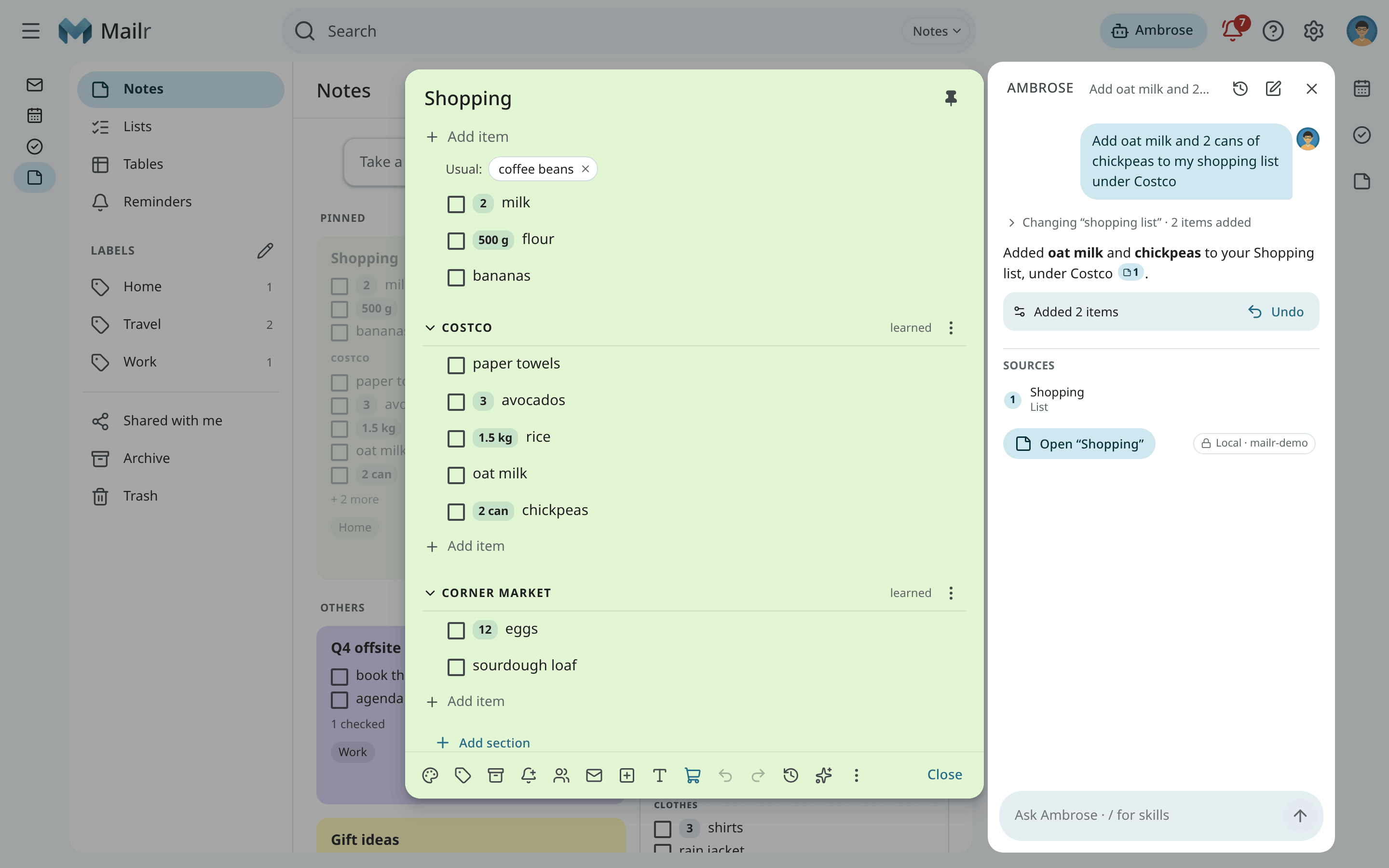
What Ambrose changes is shown in the chat with Undo, and the answer has a link to the list. Each change is a version of its own in Version history, marked Assistant.
Use Save to note (the note button under an answer) to keep the answer as a text note. The note has the answer's text and a "Sources" list, and has links to the emails, events, tasks and recordings the answer cites. A web page the answer cites stays as a line under "Sources". Click the toast to open the note.
Ambrose has the same access to each note as its user. A note shared with you to view only stays read-only for Ambrose too, and Ambrose never shares a note. Approval is required for moving a note to Trash and clearing checked items. When Ambrose has read text from other people in the same request, such as an email or a list someone shares with you, it also asks before it writes new text into a note. No approval is required for checking items. These rules are set under Settings → Agents & API → Permissions, in Notes and checklists. See Approvals for agents.
A local-only note is never sent to a model hosted outside your server. In a chat on such a model, a message states that some notes are hidden from it.
When someone else turns Local models only on (see Local models only), you see a line at the top of Notes ("Dana turned Local models only on for “Camping”"), and the change is recorded in the note's version history or the table's history. When Ambrose or an agent asks to turn it off, approval is always required, and the approval card shows that hosted models could then read the note.
Import from Google Keep
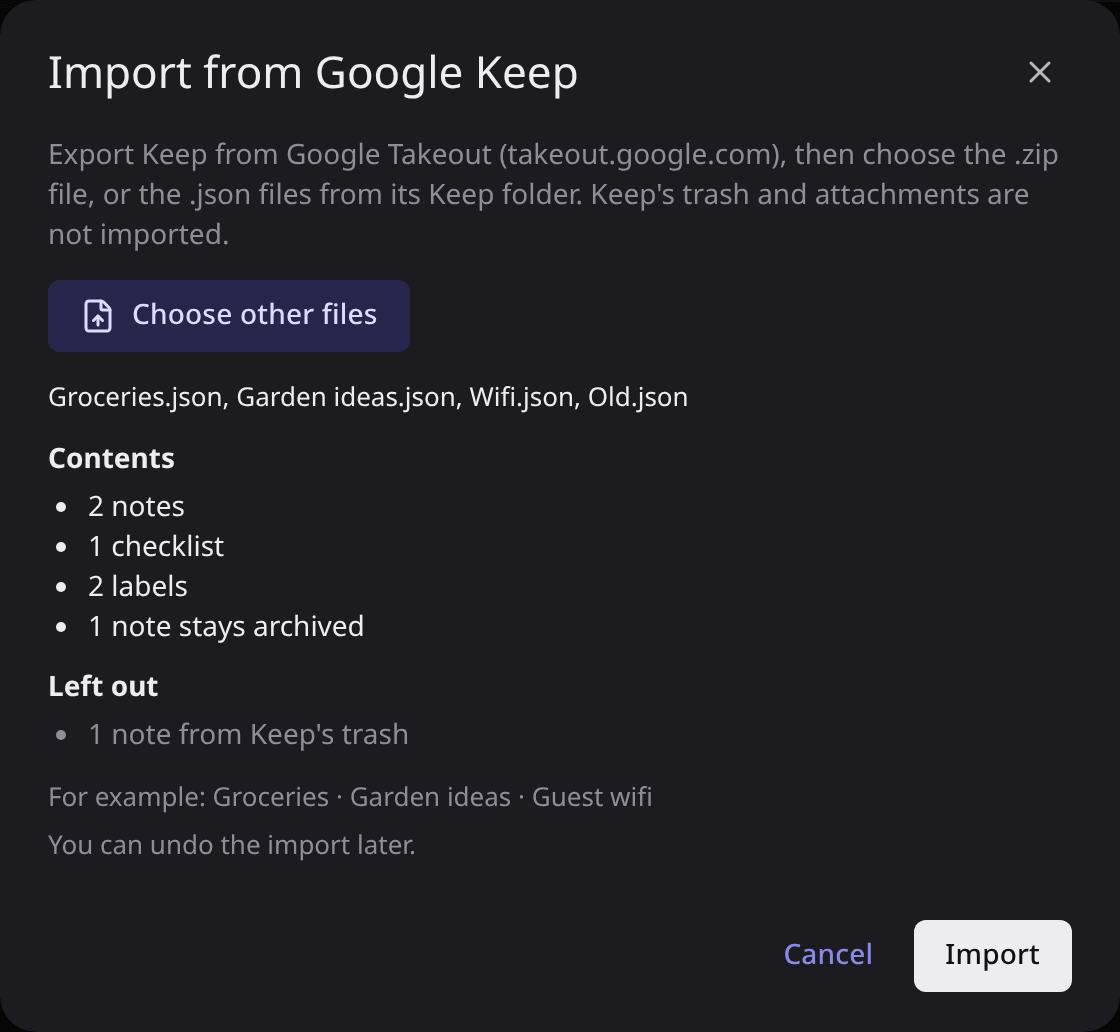
The ⋮ at the right of the Notes top bar has Import from Google Keep….
- In Google Takeout, choose only Keep and download the export.
- In Mailr, choose Import from Google Keep… and pick the .zip file. You can also pick the
.jsonfiles from its Keep folder. - Before anything changes, a summary lists what comes in: how many notes and checklists, which labels (and which are new), and what stays behind. Then click Import.
Text notes become notes and lists become checklists, with checked items still checked. Labels, colours, pins and archived notes come across. Notes in Keep's trash and attachments such as pictures stay behind. For a note longer than Mailr's limit, only the first 20,000 characters are kept.
The message afterwards has Undo. With it, every imported note is moved to Trash, and the labels made by the import are removed unless another note has them.
Export
Use Export as Markdown in a note's ⋮ menu to download it as a Markdown file. Use Settings →
Notes & tables → Export all notes to download every note as Markdown files plus a JSON copy, in
one zip file. A checklist is exported as - [ ] milk ×2 lines, which are read back as the same
items when you paste them into a list.
An export is not required as a backup. Notes, lists and tables are written to plain files on the server every day, next to the copy of the mail, and these files are included in the server's backups. See Backups.
On a phone
The grid has two columns. A note is opened as a sheet from the bottom. The Mailr Android app has Notes with offline editing too; see Notes, lists and tables.
Offline
Lists also work offline, for example in a shop with no signal. In the web app, and in the app installed from the browser:
- Lists opened on this device are kept there and can be opened with no connection.
- One line at the top shows that you are offline and what keeps working in Notes: "Lists keep working: changes wait on this device and are sent later".
- Ticks, new items and changes to an item's text, quantity or extra line are kept on this device. You see them in the list at once, with a dashed edge, and its last line under the items shows "2 changes wait on this device", then "Sending 2 changes made offline…" when you are back online.
- When the connection is back they are sent in order, each once. A tick keeps the time you made it, so when two people tick the same item, the later tap counts.
- If one is refused (someone changed the same item meanwhile), you see the refusal in that line, with Retry and Discard.
- A connection is required for moving items, sections, clearing checked items, usual items, new notes and the note's own settings. You are told so when you try. A text note is read-only offline.
Keys
| Action | Keys |
|---|---|
| Go to Notes | g then n |
A quick note from anywhere (#List adds items) |
Shift + N |
| New text note | c |
| New list | l |
| Next card / previous card | j / k |
| Open the focused card | o or Enter |
| Search notes | / |
| Go to Lists | g then l |
| Undo the last action (outside a note) | z |
| Undo / redo in an open note | Ctrl + Z / Ctrl + Shift + Z or Ctrl + Y |
| Make it a list / make it text | Ctrl + Shift + 8 |
| Check or uncheck the focused item | Ctrl + Enter |
The shortcut reference lists every key of the Notes app.