First sign-in: the setup guide
This page covers the setup guide on a Mailr server that is already running. After a new installation, start with Set up the server's first admin.
A short setup guide is shown at the first sign-in. It takes about five minutes. Every step can be skipped, and the current step is saved across devices. The About-you chat in step 8 starts over if you leave the page before you save it.
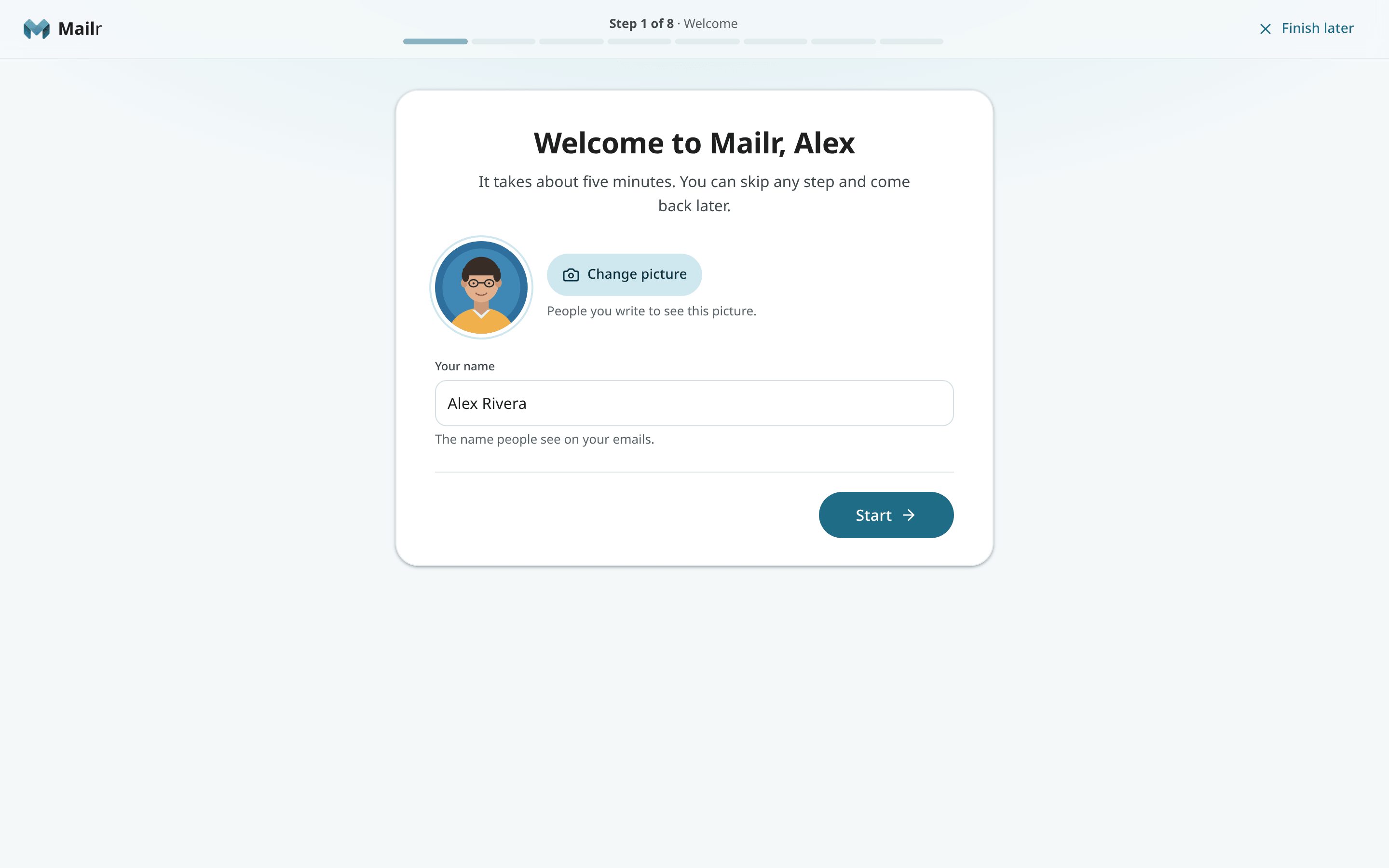
A bar at the top shows progress: it counts the eight steps below (seven when Ambrose is not offered), and All set is the closing screen. Welcome has only Start. From step 2, Back, Skip for now (Not now on the phone and notifications steps) and Continue are at the bottom of each step. On the email step, only Skip for now is at the bottom until an account is connected (the form's own Next continues); Continue appears once an account is connected. Choose Finish later to close the guide, and the Continue setup card in the inbox to return to the same step.
1. Welcome
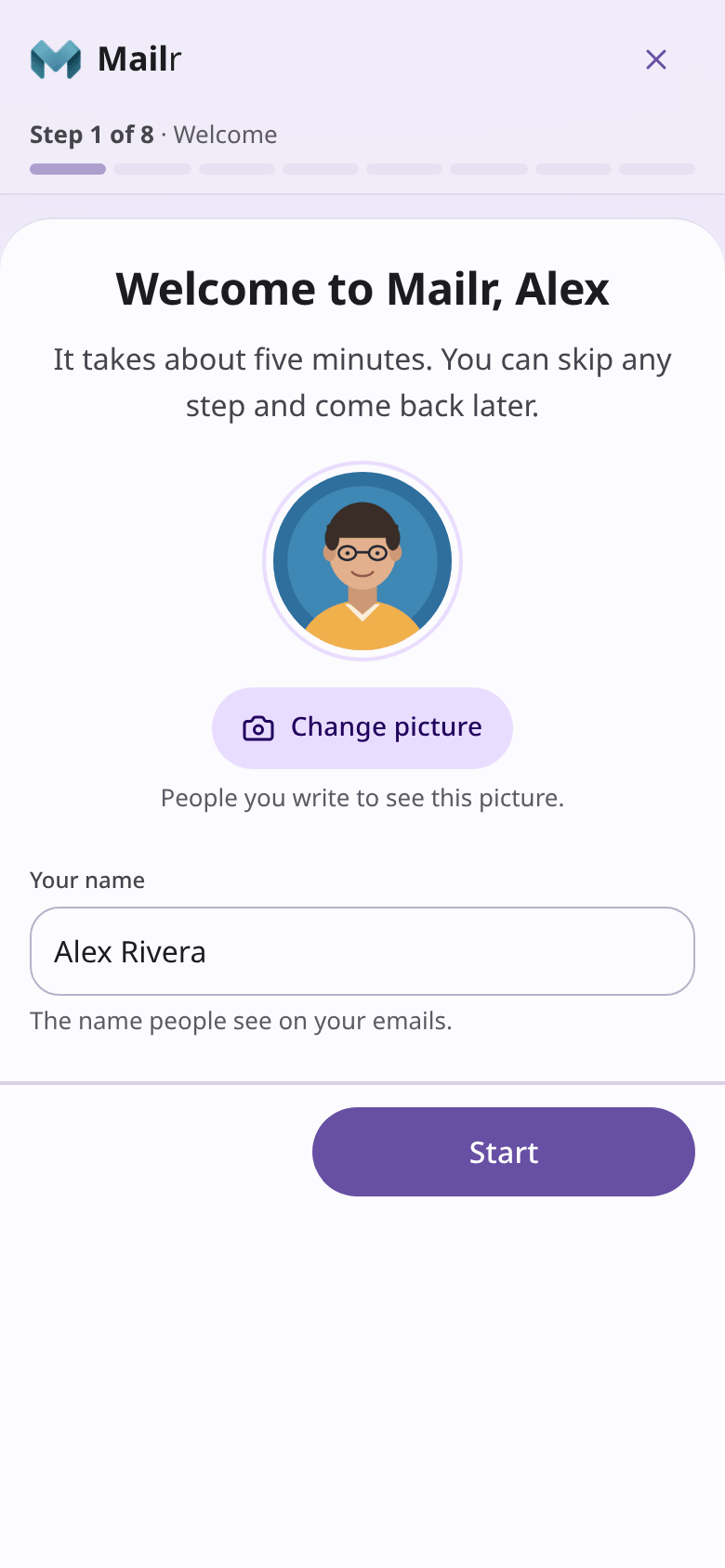
The name and picture are taken from the sign-in account. When the account has no name of its own (with password sign-in, unless the administrator gave one), the name field starts empty, and Start waits for a name. The name can be changed; it is the name recipients see. Use Add a picture or Change picture to set the account picture.
2. Connect your email
The step opens with: "Your old account keeps working. With “Keep in sync”, what you read, archive or delete here also changes there." Type the address of the existing account. The provider is found from the address.
Then choose how the existing account is handled:
- Keep in sync (recommended). The old account keeps working, and new mail keeps arriving in Mailr. Reading, archiving and deleting in Mailr are applied to the old account too: a message archived in Mailr is archived in Gmail as well.
- Copy once. The mail is copied here, and the old account is never changed. New mail stays in the old account and does not arrive in Mailr.
To have Mailr keep the mail instead (new mail keeps arriving and is kept in Mailr, and changes stay in Mailr), add the account later under Settings → Mail → Mail accounts; see Mode.
Supported providers
| Provider | Can connect? | Requirement |
|---|---|---|
| Gmail | Yes | An app password (below) |
| iCloud, Yahoo, Fastmail | Yes | An app password; the steps are in the guide |
| Most other providers (Zoho, Posteo, mailbox.org, a custom domain) | Yes | Usually the normal password |
| Outlook, Hotmail, Live, MSN and Microsoft 365 | Not yet | Microsoft blocks password sign-in for other apps. Keep using Outlook for that account, or connect another address. |
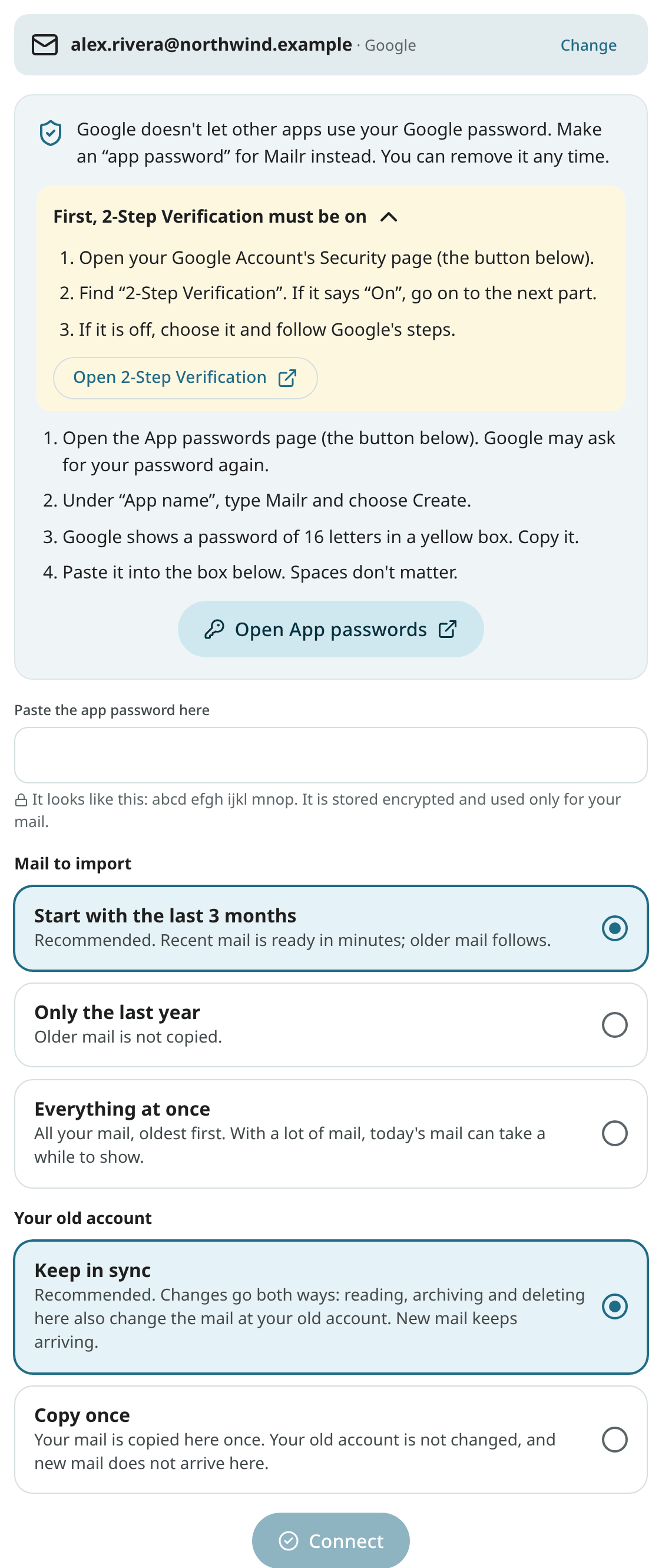
Gmail. Google does not accept the normal Google password from other apps. An app password is used instead: a separate password only for Mailr, which can be removed at any time.
- 2-Step Verification must be on for your Google Account. The guide has a link to the page where you check it.
- Open App passwords, type
mailras the app name and choose Create. - Copy the 16-letter password Google shows and paste it into the guide. Spaces do not matter.
iCloud, Yahoo and Fastmail work the same way, with their own app passwords; the steps for each are in the guide. Other providers usually accept the normal password. When the server settings cannot be found, fill them in by hand.
Mail to import. With the recommended choice, the last three months are imported first, so the inbox is ready in minutes. Older mail is imported in the background, with the progress in a slim Importing older mail… bar until the import is done. The other choices are only the last year, or everything at once.
Choose Add another account to connect more addresses, for example a second Gmail account. When an account can send mail, a signature is also requested in this step.
3. Choose your look
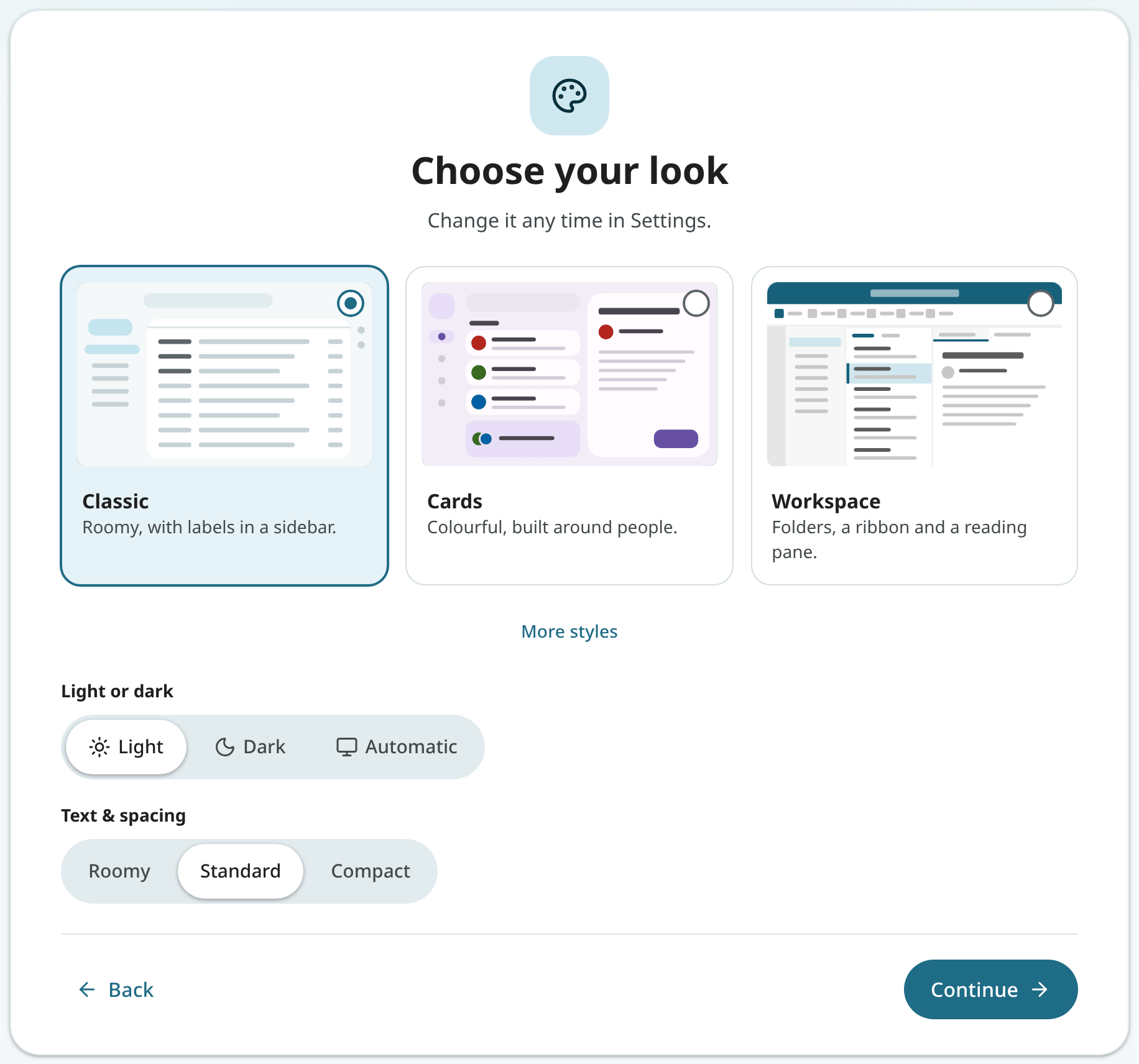
Three styles are suggested: Classic (labels in a sidebar, like Gmail), Cards (mail bundled into cards, with colour) and Workspace (folders and a reading pane). Focus and Desk are under More styles. Choose Light, Dark or Automatic, and how much fits on the screen. Every choice is applied at once.
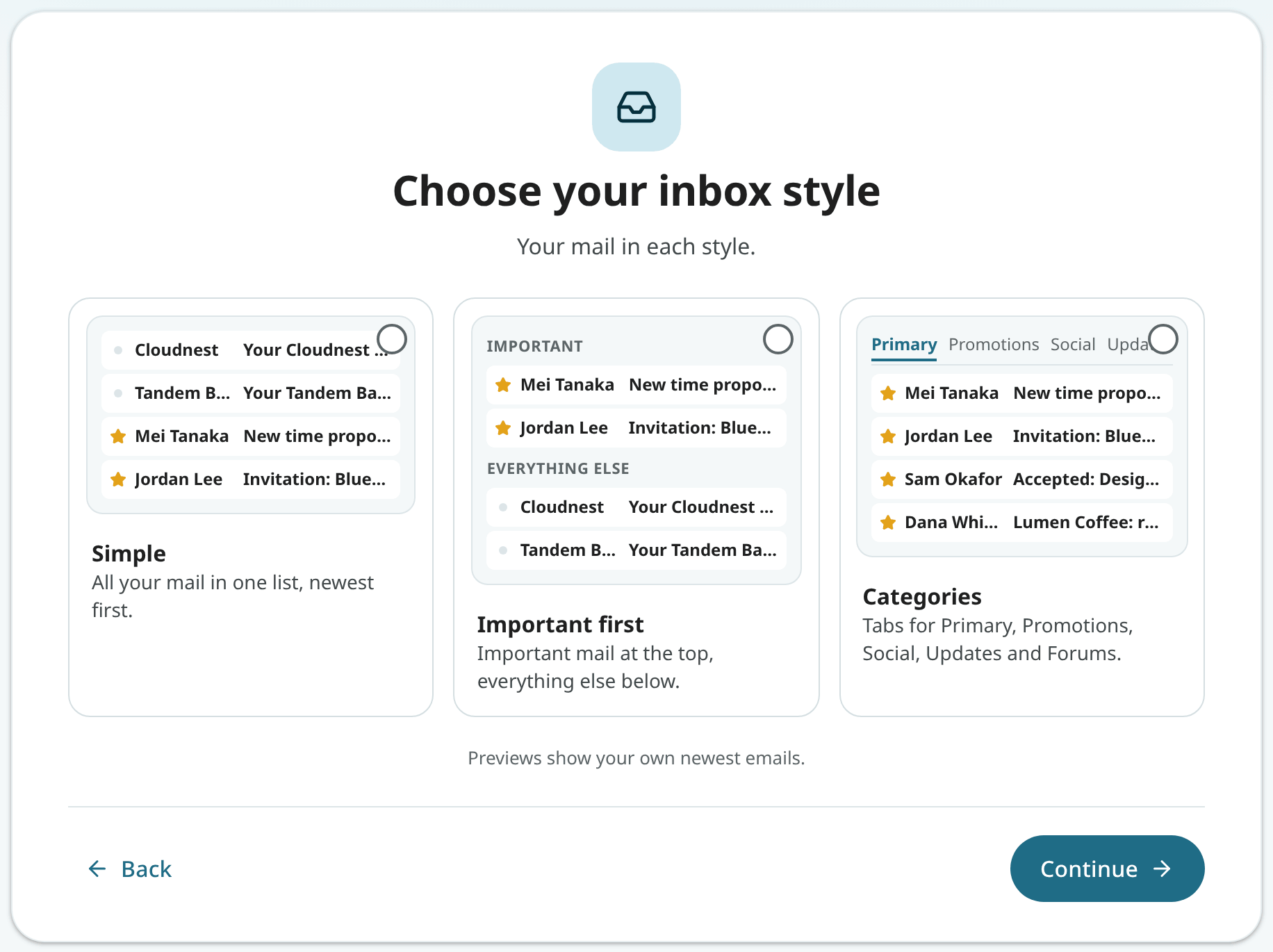
4. Choose your inbox style
- Simple: all mail in one list, newest first.
- Important first: important mail at the top, everything else below.
- Categories: tabs for Primary, Promotions, Social, Updates and Forums.
Once mail has arrived, each preview is drawn from the account's newest emails.
5. Your phone
Choose iPhone or Android (on a phone, the choice is detected). Scan the code with the phone's camera.
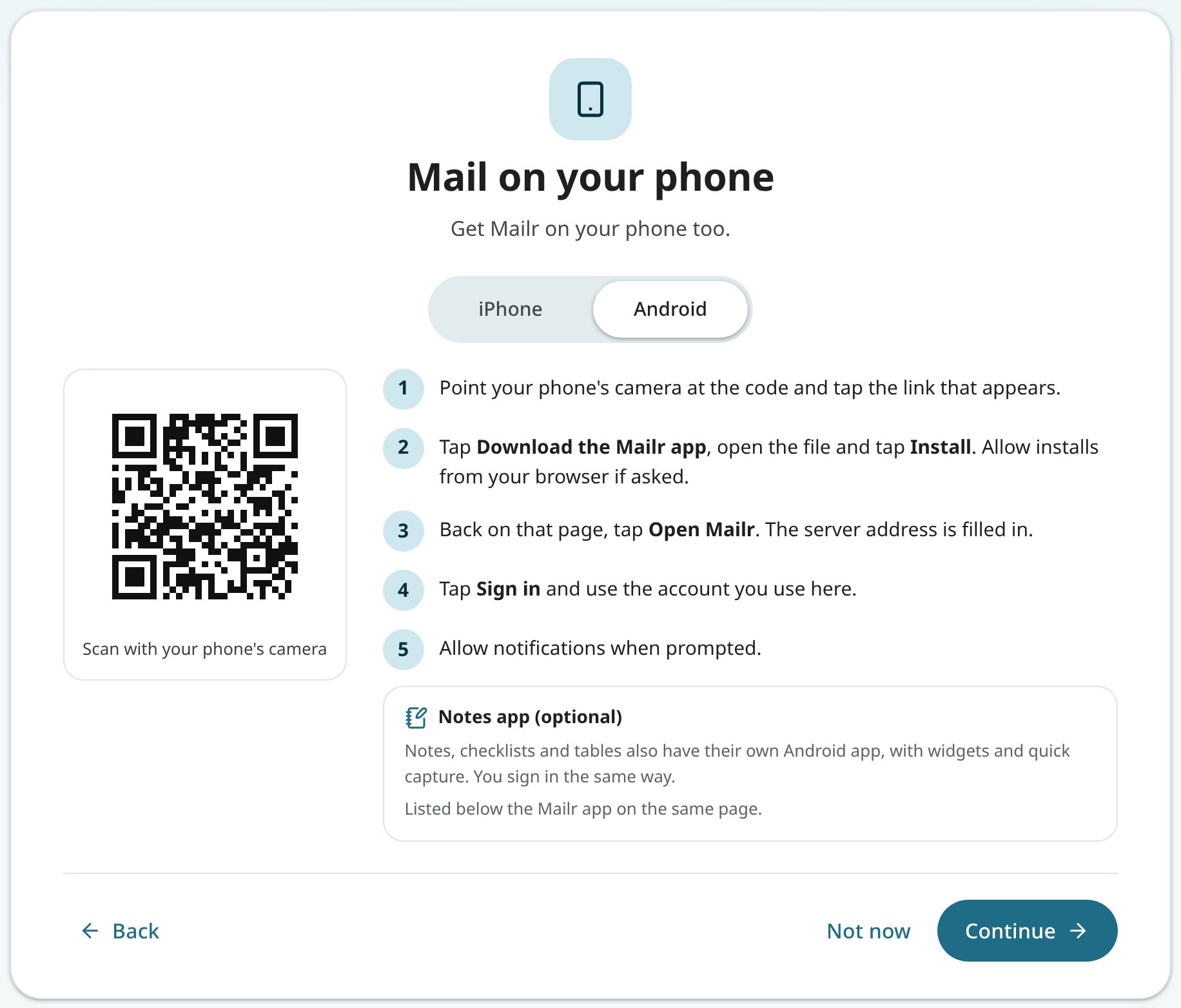
- Android: with the code you reach the Get the app page. Download the app and install it, then tap Open Mailr, ready to sign in: the app opens with the server address filled in. After sign-in with the same account, permission for notifications, the battery setting for on-time mail, and a push app for instant mail are requested. The page lists the version and size of each app, and the separate Notes app as well (optional).
- iPhone: with the code you open Mailr in Safari. Tap Share, then Add to Home Screen. Open Mailr from the Home Screen, sign in, and turn on notifications in Settings → Notifications.
See Install the phone app for more.
6. Your calendars (optional)
When the administrator has prepared a calendar server, two choices are shown: Use our calendar server, with the address filled in (sign in there with your username and password; calendars shared with you on that server are shown too), or a calendar of your own. Otherwise there is no choice to make: a line reads "Fastmail, iCloud, Nextcloud and other calendars that offer CalDAV access…", and Connect opens the form. Choose Add another calendar to connect more; all of them are shown together in Calendar.
When your mail account is Gmail or Outlook/Microsoft, a note says that Google Calendar and Outlook calendars cannot be connected yet. Choose Subscribe to a calendar link… to add one read-only, with Google's secret iCal address or Outlook's published ICS link.
When the administrator has turned on built-in calendars, the Mailr calendar is shown in this step as already connected: a calendar and a task list on the Mailr server. The other choices remain available: connect further calendars, or choose Continue without another. See The Mailr calendar.
7. Notifications
Choose Turn on notifications; permission is requested once. Choose Send me a test notification to see an example. Then choose which mail triggers a notification: Important mail (recommended), Only my VIPs, Every new email or None. On an iPhone, notifications work once Mailr is on the Home Screen.
8. About you (optional)
Ambrose uses the details in this step to match drafts to the user's writing and to follow the user's preferences.
- Fill in a few fields: what to call you, what you do, how your emails sound, how you sign off, and anything to know or avoid.
- Have a quick chat: Ambrose asks a few short questions, one at a time.
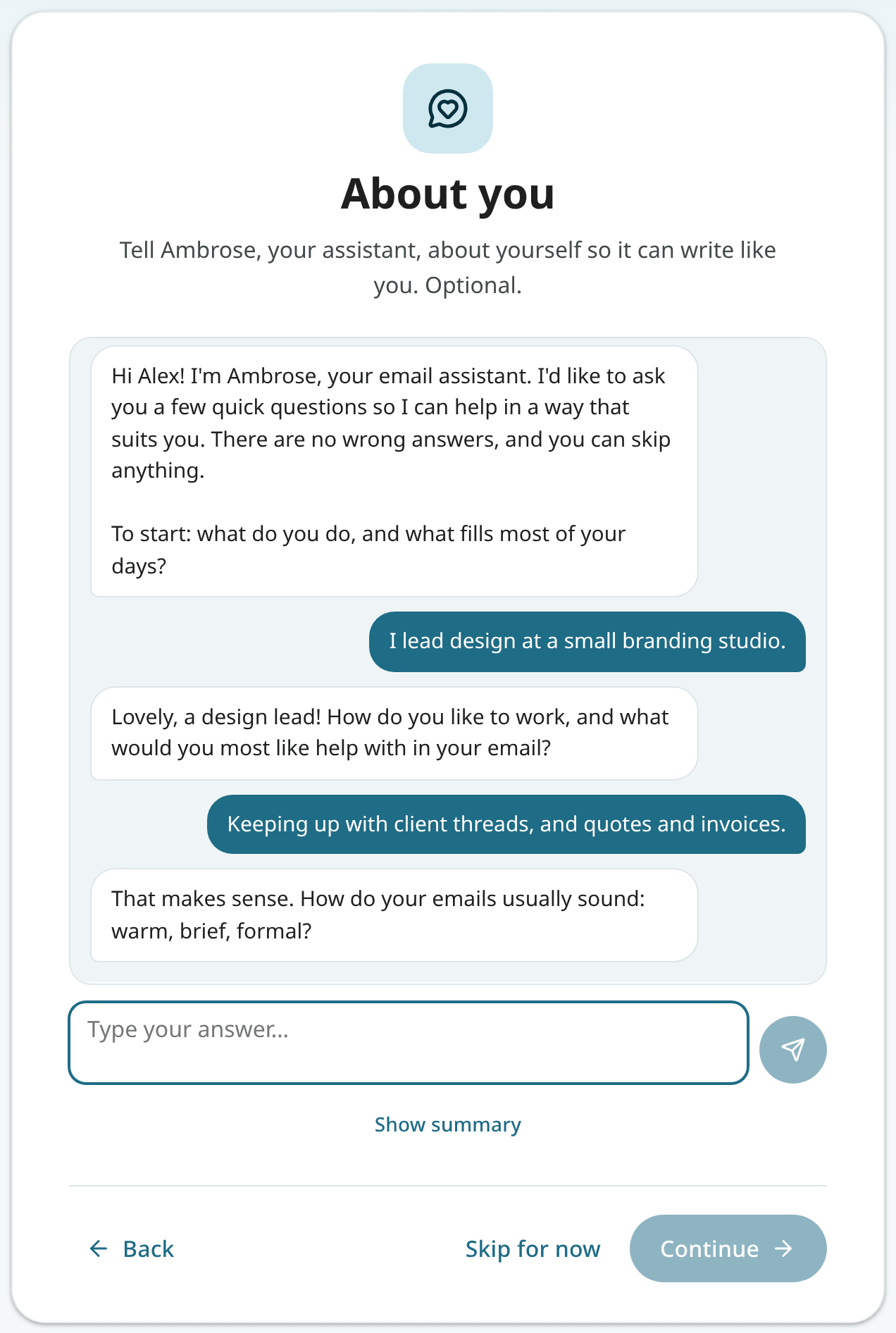
When you have answered enough, choose Show summary. Ambrose then shows what it learned: your name, what you do, a few lines about you, how you write, your sign-off and notes to remember. Change anything or leave out a note, then choose Save; nothing is saved before then. The sign-off is also used as the email signature. After Save, the step shows Saved, also when you come back to it later.
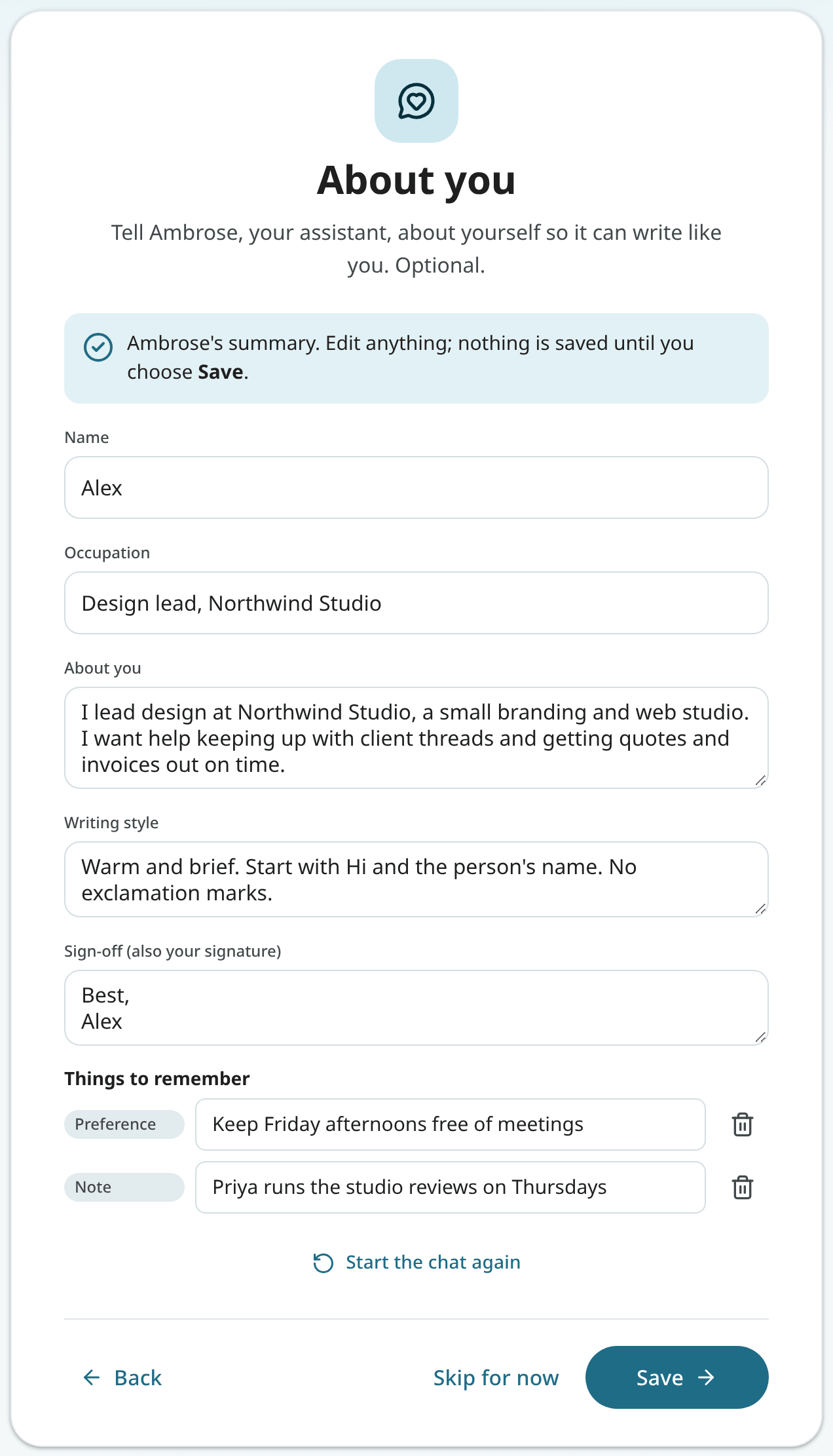
When Ambrose is not available, the fields are shown in this step instead. These details can be changed later in Settings → Ambrose → About you.
9. All set
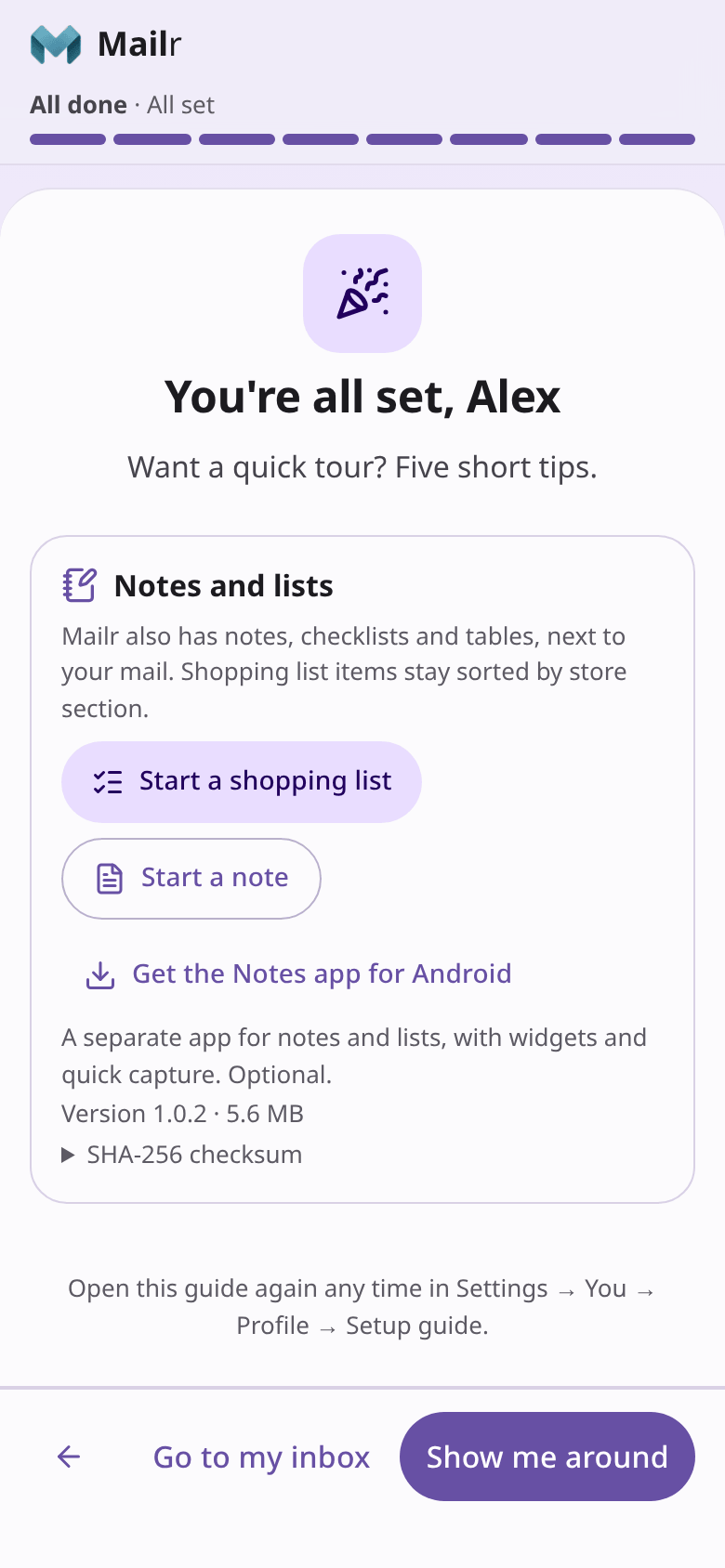
The last screen has a Notes and lists card. Notes, checklists and tables are kept next to the mail in Mailr.
- Choose Start a shopping list for a checklist from the Shopping list template, with the store's sections (Produce, Bakery, Dairy and more) and a few items to replace. The guide then ends, and the list is shown.
- Choose Start a note for an empty note, already open.
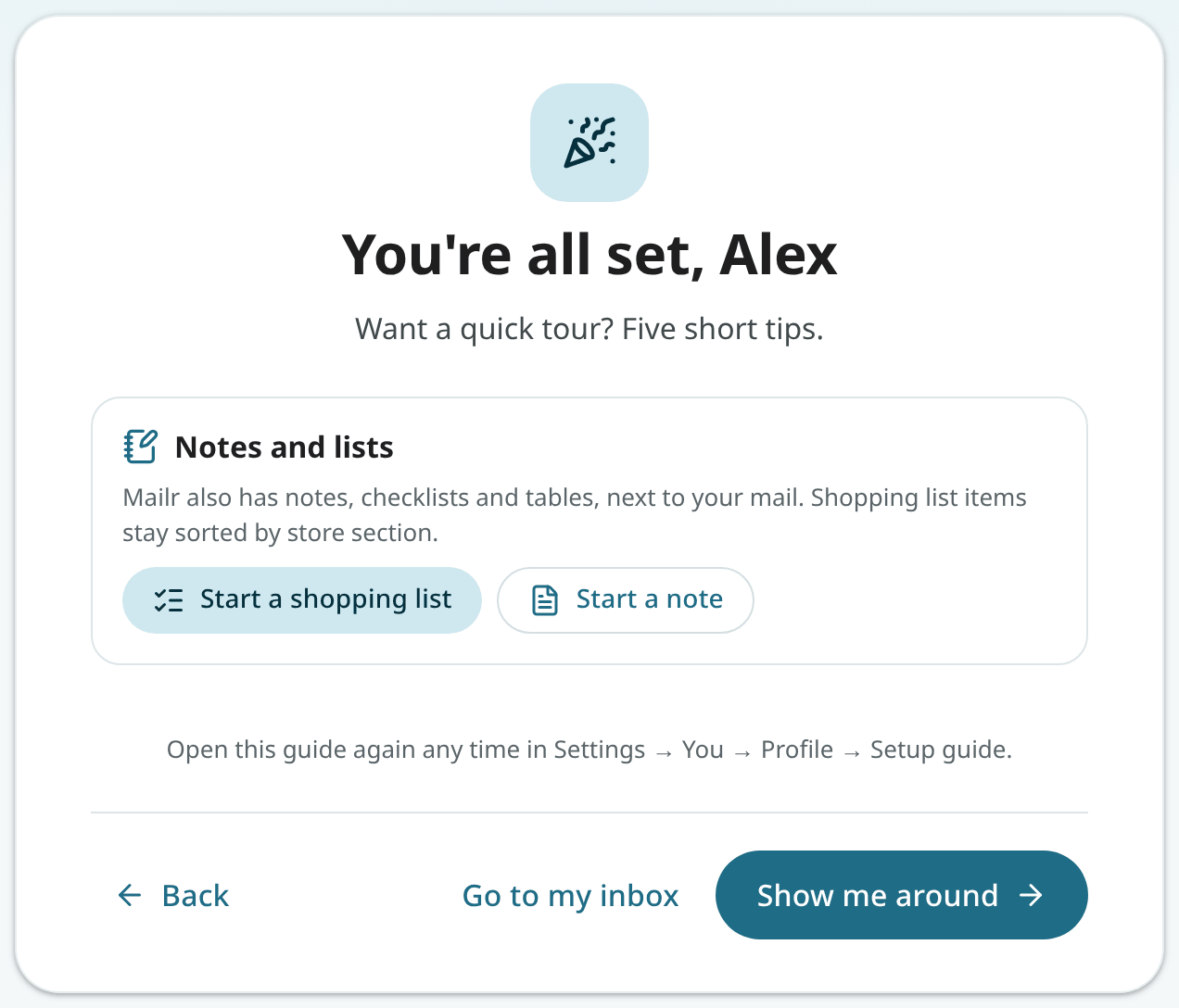
On a phone, the card also shows the Notes app for Android, with its version and size. On an iPhone there is no separate app: notes are in Mailr itself, so the card has a reminder to add Mailr to the Home Screen. See Notes and checklists and The Notes app.
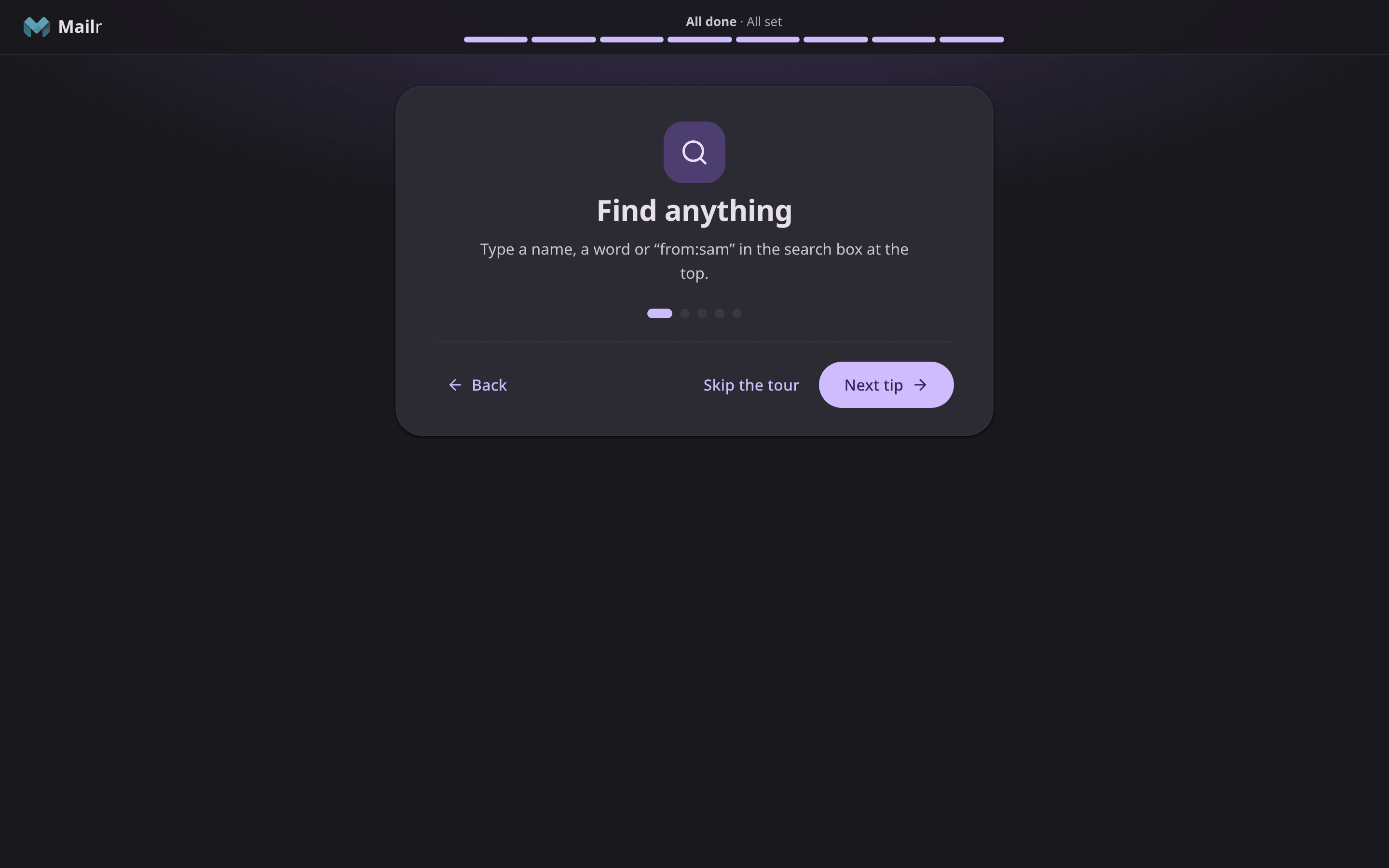
All set offers Show me around, a short tour of five tips (search, archive and swipe, snooze, labels, and help and Ambrose), or Go to my inbox to end the guide. Skip the tour ends the tour at any tip.
Open the guide again
Open the guide again at the start from Settings → You → Profile → Setup guide. Completed steps stay ticked. To hide the Continue setup card without finishing, choose its ×.
The guide works the same on a phone-sized screen, one step per screen with the buttons at the bottom.