Recordings (Speakr)
Mailr can be connected to Speakr, a self-hosted app for recording, transcribing and summarising meetings. With a Speakr account connected, meeting recordings are shown next to the events they belong to, the people who spoke, and the mail about them. A follow-up email or tasks from the action items are created in one click.
Recording features are shown only when a Speakr account is connected. Recordings remain in Speakr: they are read by Mailr and changed only when allowed.
Connect Speakr
You need a running Speakr server and an API token from it.
- In Speakr, create an API token in your account settings.
- In Mailr, open Settings → Mail → Mail accounts and find Recordings (Speakr). With simple settings, the section is shown only once a Speakr server is connected; open it with Connect Speakr in the Recordings app, or turn on Advanced settings.
- Click Connect Speakr.
- Enter the Speakr address, for example
https://speakr.example.org, and paste the API token. - The address and the token are tested, and then the account is connected. The recordings appear after the first sync.
The token is stored encrypted and never shown again. Use Paste a new token… to replace it.
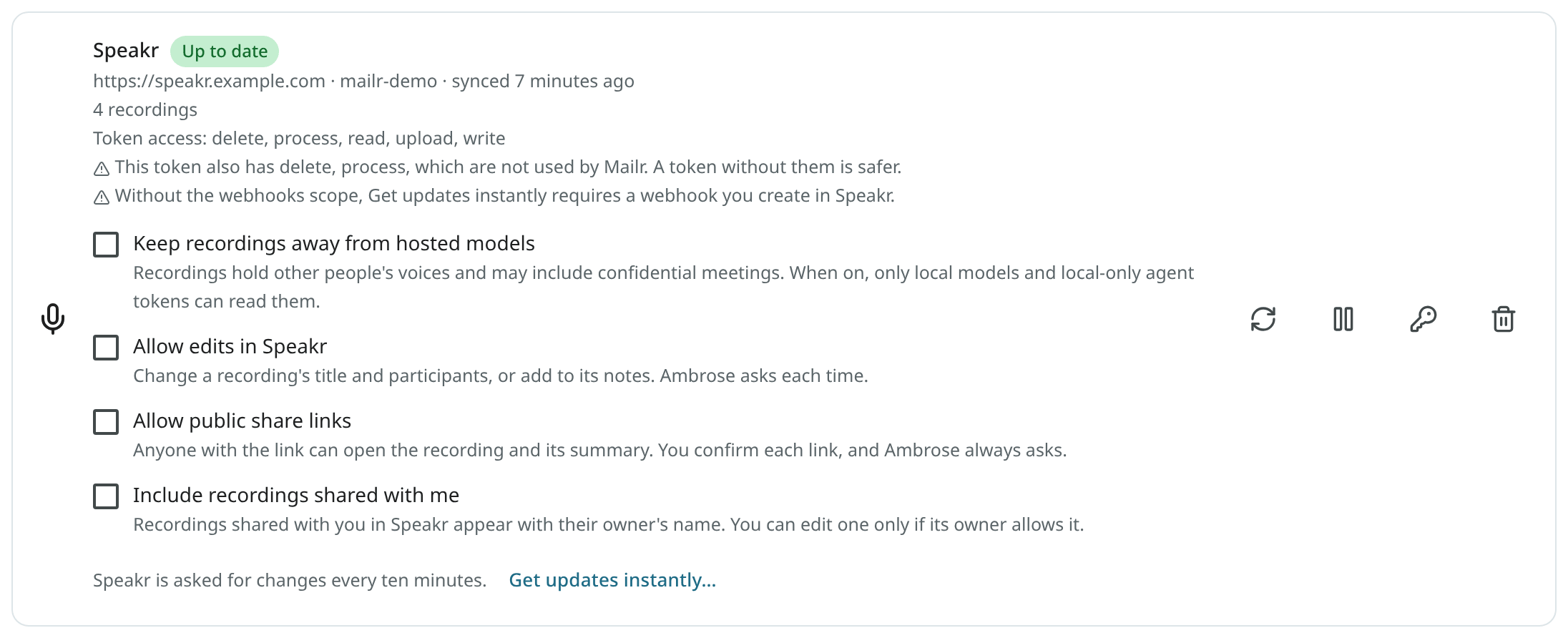
The card has these switches:
| Switch | Default | Effect |
|---|---|---|
| Keep recordings away from hosted models | On | Only local models are used on your recordings and their transcripts. |
| Allow edits in Speakr | Off | A recording's title, participants, tags and notes can be changed from Mailr. |
| Allow public share links | Off | Public Speakr links to a recording can be created. |
| Include recordings shared with me | Off | Recordings other Speakr users shared with you are shown, read-only. |
The card also shows the token's access, with a warning when the token is missing a required permission. Use Pause to stop syncing for a while and Resume to start it again. Use Remove to disconnect Speakr: Mailr's copy of the recording list and your links are deleted, and the recordings stay in Speakr.
For admins
A Speakr server on your own network works for admin users. For other users, add the
Speakr host to MAILR_OUTBOUND_ALLOW. The largest file sent to Speakr is set by
MAILR_SPEAKR_MAX_UPLOAD_MB. See Configuration.
Syncing
Speakr is checked for new and changed recordings on a schedule. Use Sync now to check at once and to clear an error after you fix the token.
For instant updates, click Get updates instantly…. A webhook is then created in Speakr through its API, so Mailr is told the moment a recording is ready. Use Send test to check that Mailr can be reached from Speakr, and Turn off to remove the webhook. If you made the webhook in Speakr yourself, choose I made the webhook in Speakr myself and paste its secret.
The Recordings app
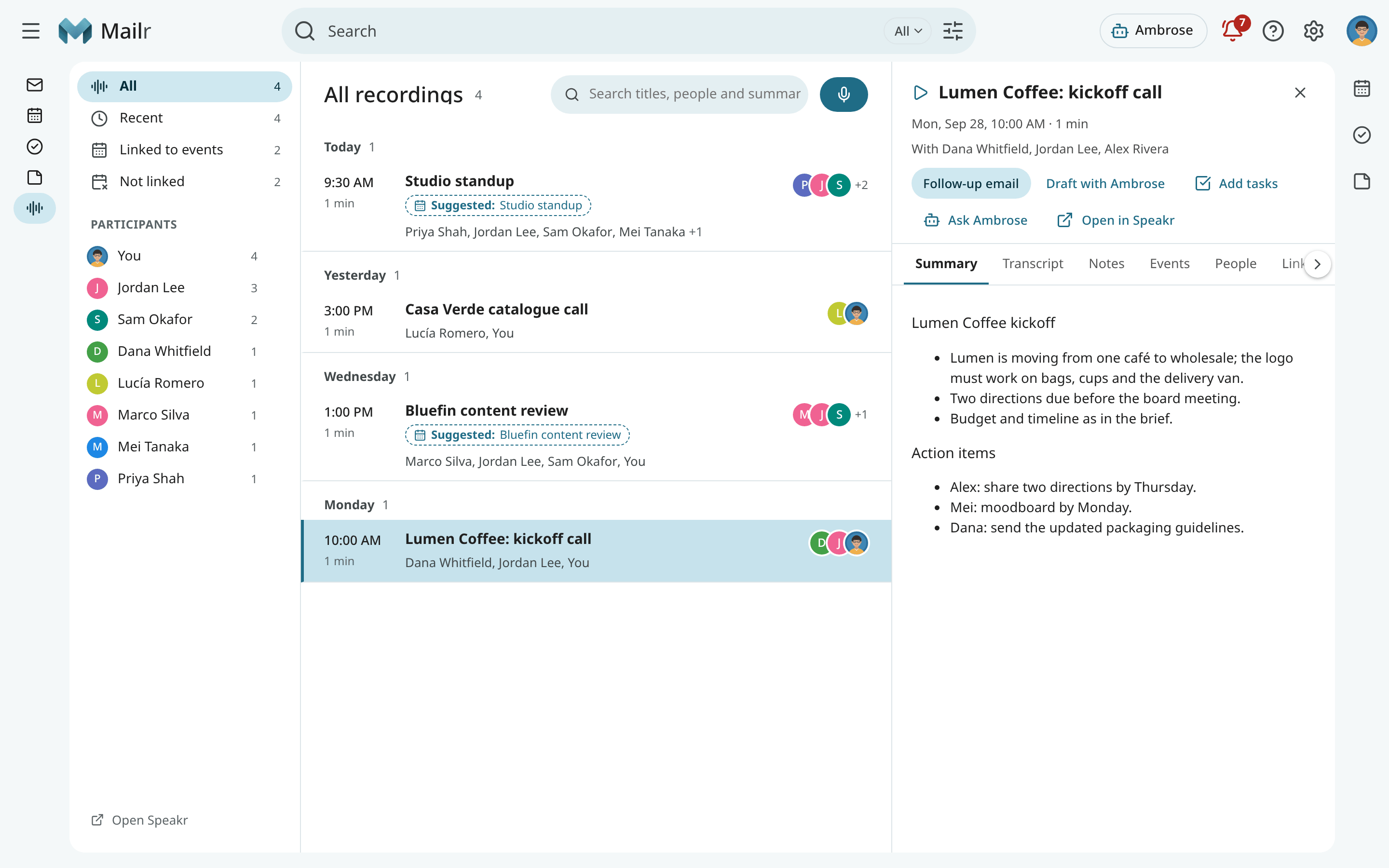
Click Recordings in the navigation, or press g then r. Use the left column to filter the list:
- All, Recent, Linked to events and Not linked;
- your Speakr Folders and Tags;
- Participants: everyone who speaks in your recordings.
Use j and k to move through the list and Enter to open a recording.
Search recordings
Search titles, people and summaries in the search field (/). Recent recordings are also
searched by their transcripts. In mail search, matching recordings are shown in a
Recordings section above the mail results, and mail linked to recordings is found with these
operators:
| Operator | Matches |
|---|---|
has:recording |
Conversations linked to a recording. |
recording:kickoff |
Conversations linked to a recording whose title matches. |
Conversations linked to a recording have a ▶ chip in the mail list. The command palette has Open recording… and a search of your recordings.
Open a recording
Click a recording to open its sheet. The same sheet can be opened from an event, a linked conversation, a task, a person's card, a citation in an assistant answer, or the palette.
The header shows the title, the meeting date and length, the participants, the tags and the folder. The sheet has these tabs:
| Tab | Contents |
|---|---|
| Summary | Speakr's summary. |
| Transcript | The speaker turns with their times. Use Find in transcript to search it. |
| Notes | The notes kept with the recording. |
| Events | Meetings and dates mentioned in the recording, as found by Speakr. |
| People | Who each speaker is. |
| Links | The events, conversations and tasks the recording is linked to. |
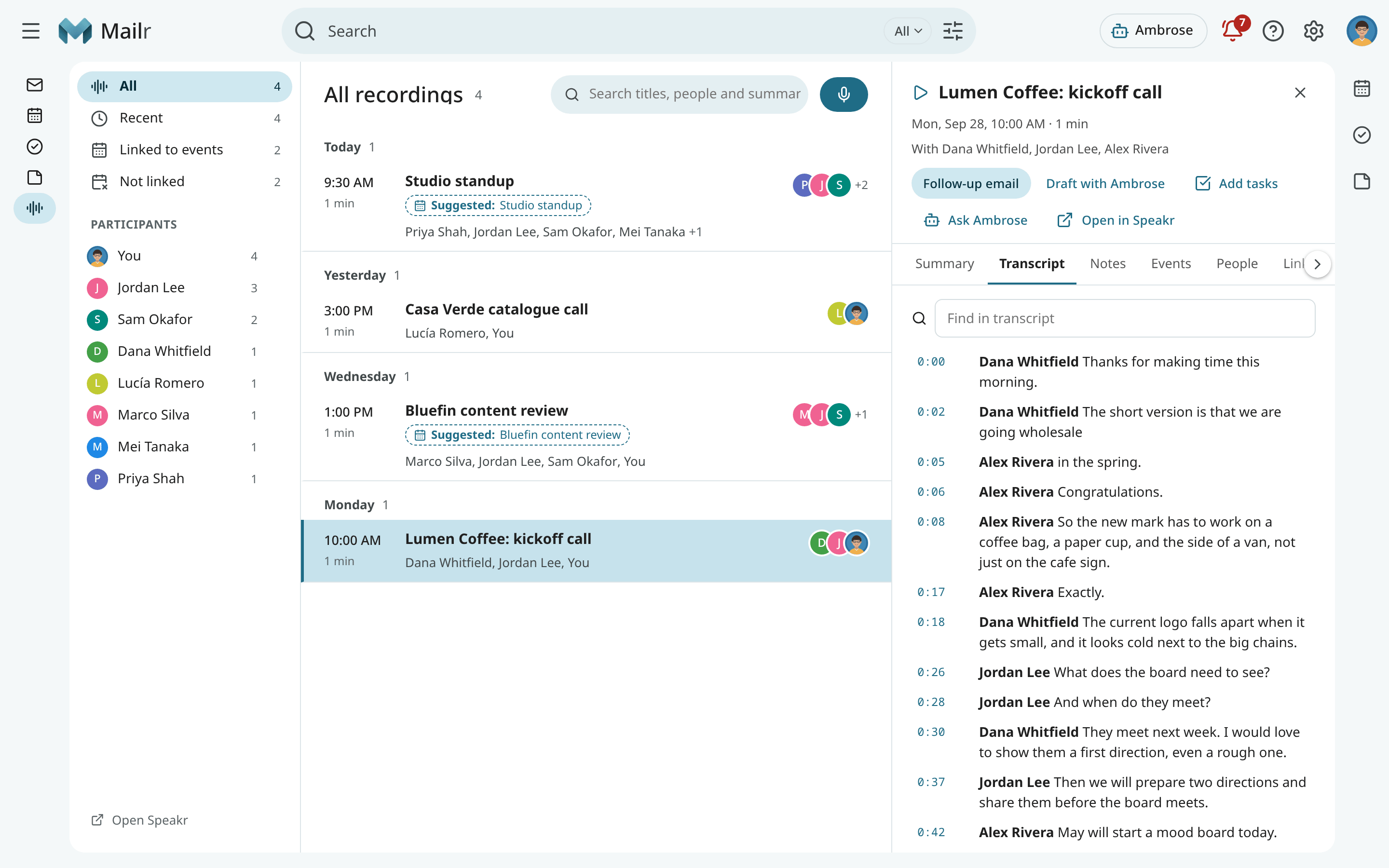
Use Open in Speakr to open the recording in Speakr. Click a time in the transcript to open Speakr at that moment.
Link recordings
Each recording is matched to the calendar event it most likely belongs to. When one event is a clear match, Is this the recording of this meeting? is shown on the event. Click Yes to link it. You can also link a recording to an event, a conversation or a task in the Links tab, or pick a recording for a past meeting with Find recording… in the event's details.
When an email contains a link to one of your recordings (a "Transcription ready" notice, or a message with the recording's address pasted in), its conversation is linked to that recording once the recording is in Mailr. The link is made directly only when the email comes from your Speakr server's own domain and passes the sender checks, or when you sent it; from anyone else it is shown as Suggested in the Links tab until you click Confirm. For a recording order, only links you confirmed, links Ambrose made, or the email an attachment was sent from are used, and only confirmed links are written to Speakr as references.
Remove a link in the Links tab, or answer no to a suggestion. A dismissed suggestion does not come back.
Recordings in the calendar
An event with a recording has a Recording section in its details: the summary's first lines, Open recording, Follow-up email and Add tasks.
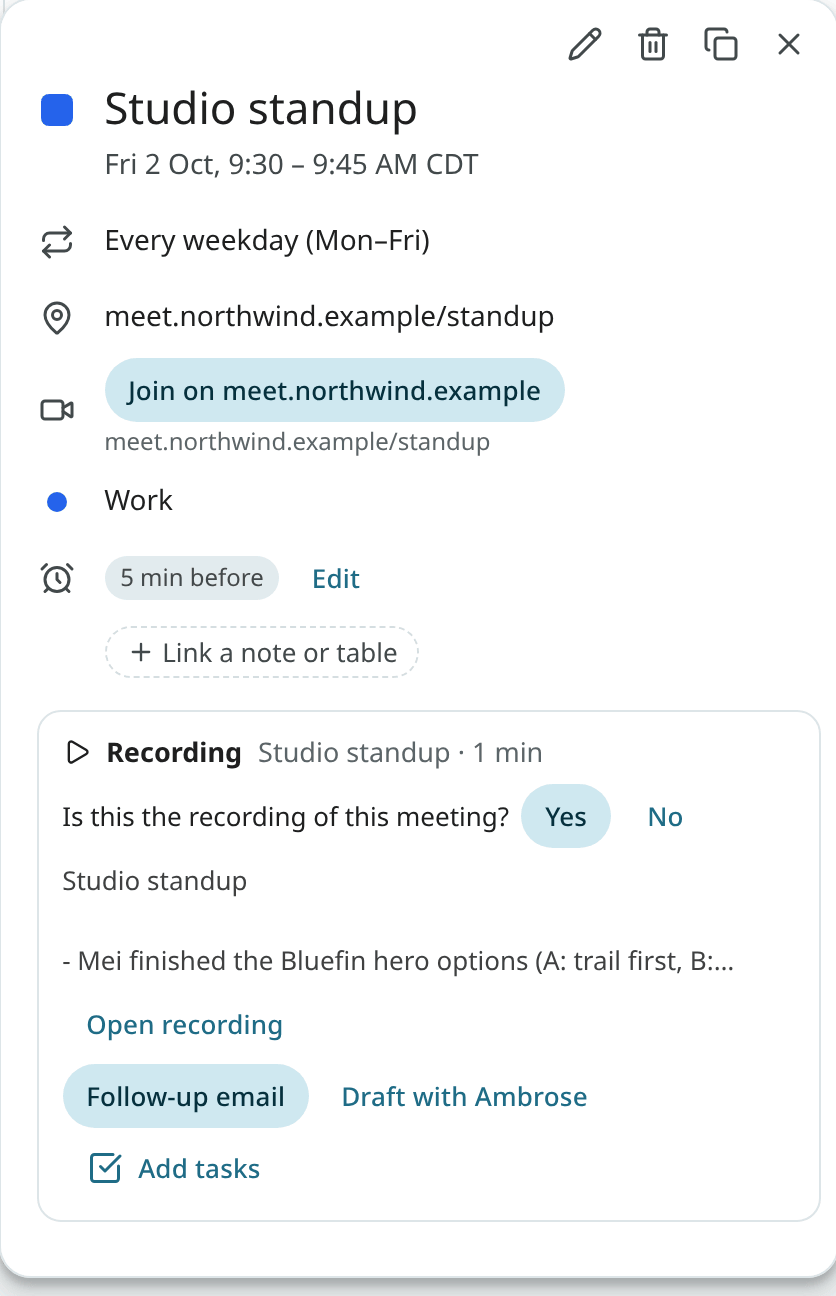
Before a meeting that repeats, the details show Last time: with the latest recording of the same series, or of an earlier meeting with the same title and people, and the first line of its summary. The Calendar panel beside the page shows it too.
Events in the recording sheet lists meetings mentioned in the recording, such as "Let's meet again next Thursday". Use Add to calendar to open the event editor with the details filled in. Nothing is saved until you click Save.
Follow up after a meeting
Use Follow-up email to draft a message to the meeting's guests, without you, mailing lists and automated senders. Speakr's summary is used as written. Use Draft with assistant to have Ambrose write the email from the summary instead. When the meeting came from an email thread, the draft is a reply in that thread. It is never sent automatically: the draft is opened in compose, to be edited and sent.
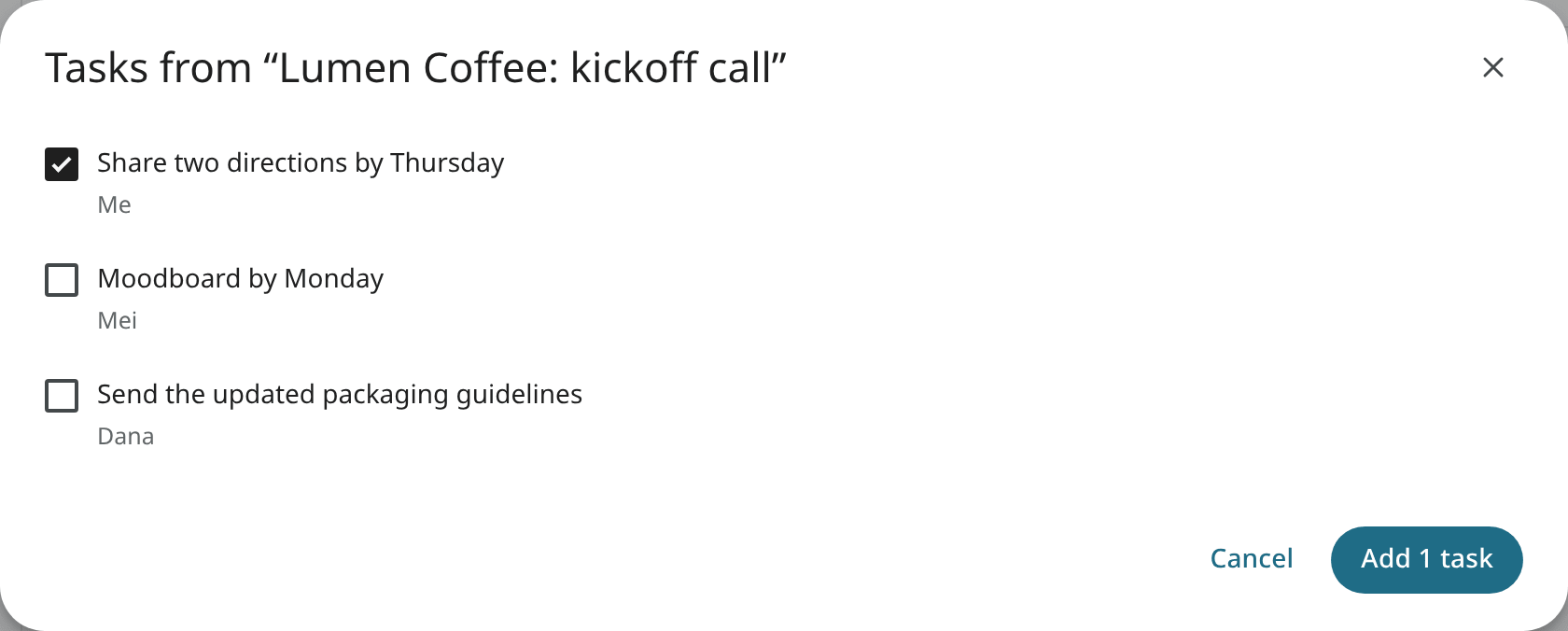
Use Add tasks to see the meeting's action items, each with an owner and a due date when they were named in the meeting. Your own items start ticked and other people's start unticked. Items you already added are marked Already added. Tick the ones you want and add them: each becomes a task linked to the recording, and the task's details show the moment it came from.
While you write any email, use Insert from a recording in the compose toolbar to insert a recording's summary, or the transcript turns you tick, as a quoted excerpt with speaker names and times.
Ask about a recording
Use Ask Ambrose in the recording sheet to open Ambrose with the recording attached. Ask "What did Dana decide about the packaging?" and the answer cites the moments it comes from. Click a citation to open the transcript at that moment.
Speakers
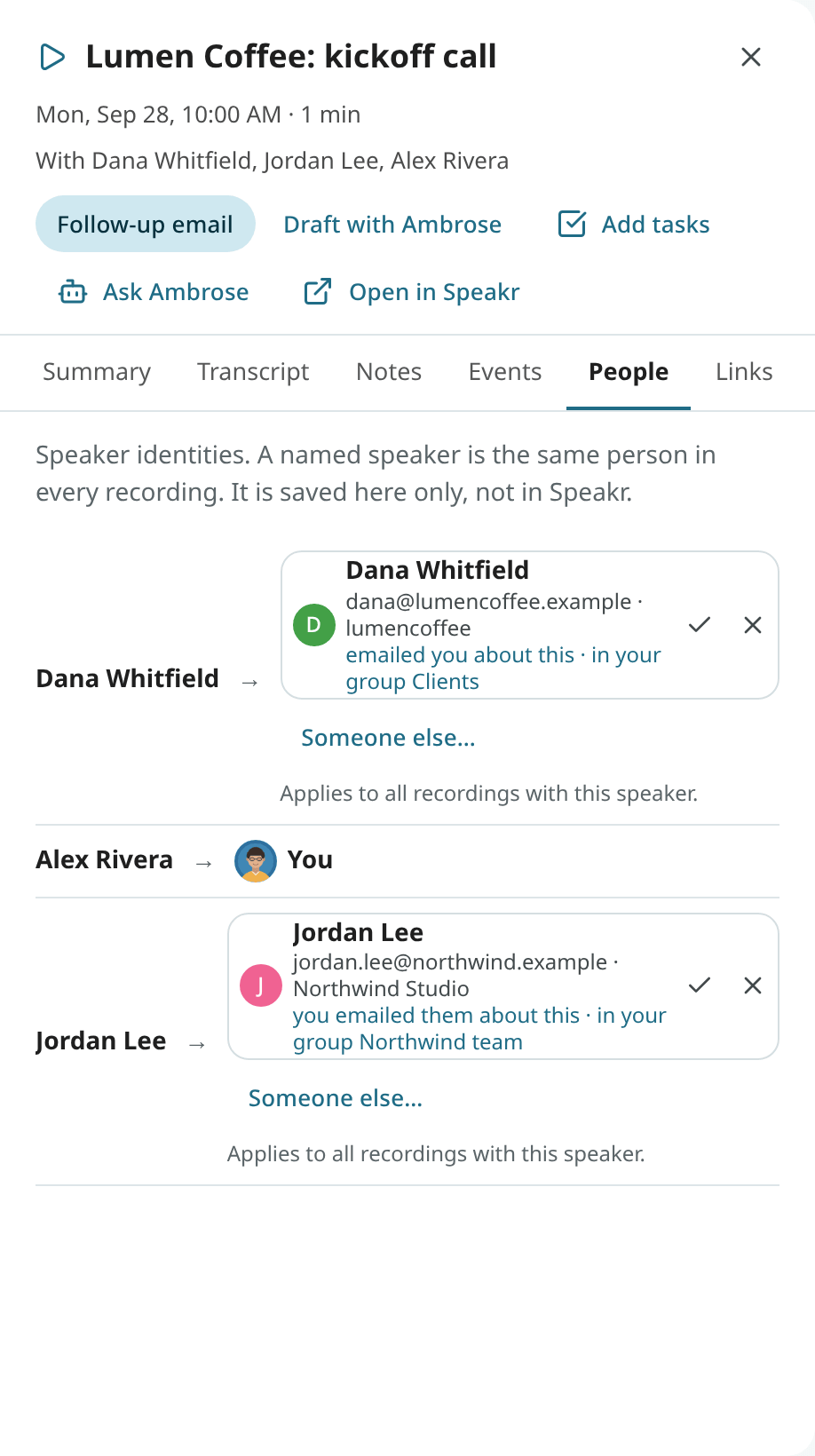
The People tab of a recording shows each speaker and who they are:
- your own voice is shown as You;
- a confirmed person is shown with their name, address and organisation, and a link to their card;
- otherwise up to three people are suggested (from the event's guests, the mail about the meeting and your frequent correspondents). Click ✓ to confirm one or ✕ for Not them, or choose Someone else… to search your People.
A choice for a named speaker applies to every recording with that speaker name. Use Not them in
this recording to limit a change to one recording. With Allow edits in Speakr on, the
person's address is also saved on the speaker in Speakr; when an agent or token maps a speaker,
approval is asked first for that part (speakr.write).
Merge participants
The same person can appear under several spellings, such as "Dana", "Dana W." and "Dana Whitfield". In the Participants list of the Recordings app, open a person's menu and choose Same person as… to merge them. Merges with high confidence are also suggested. Use Separate to undo a merge. With edits allowed, you can rename the speaker in Speakr too.
Edit and share
With Allow edits in Speakr on, use Edit in the recording sheet to change the title, the participants and the tags, or to add a line to the notes. The change is saved in Speakr.
With Allow public share links on, use Share link to create a public Speakr link to the recording, with its summary and, if you choose, its notes. Anyone with the link can open it, so you are asked to confirm. Public links lists the recording's links, and each can be revoked.
Record a meeting
Meetings can be recorded directly in Mailr. Click New recording in the Recordings app (or press n),
choose Record this meeting in the details of a meeting that is under way, or use the palette.
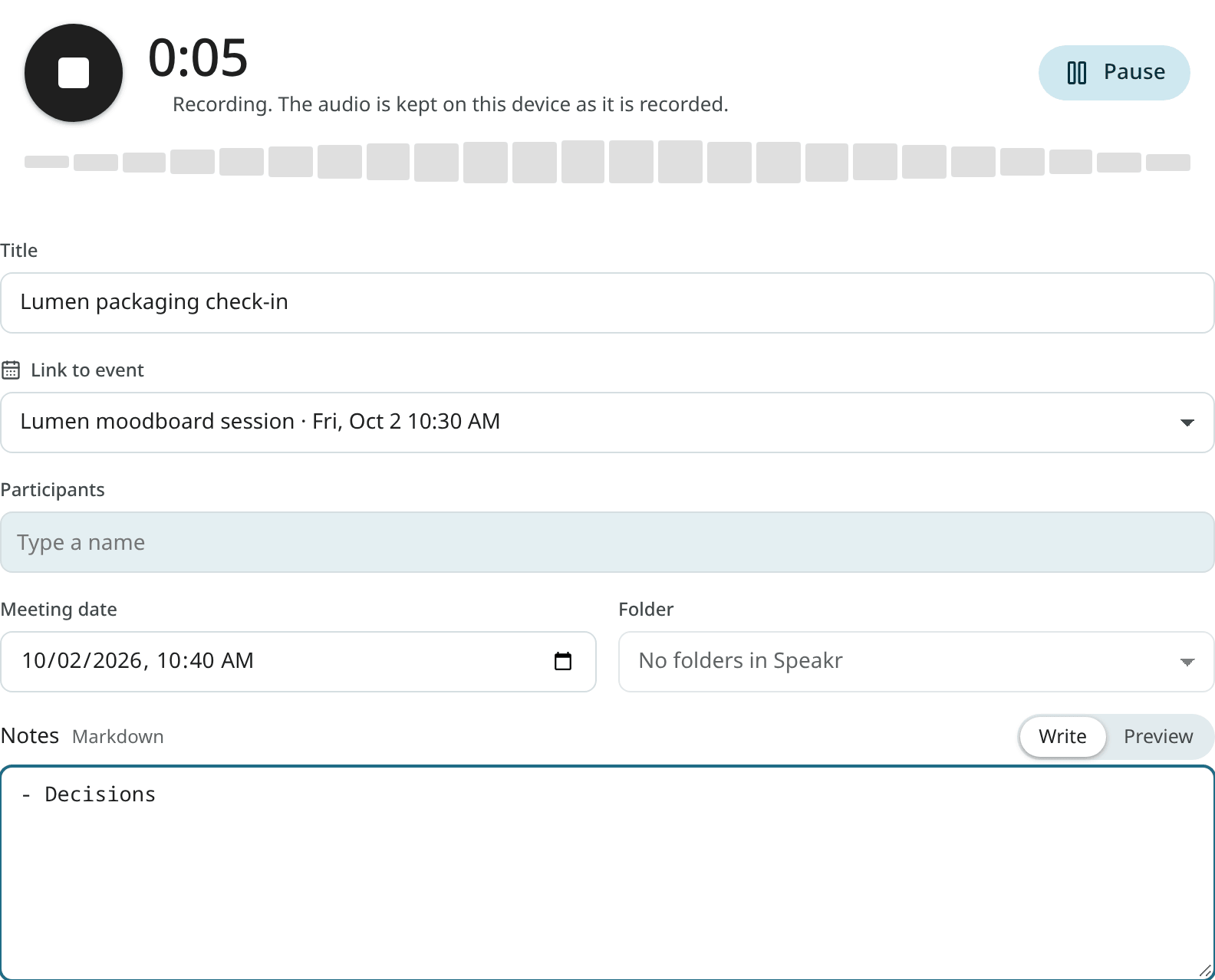
- Press Record. You are asked to allow the microphone.
- While you record, the time and the input level are shown. You can pause, resume and write notes.
- Fill in the title, participants, meeting date, folder, tags and the event to link, before, during or after recording.
- Press Stop, then Upload to Speakr.
Close the dialog and the recording keeps going in a small bar at the bottom of the window. If you close the tab by accident, you are offered the audio for upload the next time you open the Recordings app.
Transcribe an attachment
An audio or video attachment in an email has Transcribe in Speakr. With it, the file is sent to Speakr, the recording is linked to the conversation, and a link back to the email is put in the recording's notes. When the file is over Speakr's size limit, an error is shown.
Above an email from Speakr announcing that a recording is ready, the recording itself is shown, with Open, Follow-up email and Add tasks.
On the phone
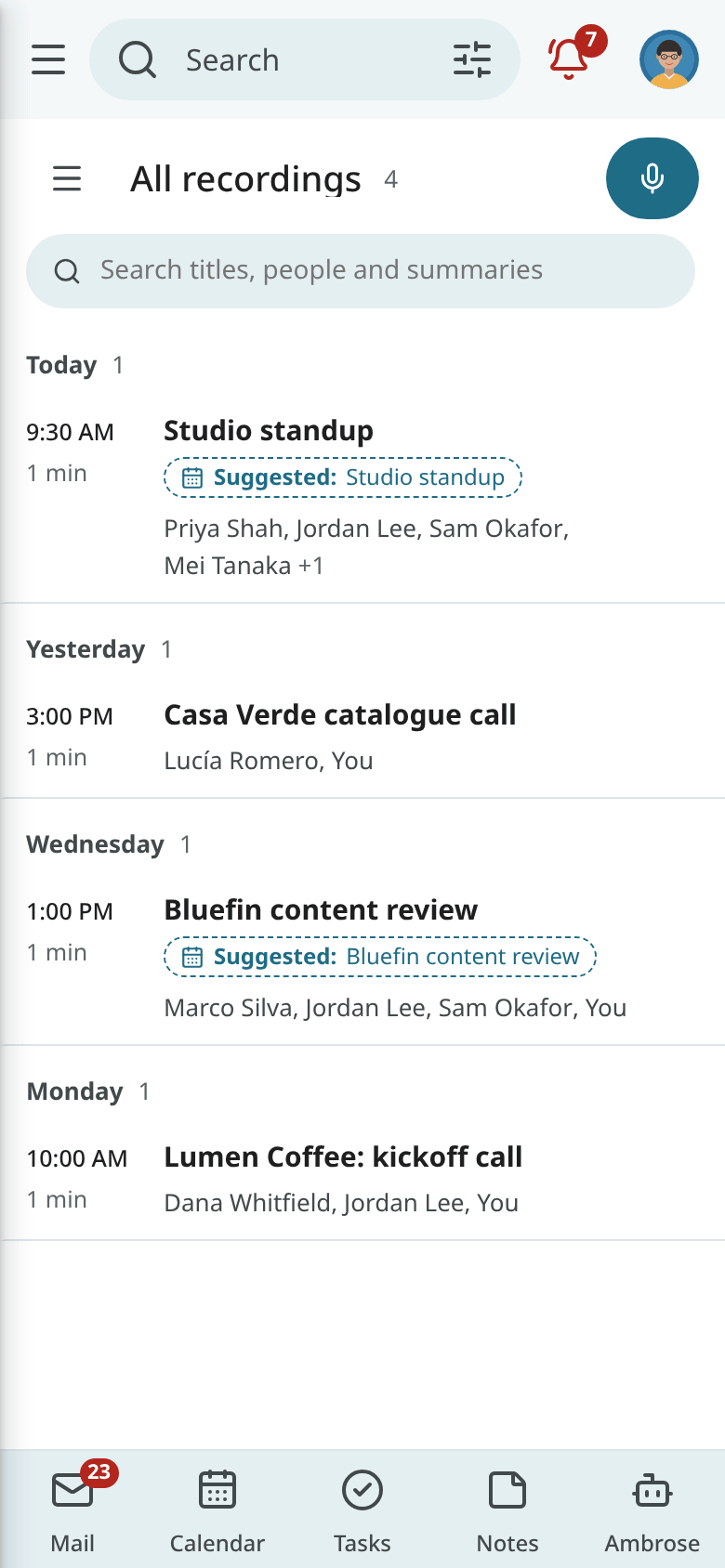
The Android app has the recording sheet, the event's Recording section, follow-ups, action items and recording. Turn the feature on or off under Recordings (Speakr) in the app's settings. See Android app settings.