Reading mail
Open a conversation from the list to read it. Older messages are folded into one line each; click one to expand it, or use Expand all. Quoted history is trimmed: click Show trimmed content to bring it back.
Moving around
| Key | Action |
|---|---|
j / k |
Open the older or newer conversation. |
n / p |
Move to the next or previous message in the conversation. |
u |
Go back to the list. |
[ / ] |
Archive, then open the previous or next conversation. |
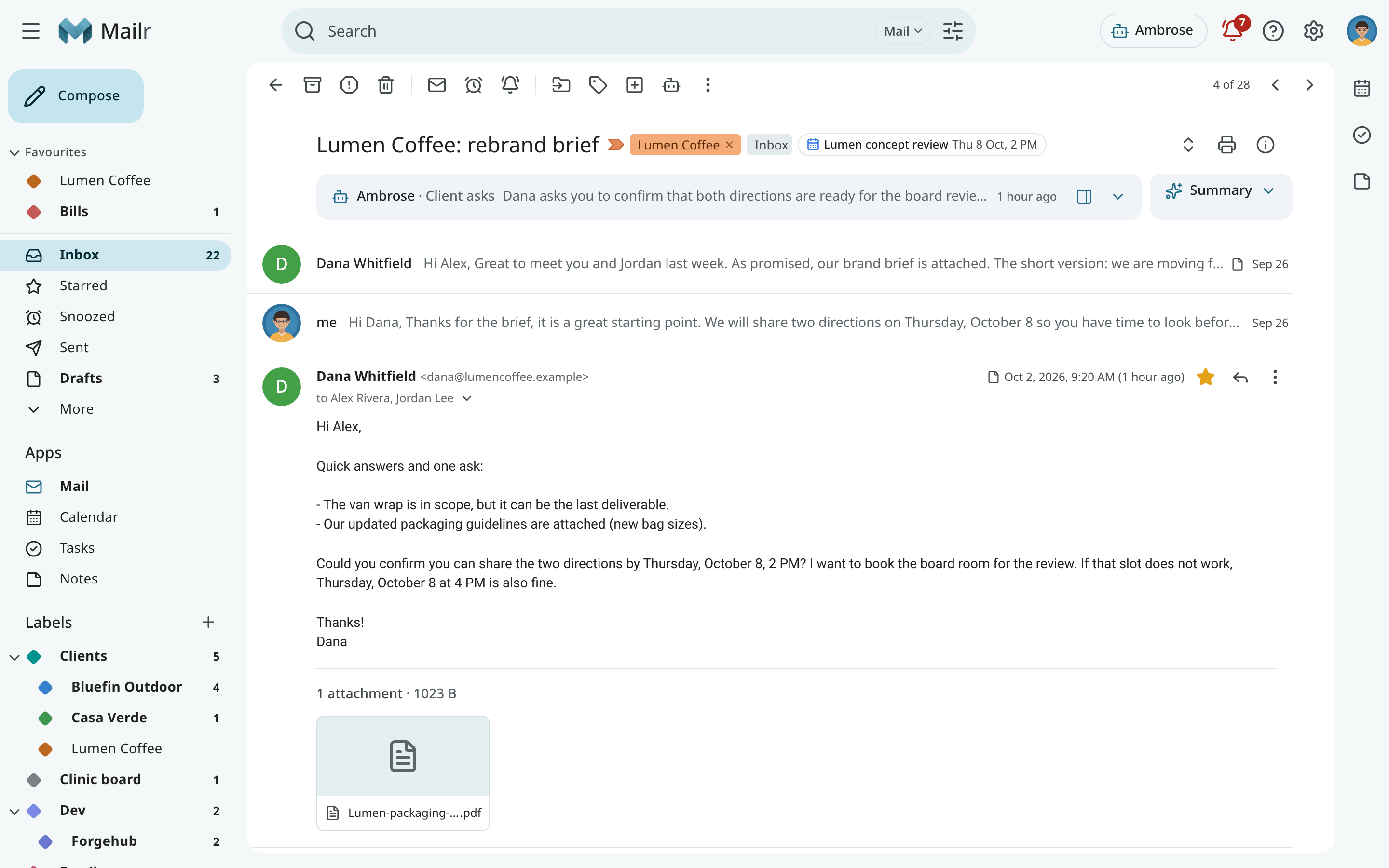
The reader's toolbar holds the conversation actions: archive, report spam, delete, mark as unread, snooze, move, labels, Notes, ask Ambrose and the ⋯ menu. Use Open in full view to give the conversation the whole window; press Esc to return. On a phone the toolbar has archive, delete, snooze, move and labels; report spam, mark as unread, Notes and Ask Ambrose are in the ⋯ menu.
The subject line
The subject is followed by everything about the conversation as a whole, on the same line:
- the importance marker and the labels (click × to remove a label);
- the email's main action, such as Track package or Check in, with its key fact;
- the events and tasks made from the email, with their state;
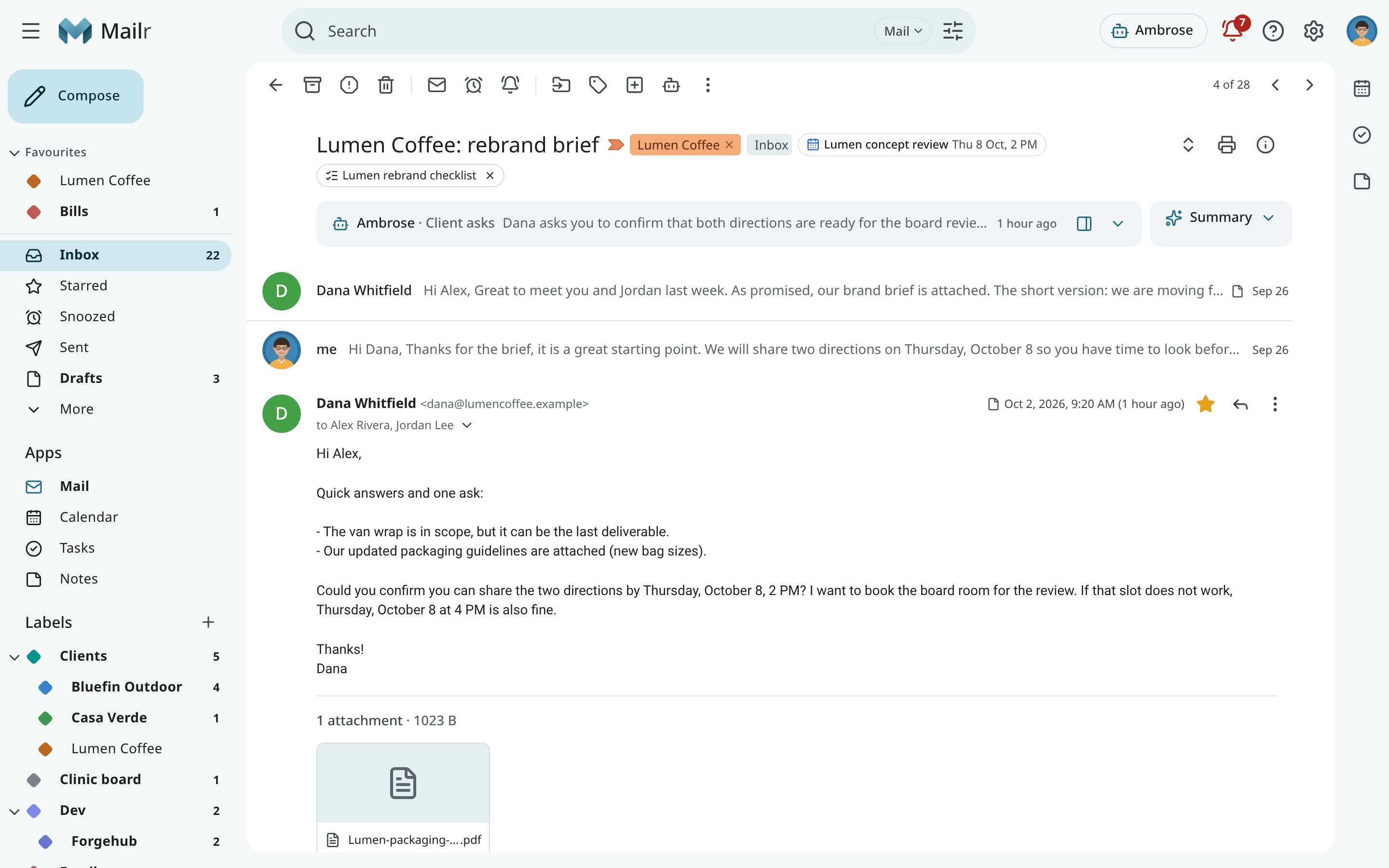
- the notes and tables linked to it. Click one to open it; click × to remove the link; the toast has Undo.
With a short subject, these items all fit on one line. A long one is wrapped like a sentence. When nothing is linked, no extra line appears.
Create from email
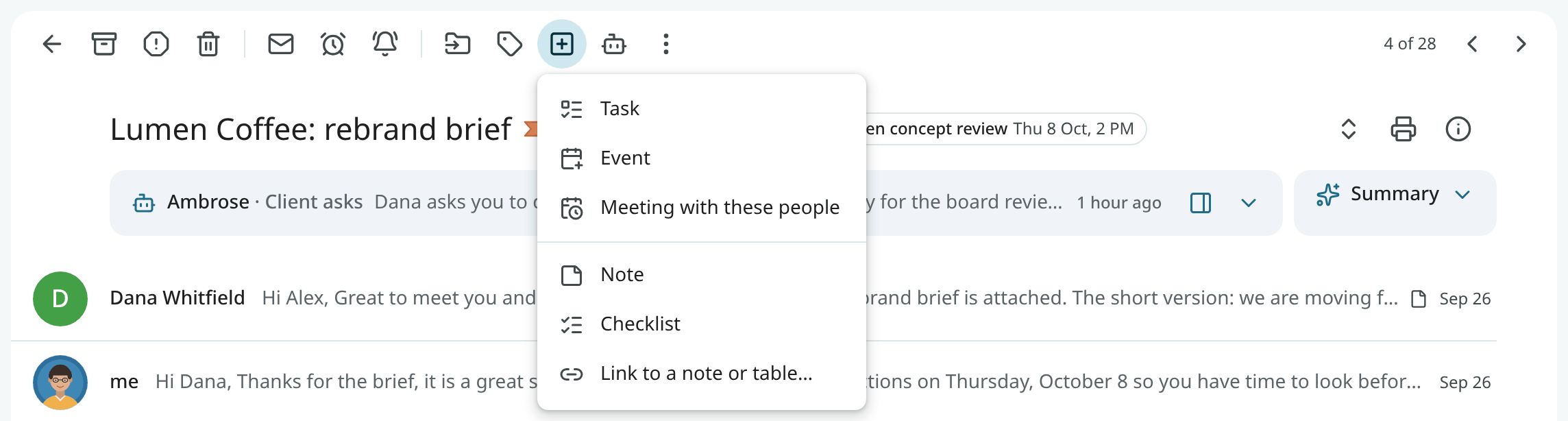
Create from email in the toolbar (the square with a plus, or Shift+T) holds every item that
can be made from a conversation:
| Item | Result |
|---|---|
| Task | A task, filled in from the email (below). |
| Event | An event, filled in from the email (below). |
| Meeting with these people | A meeting with the people on the thread. See Invitations. |
| Note | A note with the subject and a link back. It is opened at once. |
| Checklist | A checklist from the lines you selected. |
| Link to a note or table… | A link to an existing note or table. |
Each one has a link back to the conversation. The same menu is in the row's right-click menu, under Create from email. On a phone it is in the reader's ⋮ menu. See also Notes from email, and links.
The sender's name appears with the real address beside it. A note appears under the name when the name contains a different address from the one the message came from, or when it mixes letters from alphabets that look alike.
The summary card
Longer conversations have a Summary card at the top: a few lines on what the thread is about, with links to the sentences they come from. Click a link to jump to the sentence in its message. The card appears only when a language model is set up on the server.
In a thread of three or more messages, or when a conversation has both a summary and a brief from a standing order, the two start folded into one strip, so the newest message stays in view. The folded brief shows its first line. Click either one to open it; a card you open or close stays that way. An invitation, or a reply to one, gets no summary: its invitation card holds the same details.
The message menu
Each message has a ⋮ menu:
| Item | Action |
|---|---|
| Reply, Reply all, Forward | Start a reply or forward of this message. |
| Create event, Add to tasks | Turn the email into an event or a task (below). |
| Filter messages like this | Open a new filter for this sender. |
| Copy sender's address | Put the sender's address on the clipboard. |
| Make … a VIP sender | Always mark this sender's mail important (see VIP senders). |
| Translate to English | Show the message in English (below). |
| Print the message. | |
| Delete this message, Report spam | Act on this one message only. |
| Block "…" | Send this sender's future mail to Spam (see Blocked senders). |
| Mark as unread | Mark from this message on as unread. |
| Split into new conversation | Move a message that does not belong into a conversation of its own. |
| Show original | Show the raw message with every header. |
Click the small arrow next to the sender, Show details, to see the recipients, the date, the mailing list, and whether the message passed sender authentication. A message that failed DMARC has a warning above its text.
A warning is shown beside the sender's address in these cases:
- the name shows another address than the one the message came from;
- the name or the address mixes look-alike letters from different alphabets ("pаypal" with a Cyrillic "а");
- the From line is malformed or names two addresses. Such a message is matched to nobody: it never counts as yours or as from one of your trusted addresses.
Hidden characters that turn text around or hide inside it are removed from addresses, also in what Copy address copies.
Copy an address

- With a mouse or keyboard: point at the sender's name or address, or move the focus there. A small copy button appears beside the address. Click it to copy the address, or Shift+click it to copy the name and address together ("Bich Nguyen bich@example.com"), ready to paste into a To field. Each address in Show details has the same button.
- On a phone or tablet: touch and hold the sender's name or address, or an address in the details. Choose Copy address, Copy name or Copy name and address.
- In the Android app: touch and hold the sender's name in an open message, or an address in its details, for the same three choices. In TalkBack, they are available as actions.
- The message's ⋮ menu also has Copy sender's address.
Images and trackers
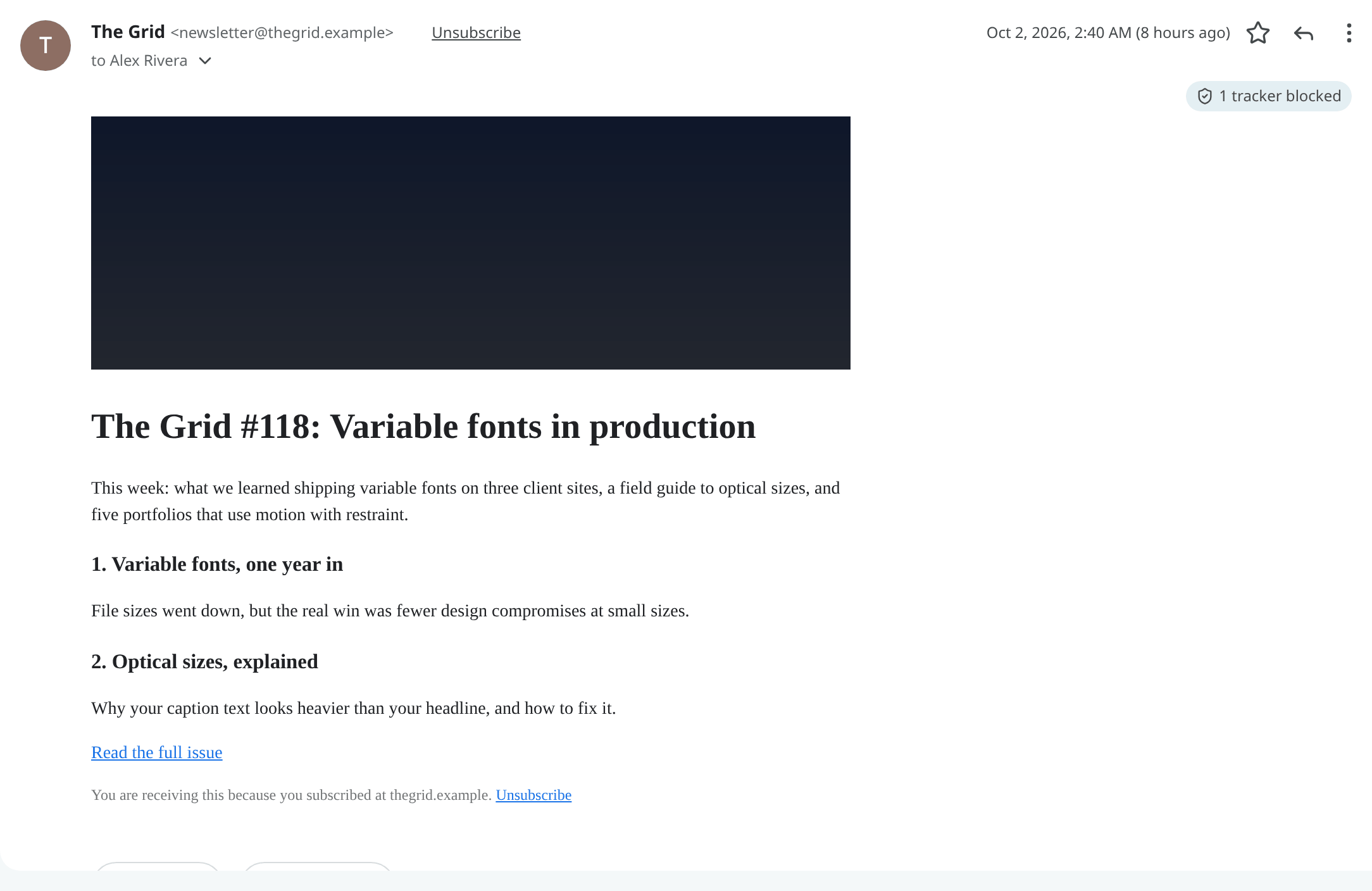
Remote images are loaded through Mailr, never from the sender's server. They are fetched when the mail arrives, so the sender cannot tell when a message is opened later. Known tracking pixels are removed in every case; a line above the message shows "2 trackers blocked" and their hosts. Wrapped links (click trackers that hide the real address in the URL) are unwrapped to their real address.
A link whose text shows a web address or a domain, but which opens a different site, is a common trick in phishing mail ("www.yourbank.example" that leads somewhere else). In the web app, such a link asks first: "This link opens another site" names the site it really opens, and Open goes there. Ambrose's drafts show the real address beside such a link instead.
Choose how images appear under Settings → Mail → Reading → Images (images):
| Choice | Result |
|---|---|
| Always display images | Images are shown at once, through Mailr (the default). |
| Ask before displaying images | A bar appears with an option to display them, for this message or always for this sender. |
| Never display images | Images stay hidden. |
Images in Spam are loaded only after confirmation, with a warning that the sender can then learn that the address is active.
When you reply to or forward a message, its quoted images follow the same choice. Images not shown in the reader appear as outlined boxes in the editor, and the recipient still gets them.
Note
Image fetches can be routed through a VPN by the administrator, so that senders see the VPN's address instead of the server's. See Image proxy and VPN egress.
With Sender pictures (sender_pictures, off by default), pictures for senders are looked up
from BIMI, Gravatar and Libravatar. Without it, rows have initials.
Plain-text mail
Plain-text mail is often broken into lines of about 72 characters by the sender's mail app. In the web app, such lines are joined again into paragraphs, so they fit the width of the window or the phone. Lists, quotes, indented text, tables and signatures keep their line breaks, and so do blank lines between paragraphs.
Wide mail on a phone
Some mail is laid out for a fixed width, such as a 600 px newsletter or a bank statement. On a phone, in the web app and in the Android app, such a message is shrunk to the width of the screen, so nothing is cut off at the sides and the page does not scroll sideways. Pinch to zoom in on a part of it. Mail that already fits a phone stays at its normal size.
Translate a message
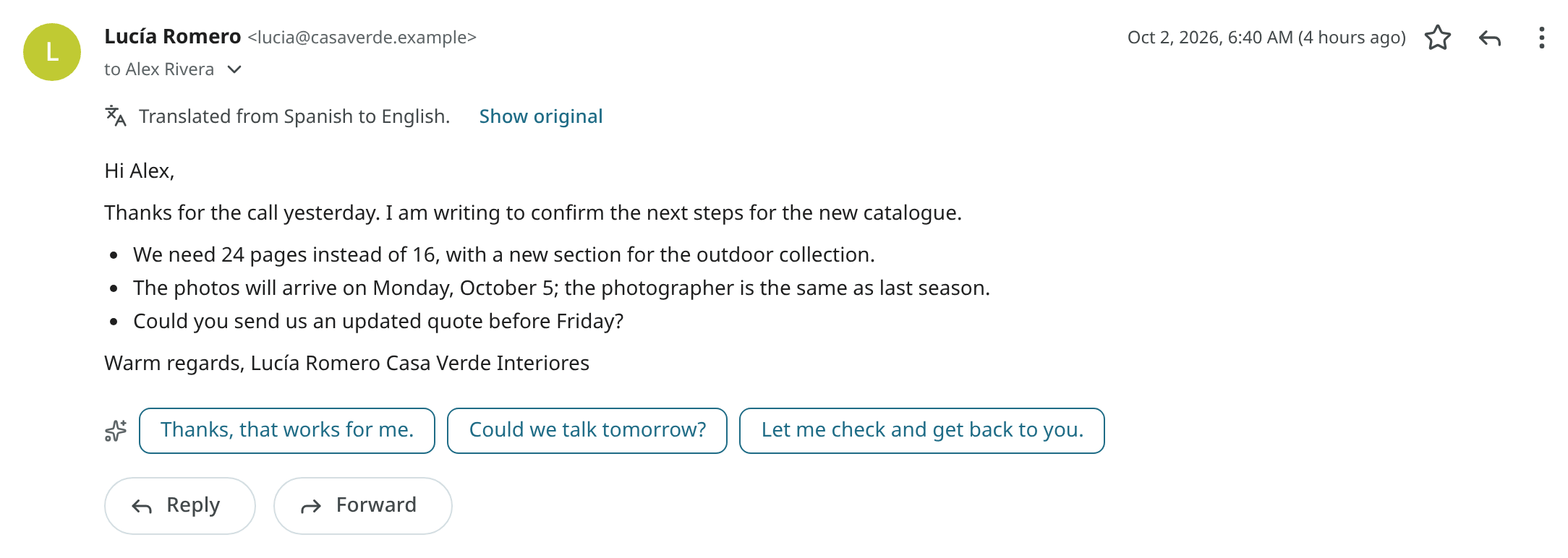
A bar with Translate to English is shown above a message in a language outside the user's languages. The language of each message is identified on arrival, on the server, from the visible text (quoted replies and signatures left out). The bar appears only when the language is clear and is not one of the languages set under Languages in About you (for example "English, Urdu"); with none set, English is assumed. Very short messages get no bar. Translate to English is always available in the message menu. The translation is shown in place of the text; use Show original to switch back. Mail from a local-only account is translated only by a local model, or not at all.
Reply suggestions
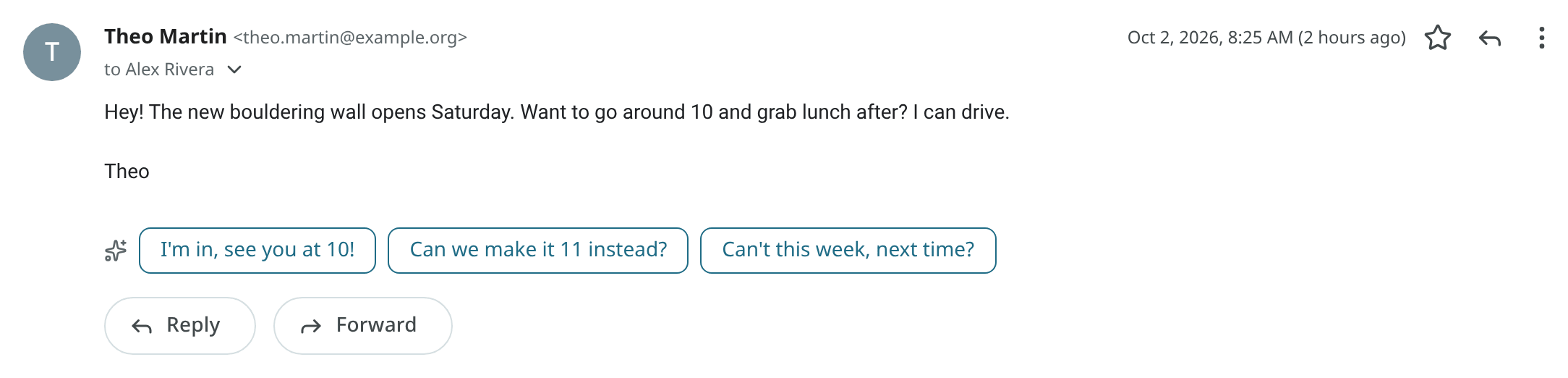
Under the last personal email in a conversation, three short replies are offered, such as "Sounds
good, see you Thursday." Click one to start a reply with that text, then edit it.
Suggestions never appear for mailing lists, automated mail, promotions or spam. Turn them off with
Show reply suggestions in Settings → Ambrose → Briefs & replies (reply_suggestions).
Turn an email into a task or an event
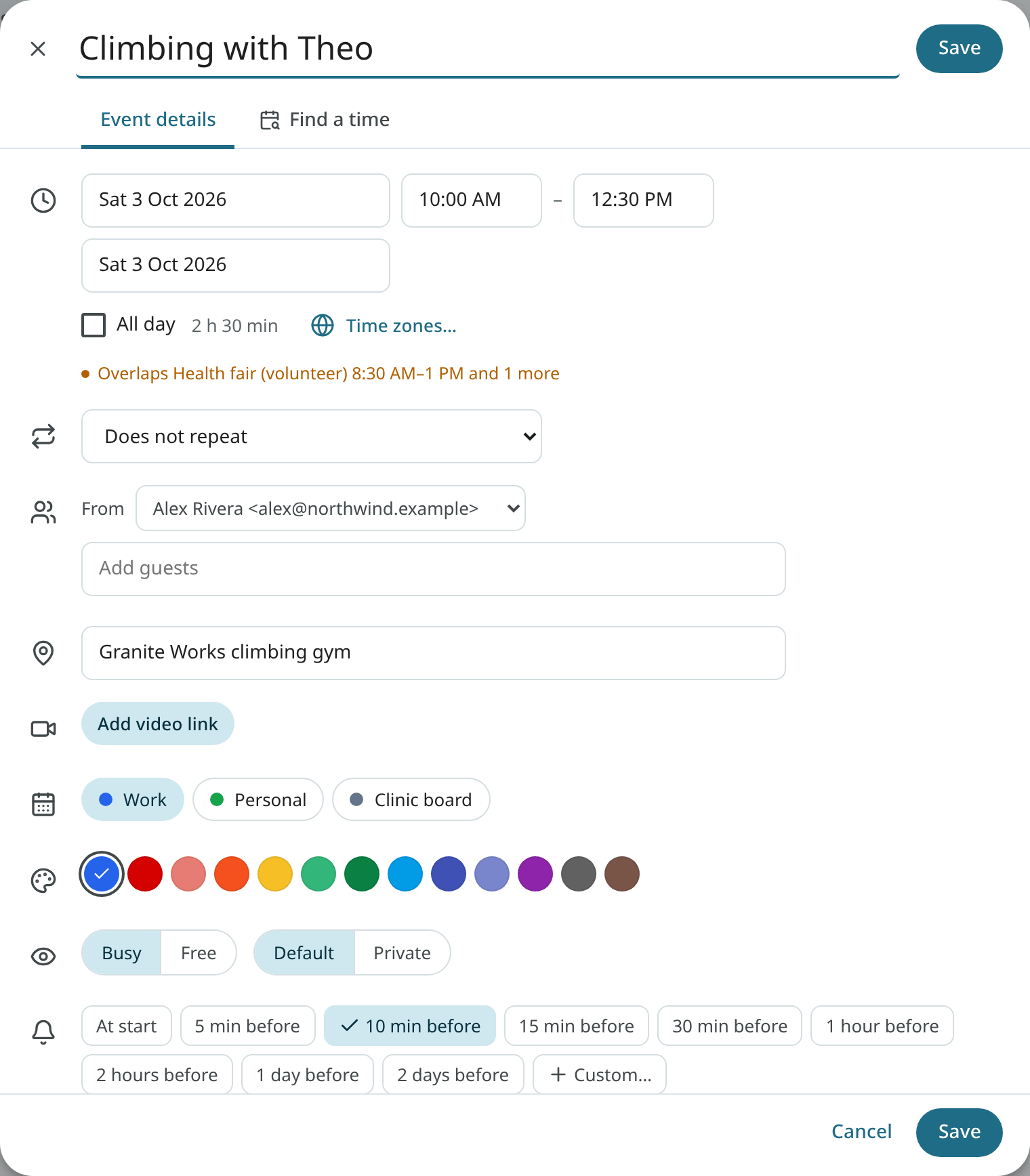
Choose Create from email → Task or Event in the toolbar or in the row's right-click menu, or Add to tasks or Create event in a message's menu. A title, a date and a place are read from the email, and a form opens with them filled in. Check it and save. The task or event has a link back to the conversation. The confirmation message has Open and Undo.
Invitations get their own card at the top of the message. See Invitations.
Attachments
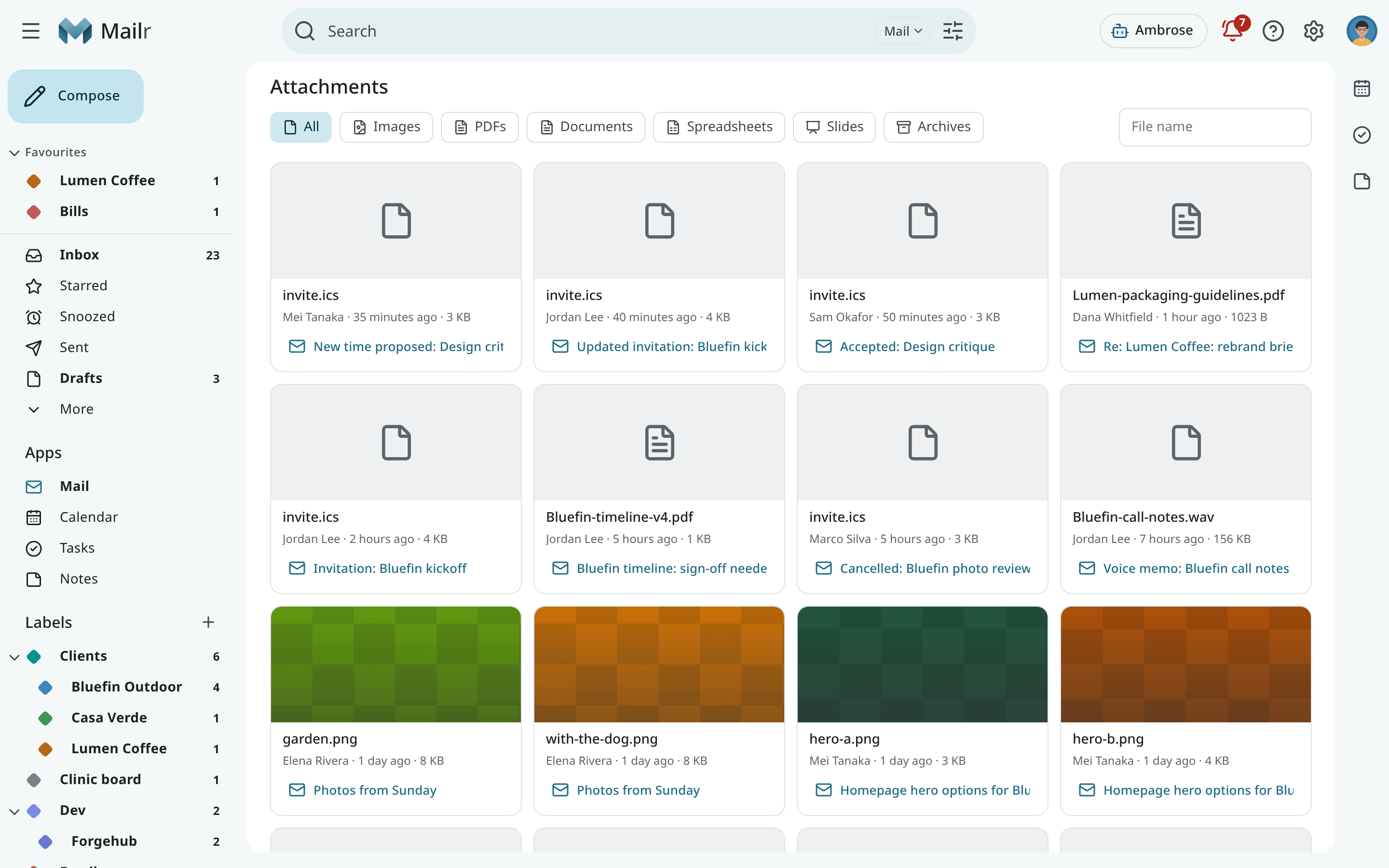
Attachments sit under their message with a preview for images and PDFs and a download button.
The file's extension always stays in view. A program or script (such as .exe, .js or .lnk)
is marked with a warning sign; open one only if you expected it. The same holds for the files
inside an attached email.
The Attachments view in the navigation lists every file you received, newest first; search it
by name, sender or type.
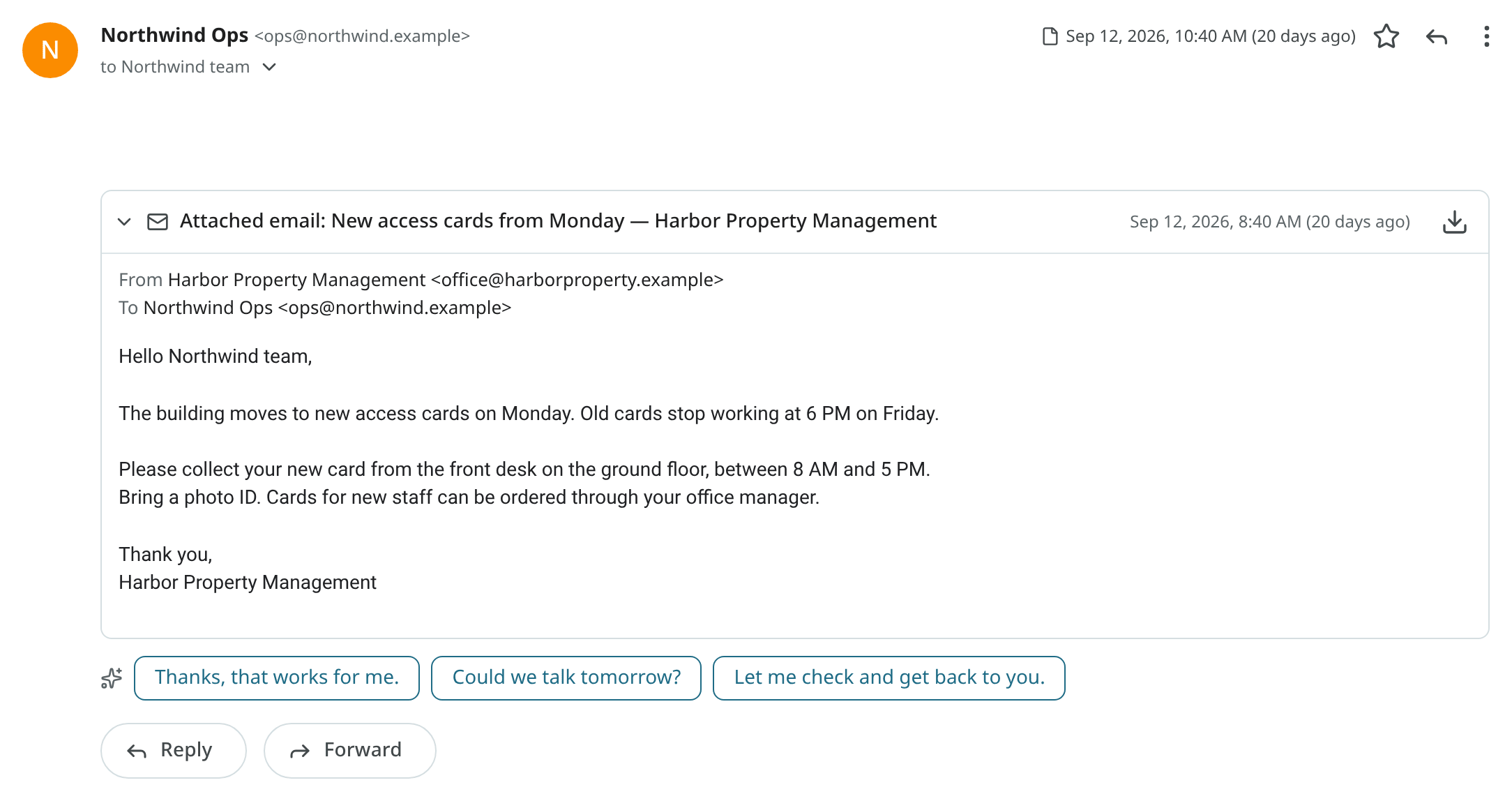
Attached emails
An email can carry another email as an attachment: a Forward as attachment from another mail
app, a digest of several emails, or the original message returned with a delivery failure. Each
attached email gets a card under the message. The card shows Attached email:, the subject and
the sender, with the date and the first words. Click the card to open it: the attached email's
sender, recipients, body and files appear inside it. Its images follow the message that carries
it: anyone can write any sender into an attached email, so only the outer sender counts for
Always display images from, and an attached email does not offer that button. Use the download button to save the attached email as an .eml
file, which any mail app can open.
When the message itself has no text, as with a plain forward as attachment, the first card is already open.
The text of an attached email is not part of the message that carries it. Only the message's own text is used for the list preview, summaries, Ambrose and your writing samples. An attached email can still be found by its words in search; see Search.
An attached email that cannot be read, such as one cut short in transit, is listed as a plain
.eml file with the other attachments.
Unsubscribe
Mail from a mailing list has Unsubscribe next to the sender. The list's one-click unsubscribe is used when the list has one. Otherwise an unsubscribe email is prepared for review before sending.
Decision reasons
Click Why this is here (the ⓘ button) in the reader to see every automatic decision on the conversation: the category, importance and spam verdicts and the suggested labels, each with its reason, then the filters and standing orders that matched, in words ("Filter Bills: From billing@…"). Show all checks lists every filter and standing order with its search terms and which of them matched. See Triage.
Offline and new versions
When the connection drops, the banner You're offline. Showing what's cached. is shown. Conversations already opened stay readable. For a conversation not yet opened, the subject and preview from the list are shown, and the full conversation once the connection is back. Couldn't find this conversation is shown only when the conversation no longer exists on the server.
When the connection is up but the server does not answer, Can't reach Mailr. Retrying. is shown, and the connection is retried with longer pauses between tries. The session stays signed in, and open compose windows stay open. The sign-in page is shown only when the session has ended, and unsent text is restored after the next sign-in.
After Mailr is updated on the server, New version of Mailr is shown in an open tab, with a Reload button. If part of the app cannot be loaded after an update, the page is reloaded once.