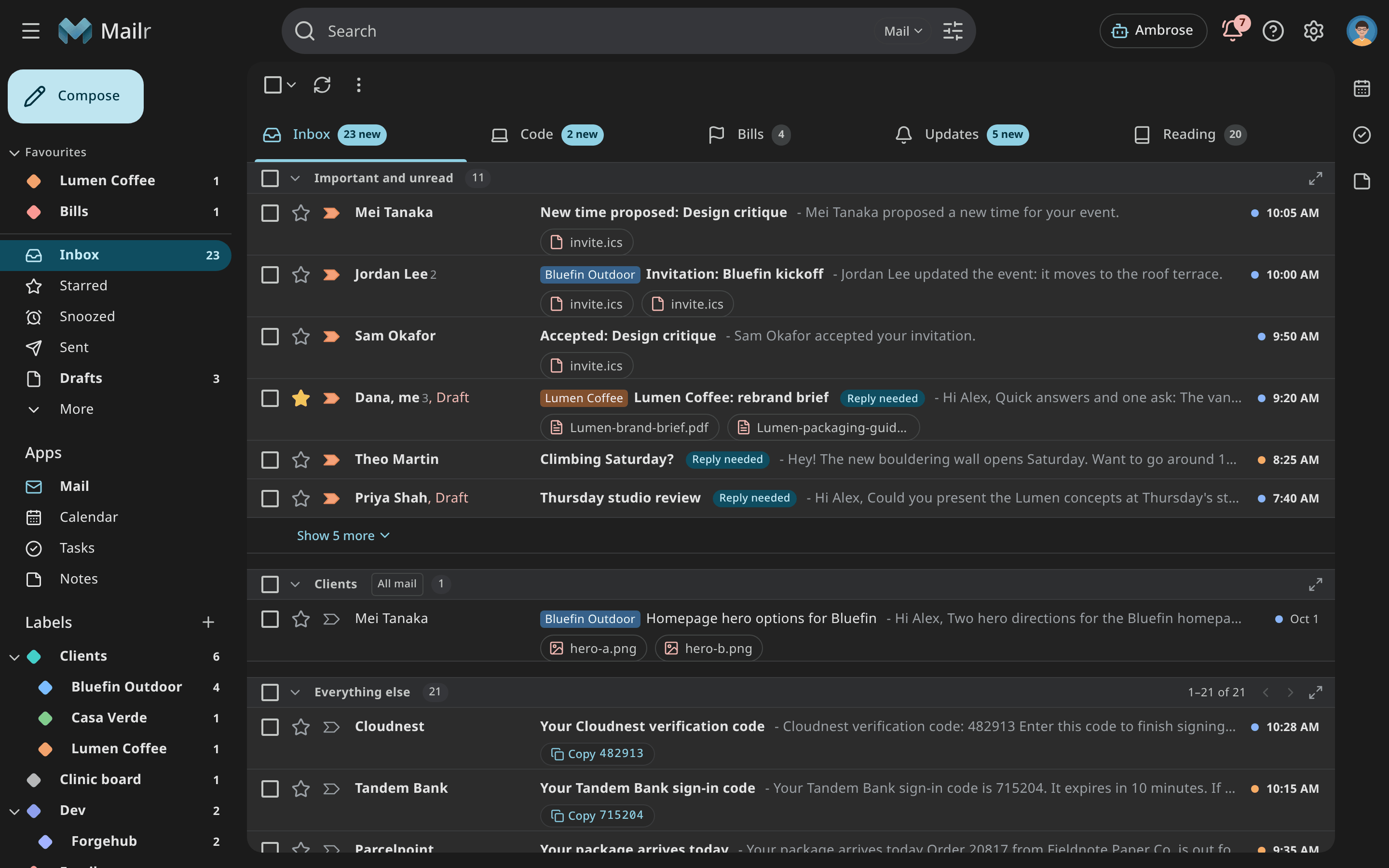
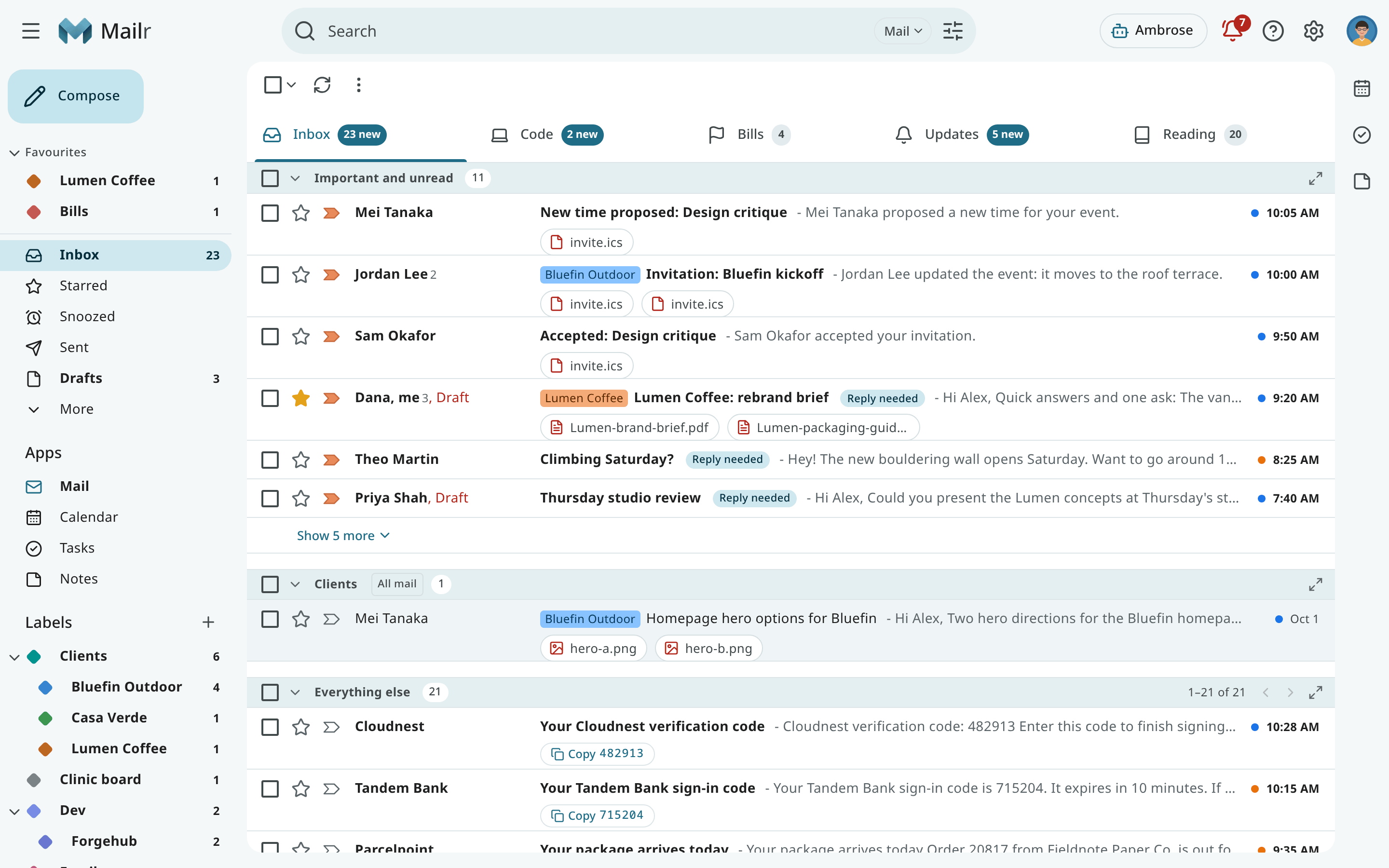
The inbox
In Mailr the unit is the conversation: a message grouped with its replies. Lists, search results and actions all apply to whole conversations. Labels take the place of folders, and Inbox is a label like any other: when you archive a conversation, the label is removed.
A user with no mail account and an empty inbox sees "No mail account connected yet" with Connect an email account, and no inbox tabs. The button opens Settings → Mail → Mail accounts with the Add account wizard.
The navigation
The left side of the window holds the mail views.
| Entry | Contents |
|---|---|
| Favourites | The views and labels you pinned, in your order (see Favourites). |
| Inbox | Conversations that carry the Inbox label, drawn with your layout. Its number is the count of unread mail in your first tab, or in every tab (see The Inbox count). |
| Screener | First-time senders waiting for your decision, while the Screener is on. Its number is the count of senders waiting. |
| Starred, Snoozed, Important | Conversations with a star, waiting to come back, or marked important. |
| Sent, Drafts, Scheduled | Your own mail: sent, being written, or waiting to go out. |
| All Mail | Every conversation except Spam and Trash. |
| Attachments | Every file you received, newest first, searchable. |
| Spam, Trash | Mail set aside by you or your filters. |
| Categories | Social, Updates, Forums, Promotions and Purchases: each conversation is sorted into one of these or into Primary. With the Categories inbox type, Primary, Promotions, Social, Updates and Forums get an Inbox tab by default; Purchases can be added as a tab under Settings → Mail → Inbox → Categories (see Built-in inbox types). |
| Labels | Your labels, nested by / in their names. |
Each style has its own form of the navigation: a sidebar in Classic, a folder pane in Workspace, a folder tree in Desk, a rail in Cards and a command palette in Focus. The entries are the same. See Styles and appearance.
Several mail accounts
When you connect more than one mail account, all their mail is kept in one mailbox. The Inbox, Sent, Drafts and every other view hold the mail of all your accounts, and the mailbox's heading in the navigation is All accounts. With one account, the heading is that account's address.
With two or more accounts, each row of the list shows a small dot in the colour of the account the mail belongs to. Hover over the dot, or listen to it with a screen reader, to hear the account's address. Each account is given a colour when you add it. To change one, open Settings → Mail → Mail accounts and click the dot on the account's card.
Mail belongs to an account when it arrived through that account, or when you sent it from one of the account's addresses. A conversation that went through two accounts belongs to both.
Each account's own folders
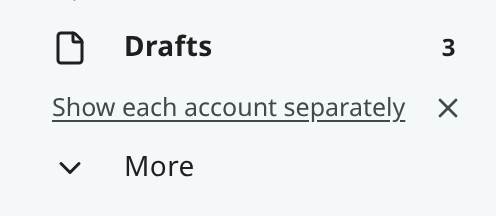
Turn on Show each account separately (account_folders) in Settings → Mail → Inbox to see
each account on its own as well. When you have two or more accounts and the setting is off, a short
line about it appears in the navigation: click Show each account separately there to go to the
setting, or click ✕ to hide the line. The line does not come back once you hide it or change
the setting. Focus has no navigation column, so the line does not appear there.
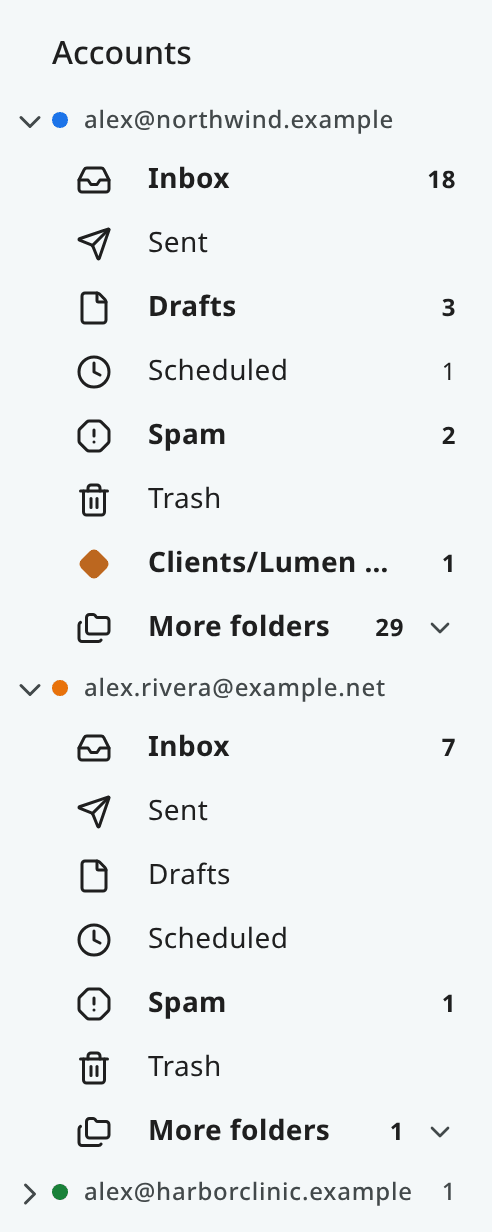
 The navigation then lists the folders of all accounts and,
below them, one group for each account with its own Inbox, Sent, Drafts,
Scheduled, Spam and Trash, and below those the account's folders (see the next
section). Categories stay shared by all accounts.
The navigation then lists the folders of all accounts and,
below them, one group for each account with its own Inbox, Sent, Drafts,
Scheduled, Spam and Trash, and below those the account's folders (see the next
section). Categories stay shared by all accounts.
- Classic lists the groups under Accounts in the sidebar. A group closes with the arrow next to the address.
- In Workspace, each account is a folder node of its own, as in Outlook.
- In Desk, the groups are in the folder tree; in Cards, they are in the drawer.
- In Focus, each account's folders are in the command palette (Ctrl+K), under Accounts.
- On a phone, the folders are in the mail drawer, and in the Android app's drawer too.
Each folder has its own address in the browser, so the back button and bookmarks work. The number next to it is for that account's mail only. Select all and the bulk actions stay inside the folder. A message you start in an account's folder is sent from that account's address. A search you type there covers that account only. An In: chip with the address appears above the results; click it to search all accounts again.
Folders inside an account
In Mailr a folder is a label. While Show each account separately is on, each account's group has, below its Trash, the labels that hold mail of that account. Each one shows only that account's mail, and its number counts only that account's unread mail.
To keep each group short, only the folders you pinned to that account come below Trash, in your order, followed by one row, More folders, with all the others. The number next to More folders is the count of unread mail in the folders inside it. Click it to open the rest as a tree, and click it again to close them. Which groups are open is saved with your settings, so they look the same on every device.
- To pin a folder, open its ⋮ and choose Pin to and the account's address. Choose Unpin to put it back under More folders. You can reverse either with Undo in the message.
- To move a pinned folder, choose Move up or Move down in its ⋮, or press Alt+↑ or Alt+↓ while it has the focus.
- With a mouse, you can drag folders. Drop a folder on a pinned folder to pin it there, or on the Pin here line that shows during the drag to pin it last. Drop a pinned folder on More folders to unpin it.
- Pins belong to one account. A folder pinned to one account stays under More folders in the others.
- To see new mail without opening More folders, turn on Show folders with unread mail above More folders in Settings → Mail → Inbox, under Show each account separately. A folder with unread mail then shows above More folders until you read it. Pinned folders keep their order.
- The folder you have open stays in view while More folders is closed.
- On a phone, long-press a folder in the drawer to pin or unpin it.
To make a folder in one account, open the ⋮ next to the account's address and choose New folder. The folder appears under that account at once, pinned there, even while it is empty. If the account's mail is kept on its own server (an account that is kept in sync), the folder is made there too. On the servers of other accounts, the folder is made only when you file their mail in it.
The name is shared. "Receipts" under two accounts is one label, and each account's group shows that account's mail in it. The Labels list shows all the mail with the label. There, a label made in an account has that account's coloured dot after its name.
- Rename a folder, change its colour, nest a folder inside it or delete it from its ⋮, as with any label. The mail stays when the folder is deleted.
- Mail of one account can be filed in a folder made in another. The mail gets the label and stays in the account it arrived through, and nothing is copied to the other account's server. A short message about this is shown.
- When you turn Show each account separately off, the groups are only hidden. The folders stay in the Labels list, and they are back under their accounts when you turn it on again.
- In Focus, the command palette lists each account's folders, the pinned ones first. Choose New folder in and an address to make one.
- In the Android app, each account's folders are in the drawer, with the same pins and the same More folders. Long-press a folder there to pin it, unpin it or move it.
- To make a folder in the Android app, tap ⋮ next to the account's address in the drawer, or long-press the address, and choose New folder. Type a name and, if you want, pick the folder it goes inside under Inside. To make one inside a folder of the group, long-press that folder and choose New folder inside. The new folder is pinned to the account and opens.
The mail list
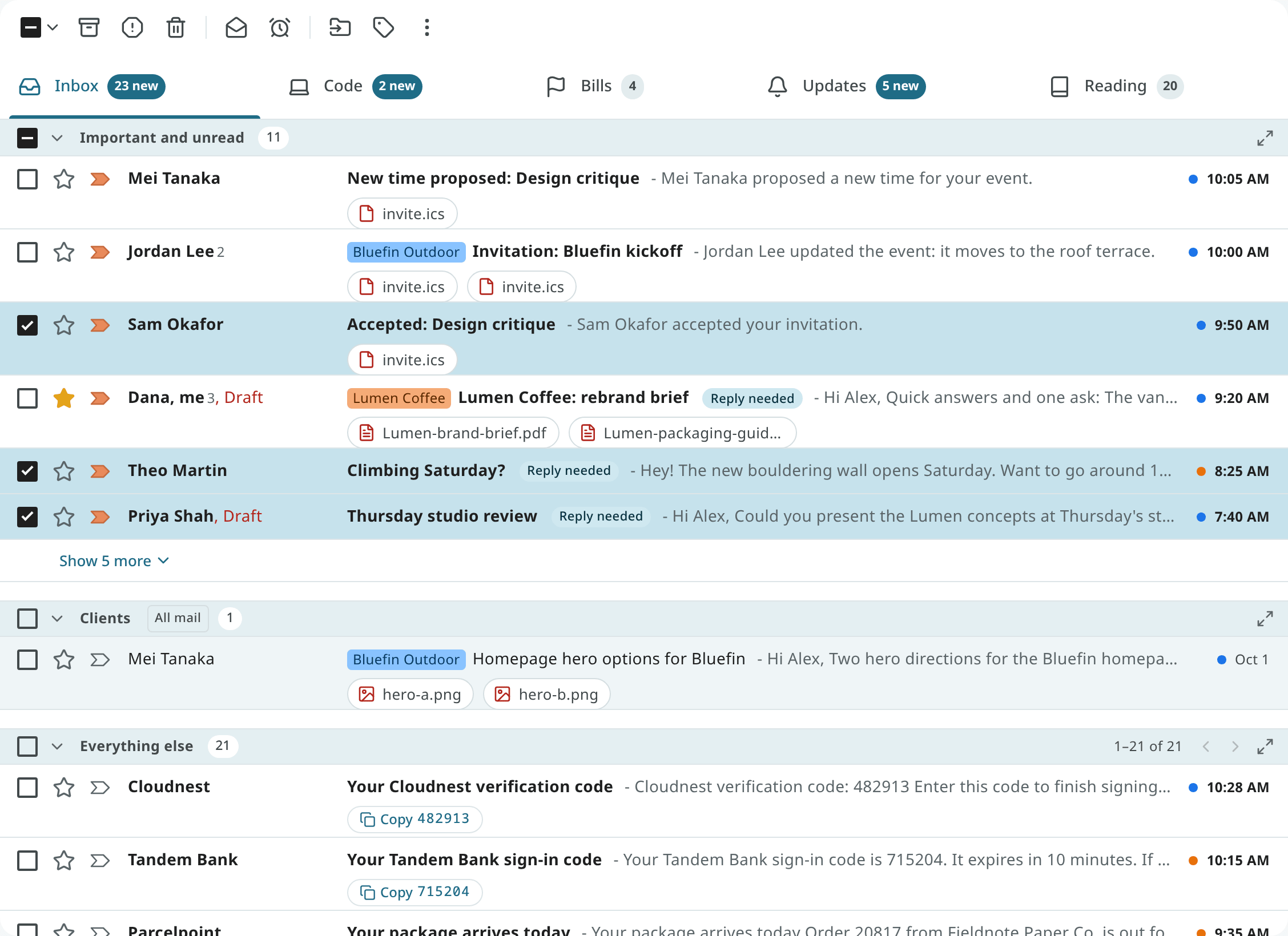
Each row shows the senders, the subject, a snippet, the labels and the date. A conversation that only you wrote in shows whom it went to instead, such as To: Dana Whitfield for a sent email with no reply yet. In the Android app, mail you sent only to your own addresses reads Note to self. Chips after the snippet show what was found in the mail: Reply needed, Waiting, a Due date, No reply, or a one-tap action such as Pay bill or Track package. Each of them is explained on the Triage page.
The snippet is the start of the text you see when you open the message, as it is shown in other mail apps. A newsletter's preview line (the hidden "preheader" at the top of the message) comes first, and a preview the sender declared for mail apps (schema.org markup) is used when there is one. Image descriptions, link addresses, quoted replies and hidden text are left out.
The list's appearance is set in Settings → Mail → Reading and Settings → Look:
| Setting | Choices |
|---|---|
Page size (page_size), Mail → Reading |
How many conversations are on one page (default 50). |
Text & spacing (density), Look |
Roomy, Standard or Compact. |
Conversation view (conversation_view), Mail → Reading |
With it on, replies are grouped into conversations; with it off, every message is listed on its own. |
Where a conversation opens is set with the reading pane setting (reading_pane): on its own
page, to the right of the list, or below it. The setting is saved for each style.
Selecting conversations
- Click the checkbox on a row, or press
xon the focused row. - Ctrl-click (⌘-click on a Mac) to add a row; Shift-click to select a range.
- Use the checkbox menu in the toolbar to select All, None, Read, Unread, Starred or Unstarred. After All, a banner appears with an option to select every conversation in the view, not only the page.
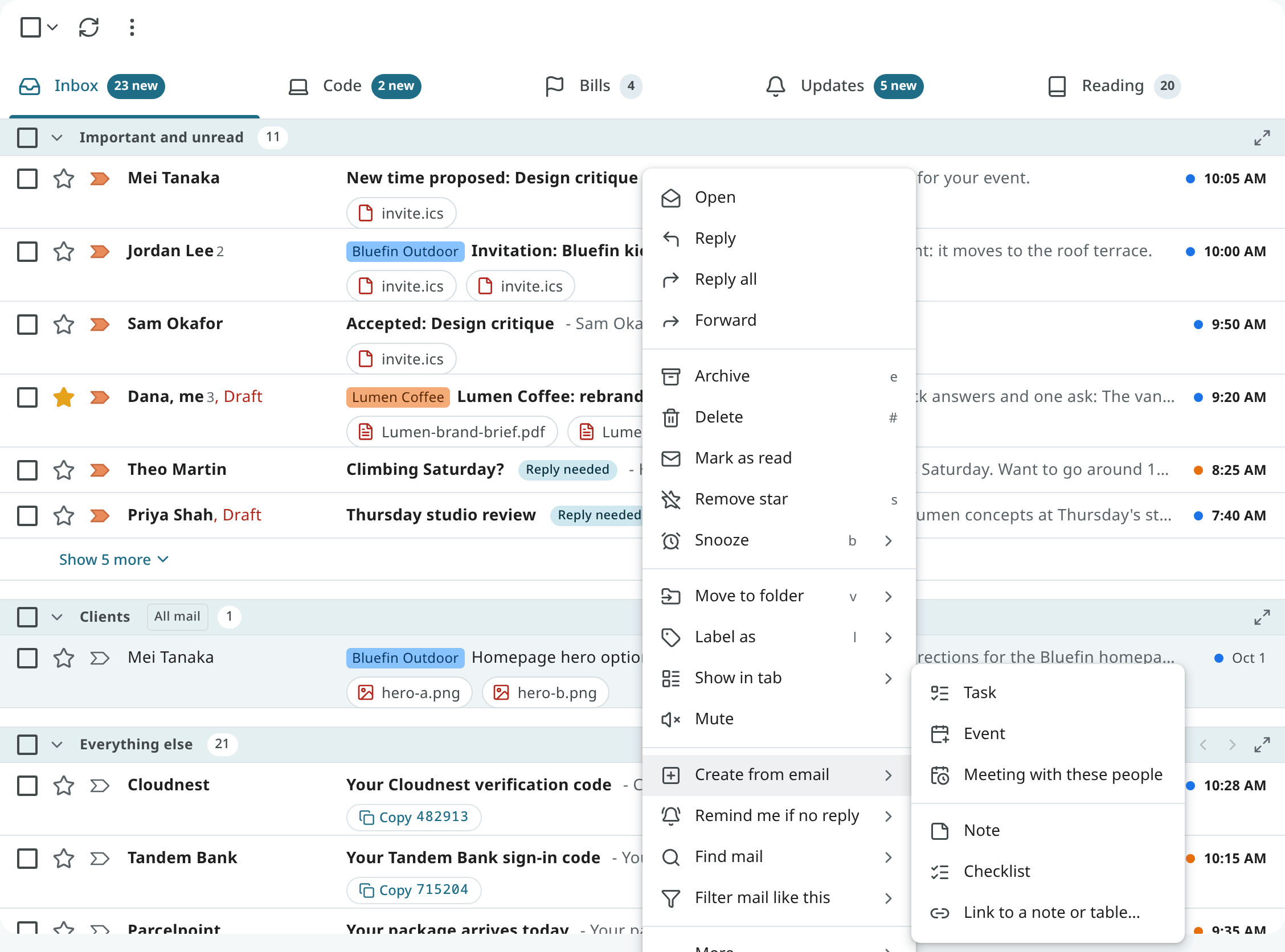
- Right-click a row for its menu. With several rows selected, the menu applies to all of them.
Acting on conversations
The same actions are in the toolbar, the row's right-click menu, the reader and the keyboard.
Use Archive to take the conversation out of the Inbox. It stays in All Mail, under its labels, and
in search. Press e, or use the archive button on the row or in the reader.
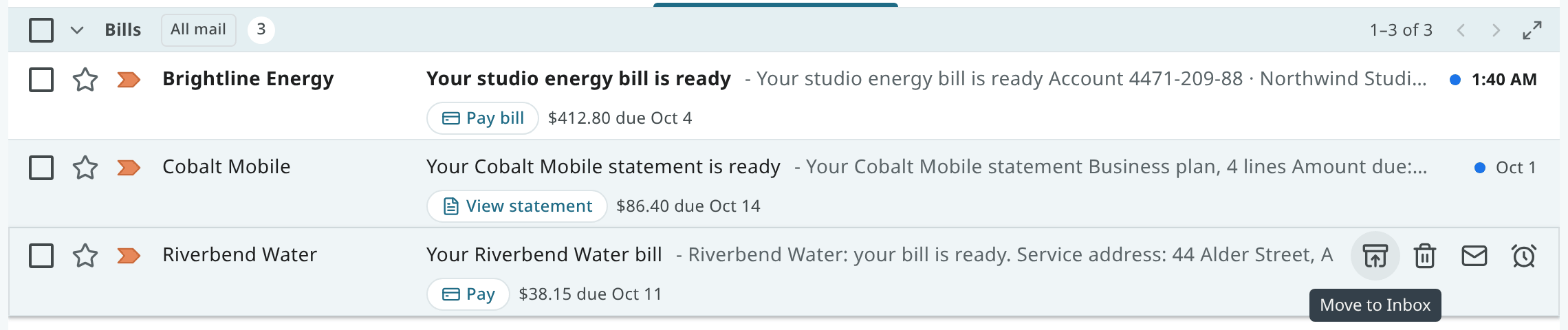
The button shown depends on the conversation, whatever list it appears in. A conversation that is not in the
Inbox has Move to Inbox where Archive usually is: on the row, in its right-click menu, in the
swipe, in the toolbars of Office, Desk and Focus, and on the e key. The same applies in an Inbox tab, for a label
section that shows archived mail. In a label's own list (a "Later" tab, for example), Archive stays,
and that label is removed when you use it (see Archive and delete options).
In Spam and Trash the actions are Not spam and Restore.
Use Delete to move the conversation to Trash. Press #. In Trash, use Delete forever to remove it
(see Delete forever).
Use Mark as read and Mark as unread to change the read state. Press Shift + i or Shift + u.
A conversation is marked read when you open it.
Star a conversation to find it again under Starred. Press s to toggle the star.
Use Mute to keep future replies out of your Inbox. The conversation stays in All Mail and in search,
and it comes back only when you unmute it. Press m.
Use Move to folder to take a conversation from one place to another in one step; it is also
removed from the Inbox. You can move it to a label, to Archive, Spam or Trash, or back to the Inbox
from Spam or Trash. Press
v, pick the destination, or drag the row onto a label in the navigation with Shift held. To keep
a conversation in the Inbox and only change the inbox tab it is shown in, use Show in tab instead
(see Show a conversation in a tab).
Drag onto the navigation
Drag a row, or a selection, onto the navigation:
- onto a label to add that label;
- onto a label with Shift held to move the conversation there;
- onto Inbox, All Mail, Spam or Trash to move it there;
- onto Starred to star it, or onto Important to mark it important.
Undo
After every action, a short notice with Undo is shown. Press z to undo the last action.
Delete forever
Delete forever is offered in Trash and Spam, for a selection or for the whole list. You are asked to confirm first, and there is no undo. The message is then removed from:
- the mailbox: it is gone from every list, search and the mail apps that read Mailr;
- the database: its subject, sender and recipients, text, preview, attachment names and attached emails, its search index and vectors, the reasons the models gave for it, the memories the assistant only suggested from it, the quotes that chat answers cited from it, and the cached summary of its conversation;
- the daily mail export and the backup copy of that export, when the administrator set one up.
A small record stays in the database: its Message-ID, the IDs of the messages it answered, its place at the provider, a fingerprint of its content, and its dates, size and flags. With it, the deletion at the provider can still find the message, and later replies still join their conversation. A message you reported as spam also keeps its sender's address, because spam reports are counted per sender.
The text and the export file are removed in the background, usually within a minute. The nightly database dumps still hold the message until they age out, and so do backups the administrator makes outside Mailr (see Data at rest).
At the provider:
- In an account that is kept in sync, the message is deleted at the provider too.
- In an account where Mailr keeps the mail, a copy still at the provider (one inside the delay before deletion) is deleted there too, whether or not deletion at the provider is turned on. A Resync from scratch then does not bring the message back.
Messages removed with another mail app, or by the mail store's own Trash cleanup, are only marked as deleted at first. A daily cleanup then removes their text and export files the same way. Their provider copies are not deleted.
Archive and delete options
In the reader, the view that opens next is set with Auto-advance (auto_advance,
Settings → Mail → Reading): the list, the newer conversation, or the older one. What else is
cleared on archive is set with two settings:
- Also remove the label of the list I'm in (
archive_removes_current_label, on by default): when you archive from a label's list, that label is removed too. archive_also_removes: labels removed with every archive, chosen under Archive in Settings → Mail → Reading.
Hover a row for its quick buttons: archive, delete, mark as read and snooze. Right-click it for everything else.
Swipe a row to archive or delete it (the swipe actions are set in the app's settings). Long-press a row to select it, then use the top bar. See Mail on the phone.
Dark mode and other styles
Every page is available in light and dark, and in every style.