Built-in calendars
With built-in calendars, each user has a calendar and a task list on Mailr's own server, with no account to connect. They are stored on the bundled mail server (Stalwart), next to each user's mail, and appear as Mailr calendar under Settings → Calendar & tasks, and in the Calendar and Tasks apps on the web and on Android.
Built-in calendars are off by default. Calendars that users connected themselves (Nextcloud, Fastmail, iCloud, a self-hosted CalDAV server) keep working either way.
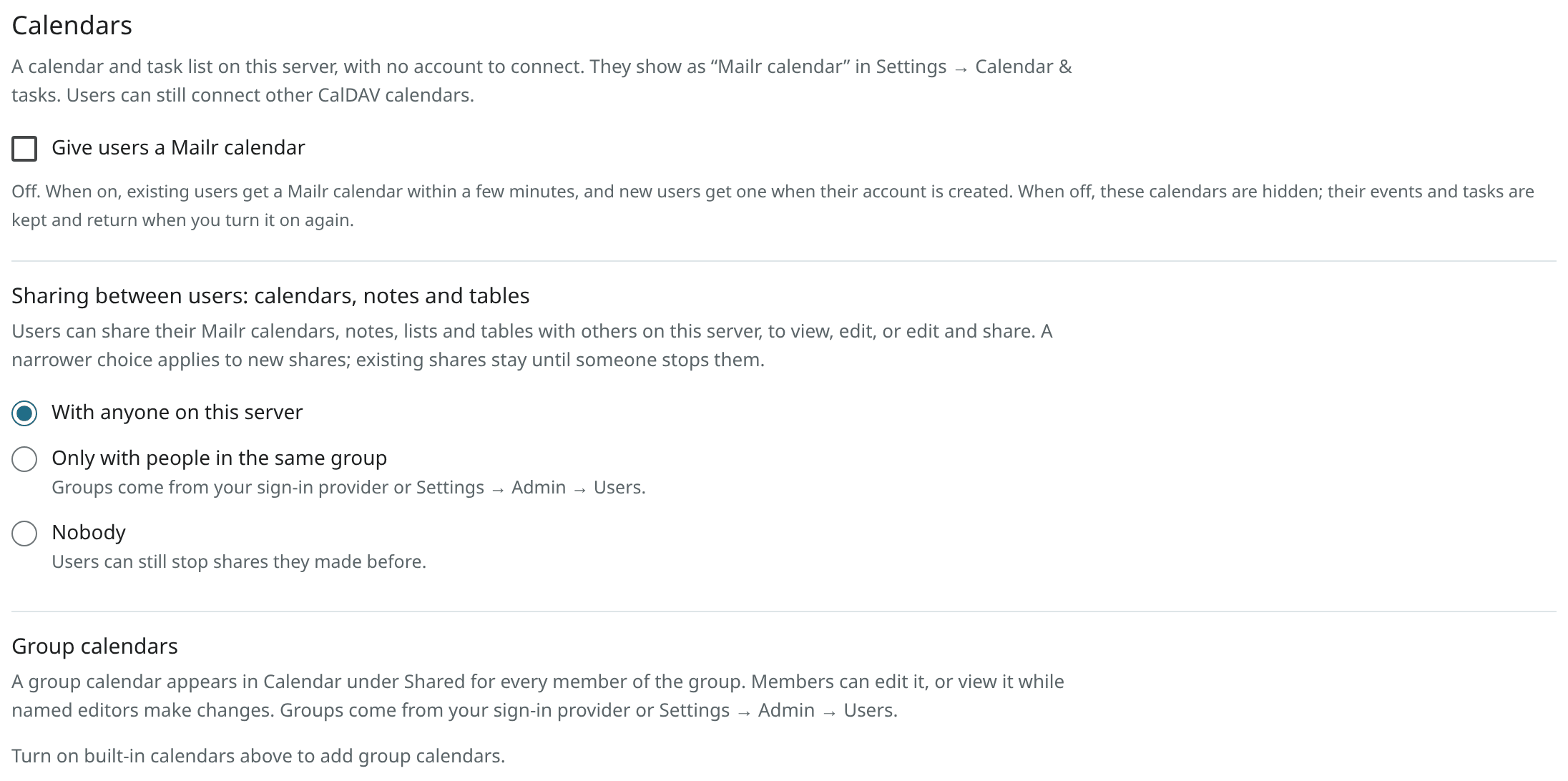
Turn them on
Open Settings → Admin → Calendars and tick Give users a Mailr calendar. Then choose who gets one:
- Everyone, the default.
- Members of chosen groups. Only admins and the members of groups whose access policy has Members get a Mailr calendar turned on get one. The switch is set per group in Settings → Admin → Access policies.
With Everyone:
- Every existing user gets a Mailr calendar within a minute or two.
- New users get one when their account is made.
- At first, each user's Mailr calendar holds a calendar named Calendar and a task list named Tasks. They become the user's default calendar and default task list, unless the user already uses another calendar for events or tasks. In that case the other calendar stays the default for that kind. Calendar is used for events only and is not listed among the task lists. A Calendar that already holds tasks from an earlier setup stays a task list too.
The settings are the instance settings calendars.builtin and calendars.builtin_who. The API is
GET /admin/calendars, with both settings and the number of users with a Mailr calendar in its answer, and
PUT /admin/calendars with {"builtin": true} or {"builtin": false}, and optionally
"who": "everyone" or "who": "groups". Both are for admins only.
Members who leave the groups
With Members of chosen groups, a user who leaves every group with a Mailr calendar keeps it on the server. It is hidden from their settings, Calendar and Tasks and no longer synced, as if the whole feature were off for them. Nothing is deleted. When they join such a group again, they get the same calendar back with everything in it. A user who never had one gets it within a minute or two of joining.
User permissions
- A user cannot remove the Mailr calendar or change its address or sign-in. Sign-in to it is done with Mailr's own service account, so users have no password to manage.
- A user can hide it under Settings → Calendar & tasks, with the switch on its card, and show it again the same way. Its events and tasks are kept while it is hidden.
- Users can rename, recolour and add calendars and task lists inside it, as with any other calendar.
Group calendars
A group calendar belongs to a group. Every member sees it in Calendar under Shared, with the group's name. Groups come from the sign-in provider, or are assigned under Settings → Admin → Users to accounts without a provider (see Access).
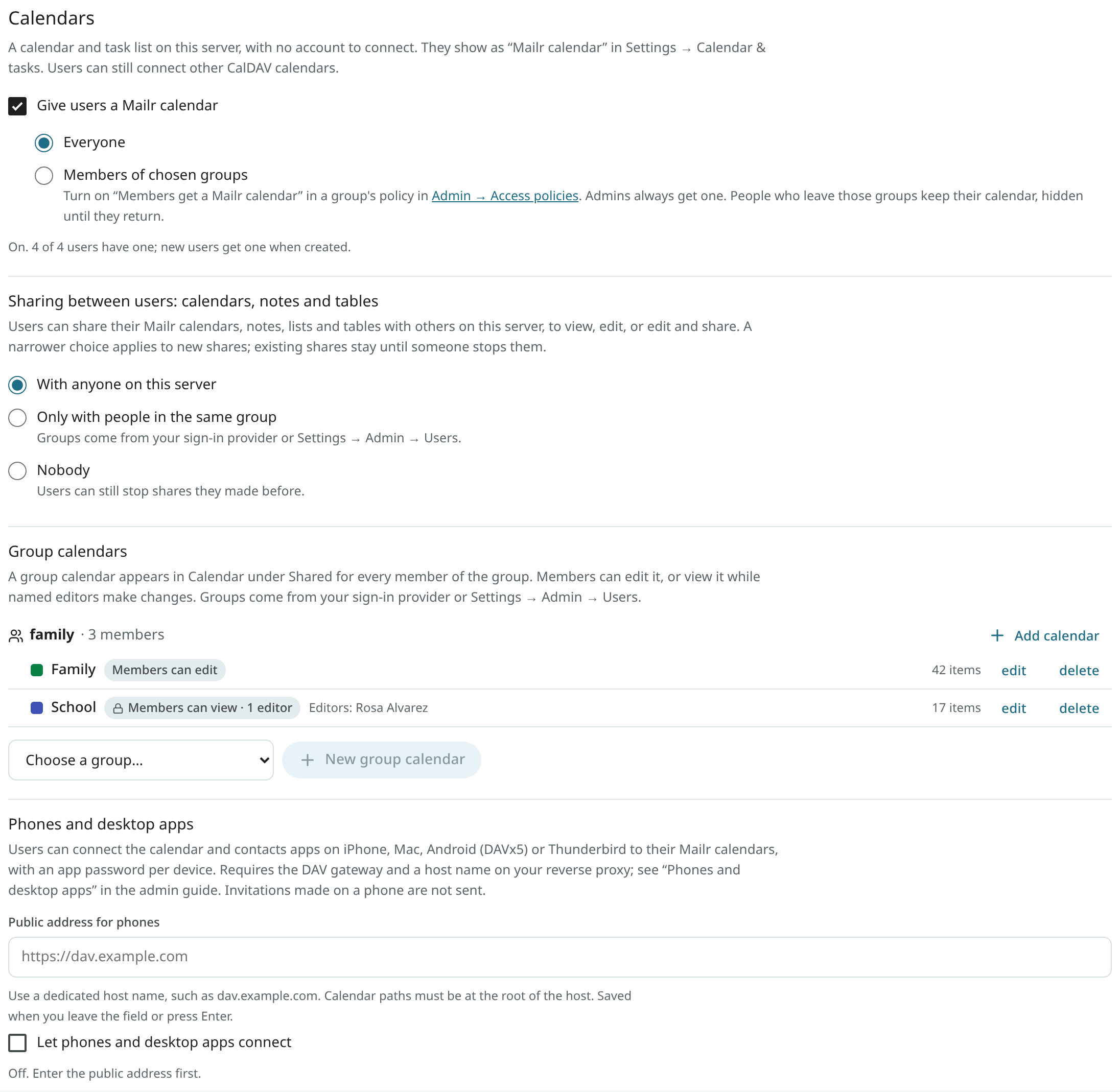
To add one, open Settings → Admin → Calendars, choose a group under Group calendars and click New group calendar. Give it a name and a colour, and choose what members may do:
- Can edit. Every member can add and change events. A shared team or family calendar is the usual example.
- Can view. Members see the events, and only the ticked editors can change them. A school or club calendar that one or two people keep up to date is the usual example. Editors are chosen from the group's members.
A group calendar holds events. Member access is set when the calendar is made. To change the access, download the calendar, make a new one with the other setting and import the file into it.
You can rename a group calendar, change its colour and, for a Can view calendar, its editors. Members see the change at their next sync. With Delete, the calendar and everything in it are removed for every member; in the dialog you can first download the whole calendar as an .ics file.
Visible to an admin: each group calendar's name, colour, access, editors and number of items. A user's own calendars and their events are not visible to an admin.
Members can:
- Hide a group calendar, like any calendar, and show it again.
- Give it a colour of their own. The admin's colour stays for everyone else.
- Add and change events, in a Can edit calendar or as an editor. Elsewhere the write is refused, with a note that the calendar is read-only for them. The same rule applies to Ambrose.
Members cannot rename or delete a group calendar.
Membership is taken from the groups. Someone who joins the group sees its calendars within a minute or two. Someone who leaves it, or whose account is disabled, loses them in the same time. Their own calendars are not touched.
The API, for admins only:
GET /admin/calendars/groups: every group known to Mailr, with its members and its calendars.POST /admin/calendars/groupswithgroup,name,color(#RRGGBB),access(writeorread) andeditors(user ids, forread).PATCH /admin/calendars/groups/{cid}withname,colororeditors.GET /admin/calendars/groups/{cid}/export: the calendar as one .ics file.DELETE /admin/calendars/groups/{cid}?confirm=<name>.
Sharing between users
Sharing between users is set by one setting, for calendars, notes, lists and tables alike. Notes and tables are shared from the Notes app (Share a note); the setting is in Settings → Admin → Calendars even while built-in calendars are off.
Users can share their own Mailr calendars with other people on this server, from the Share… item in Calendar or the share button in Settings → Calendar & tasks. They pick people from Mailr's own list of users, never from the mail server's directory. Each person gets one of three levels: View, Edit, or Edit and share (edit, and share it further).
Under Settings → Admin → Calendars → Sharing between users: calendars, notes and tables, choose who users can share with:
- With anyone on this server, the default. Every active user (for calendars: who has a Mailr calendar).
- Only with people in the same group. People who share at least one group with the person sharing. Groups come from the sign-in provider or from Settings → Admin → Users.
- Nobody. Users can still stop shares they made before.
A narrower choice applies to new shares and to level changes. Shares that already exist stay until the owner or someone with Edit and share stops them.
- A disabled user is never offered. Their existing shares stay, without effect while the account is disabled, and take effect again when you enable it.
- When you delete a user, they are removed from every calendar shared with them. Calendars they owned are removed from everyone else's list.
- No "free/busy only" level is offered. Such a grant can be stored on the mail server, but the other person then sees nothing.
- A calendar can be shared with at most 50 people.
- API tokens and Ambrose cannot share calendars, notes or tables. Users share them while signed in.
- Notes and tables can also be shared with a group the user is in, and moved into a group. When you delete a user, their note and table shares are removed too.
The setting is the instance setting calendars.sharing (anyone, groups or nobody).
It is in the answer of GET /admin/calendars, and "sharing" can be sent to PUT /admin/calendars next to
"builtin".
The Group calendars screenshot shows this choice above the group calendars.
Move from another calendar server
Users who keep their calendars on another CalDAV server (Davis, Nextcloud, Radicale, a hosted one) can copy them into their Mailr calendar. They connect that account first, then click Copy into my Mailr calendar… on its card in Settings → Calendar & tasks (see the user guide). You can do the same for a user from the command line:
docker compose exec app mailr calendars migrate --user rosa@northwind.example            # lists the accounts
docker compose exec app mailr calendars migrate --user rosa@northwind.example --from-connector 12 --dry-run
docker compose exec app mailr calendars migrate --user rosa@northwind.example --from-connector 12
--from-connector is the id of the connected account. Without it, the user's accounts are
listed. Options:
- With
--dry-run, both servers are read and the counts are printed. Nothing is written. - With
--collections Work,Chores, only these calendars, task lists or address books are copied (names or the last part of their address). - With
--overwrite, the other server's version of items that differ is taken. Without it, the version in the Mailr calendar stays and the item is reported as a conflict. - With
--make-defaultand--hide-copied, the switch-over is done afterwards, like the user's own choices (below).
Items copied
- Every calendar, task list and journal the user owns on that account, and every address book. A collection whose name matches one of the user's Mailr calendars is copied into it. Others become new collections with the same name, colour and kinds of item. The same targets are reused in a later run.
- Each item as it is: its UID, its name on the server when that name is plain, repeating series with their changed dates and time zones, reminders, guests, attachment links, subtasks. Address books are read as vCard 4.0, the form kept on the mail server.
- Nothing is deleted on either side. The user's account on the other server stays connected and unchanged.
The report has, per collection, how many items were copied, how many were already there, how many differ (conflicts) and how many failed, with the reason. An item larger than 512 KiB (attachments included) does not fit into the Mailr calendar. It fails and is named in the report.
"Already there" means the same item. Differences made by servers on their own do not count:
DTSTAMP, PRODID, VERSION, SCHEDULE-* parameters, line folding, the order of lines and of
the parts of a repeat rule, quoting, and a contact photo written the vCard 3 or the vCard 4 way.
Large accounts and interruptions
Items are read and written in pages of 100, with at most three writes at a time for each user. The user sees a progress bar. The copy can be run again from where it stopped: whatever is already in the Mailr calendar is skipped. A copy that stops in the worker is retried. Only one copy of an account is run at a time.
When a listing from the other server is cut short, it is completed from Mailr's own copy of that account, and the collection is marked as listed only in part. Run the copy again after the next sync of that account.
Manual setup after a copy
The report lists what cannot be carried over in a copy, with what to do:
| On the other server | In Mailr |
|---|---|
| A calendar shared with other people | Share the copy again with the same people. |
| A delegate or assistant (Davis "Delegates", Apple's calendar-proxy) | Share the user's calendars with that person in Mailr (Share…, level Edit), or give Ambrose a Mailr account if they have none. |
| A calendar someone else shared with the user | The owner shares it in Mailr. A copy of it is made only on request (--collections). |
| A subscription to a calendar link | Keep the old account connected for it, or import the calendar's file. |
| Invitations waiting in the server's scheduling inbox | The user answers them on the old server first. |
Switch over
After a copy the user sees each event twice, once from each account. To avoid the duplicates, the user can choose one or both of these. Both are off by default, and both apply to Mailr only:
- the copies become the default calendar and the default task list;
- the old account's copied calendars are hidden in Calendar.
The old account stays connected until the user disconnects it.
The API, for the signed-in user (not for API tokens):
POST /connectors/{cid}/migrationwithdry_run,overwriteandcollections: a run is started, and the answer has its job.GET /connectors/{cid}/migration: the newest run of that account, andlast_copy.GET /connectors/{cid}/migration/{job_id}: one run, withstatus,done,total, and the report inresultonce it has finished.POST /connectors/{cid}/migration/cutoverwithmake_defaultandhide_copied.
Invitations on connected calendar servers
Invitations, updates, cancellations and replies from Mailr are sent through the user's own mail
account. Some CalDAV servers (Davis, Nextcloud and other SabreDAV servers) are set up to send
scheduling mail of their own, which would duplicate that mail. On such a server, each copy written
from Mailr is marked with SCHEDULE-AGENT=CLIENT (RFC 6638): on the organiser of an event that
someone else organises, and on each guest of an event that the user organises. No scheduling mail
is then sent from the server for these events. Without the mark, a write to a server that has no
mail settings fails as a whole (HTTP 500 from Davis), and the event is not saved.
Events written by phone and desktop apps are not affected by the marks. For invitations made in
those apps to be sent, the calendar server needs its own mail settings (for Davis, MAILER_DSN
and INVITE_FROM_ADDRESS). With INVITE_FROM_ADDRESS empty, no invitation mail is sent from Davis.
Phones and desktop apps
Users can connect the calendar and contacts apps of their iPhone, iPad, Mac, Android phone (with DAVx5) or Thunderbird directly to their Mailr calendars, task lists and contacts. Each device has its own app password, which a user makes under Settings → Calendar & tasks → Phones and other apps (see Your Mailr calendar on iPhone, Mac, Android and Thunderbird).
Phone access is off by default and works only while built-in calendars are on. Turning it on requires three steps: a host name, the DAV gateway, and a forward on the reverse proxy.
Invitations made on a phone are not sent
The mail server's own scheduling stays off. When a user adds guests to an event in a phone or desktop calendar app, the event is saved, and nobody is invited. No warning is shown in the apps, because invitation handling is still announced to them. Mailr's own invitations are not affected: for events with guests made in Mailr (web or Android), invitations are still sent through the usual approval step. On the user's settings page, in the setup dialog and in the iPhone profile, users are told to invite people from Mailr.
App password access
With an app password, CalDAV and CardDAV are open for its own user, with these limits:
- No mail: it is refused for IMAP and for JMAP, and no sending is offered to it.
- No sharing: the WebDAV
ACLmethod is refused. Users share calendars in Mailr, where the sharing policy and the order of the grants are kept. - No free/busy lookups of other people (the schedule outbox): from them, anyone could learn whether an address has an account here.
- No file storage, no directory searches.
A user may have up to 20. The password is shown once and never stored. The last use of a password is not recorded on the mail server, so the list has the date it was made.
Every app password is paused while phone access is off, while the user is disabled, and while the user has no Mailr calendar (built-in calendars off, or they are outside the group choice). A paused password stops working at once and works again, unchanged, when all three hold again.
When you disable a user, their mail server password is also replaced until you enable them again, so their IMAP apps stop working too. When you delete a user, their app passwords are removed first.
1. Choose a host name
Give the calendar server a host name of its own, for example dav.example.com, with a DNS record
and a certificate on your reverse proxy. It works under Mailr's own host name as well (below),
but a separate name is better:
- Nothing sent by the mail server is run in Mailr's web origin, and Mailr's sign-in cookies are never sent to the mail server.
- It can be switched off, limited by address or rate-limited on its own, and its logs stay apart.
- The calendar paths cannot collide with Mailr's own pages.
The calendar paths must sit at the root of the host (/dav/…, /.well-known/caldav,
/.well-known/carddav): the links from the mail server are absolute, so a path prefix such as
/calendars/dav/ cannot work.
2. Start the DAV gateway
Calendar requests to the bundled mail server go to its internal HTTP port, the same port as
its mail API and its admin interface. That port is never published. The DAV gateway is a
small nginx container through which only the paths required by calendar and contacts apps are published. Add the phones
profile in .env and start it:
# .env
COMPOSE_PROFILES=phones            # or vpn,phones
MAILR_DAV_BIND=127.0.0.1           # this host's LAN address if the reverse proxy runs elsewhere
MAILR_DAV_PORT=8026
MAILR_DAV_TRUSTED_PROXY=10.253.54.1   # your reverse proxy's address, as the gateway sees it
Request handling at the gateway:
| Request | Answer |
|---|---|
/.well-known/caldav, /.well-known/carddav |
redirect to /dav/cal/ and /dav/card/ |
/dav/… with the methods calendar apps use (PROPFIND, REPORT, GET, PUT, DELETE, MKCALENDAR, …) |
passed to the mail server |
the ACL method, POST and other methods |
405 |
the schedule outbox /dav/itip/<user>/outbox/ and file storage /dav/file/ |
403 |
every other path (/jmap, /api, /auth, /admin, /.well-known/oauth-*, …) |
404 |
| a body over 10 MB | 413 |
Apps are also offered password sign-in only (OAuth sign-in on the mail server has its
paths blocked), cookies are stripped, and the device's address is passed on (below). The gateway's configuration
is deploy/dav-gateway/default.conf.template.
3. Forward the host on your reverse proxy
Forward everything on the phone host to the gateway's port. Keep the HTTPS settings you use for Mailr itself.
Nginx Proxy Manager. Add a proxy host:
- Domain names:
dav.example.com - Scheme:
http, Forward hostname / IP: the Mailr host (its LAN address if Nginx Proxy Manager runs on another machine, withMAILR_DAV_BINDset to that address), Forward port:8026 - Block common exploits: on. Websockets support: off. No access list: phones can be anywhere.
- SSL: your certificate, Force SSL and HTTP/2 on. HSTS is fine.
- Advanced: nothing needed. The body size is limited at the gateway.
Then set MAILR_DAV_TRUSTED_PROXY to the source address of Nginx Proxy Manager's connections.
Under Mailr's own host name instead (not recommended, see above): in Mailr's proxy host, add
three Custom locations, each forwarded with scheme http to the Mailr host on port 8026:
/dav, /.well-known/caldav and /.well-known/carddav. Users then enter Mailr's own address as
the server.
nginx:
server {
    listen 443 ssl;
    http2 on;
    server_name dav.example.com;
    ssl_certificate     /etc/ssl/dav.example.com/fullchain.pem;
    ssl_certificate_key /etc/ssl/dav.example.com/privkey.pem;
    client_max_body_size 10m;

    location / {
        proxy_pass http://127.0.0.1:8026;
        proxy_set_header Host $host;
        proxy_set_header X-Forwarded-For $remote_addr;
        proxy_set_header X-Forwarded-Proto https;
        proxy_read_timeout 120s;
    }
}
Caddy:
With Caddy, X-Forwarded-For is set to the client's address and a value the client sent is dropped, unless you
configure trusted_proxies.
Without the gateway. If your reverse proxy is inside Mailr's Docker network and
stalwart:8080 is reachable from it, you can use the gateway's configuration file directly in that nginx:
replace ${MAILR_DAV_UPSTREAM} by stalwart:8080 and ${MAILR_DAV_TRUSTED_PROXY} by the
addresses from which forwarded addresses are accepted. Never forward the whole port 8080.
4. Turn on phone access and check it
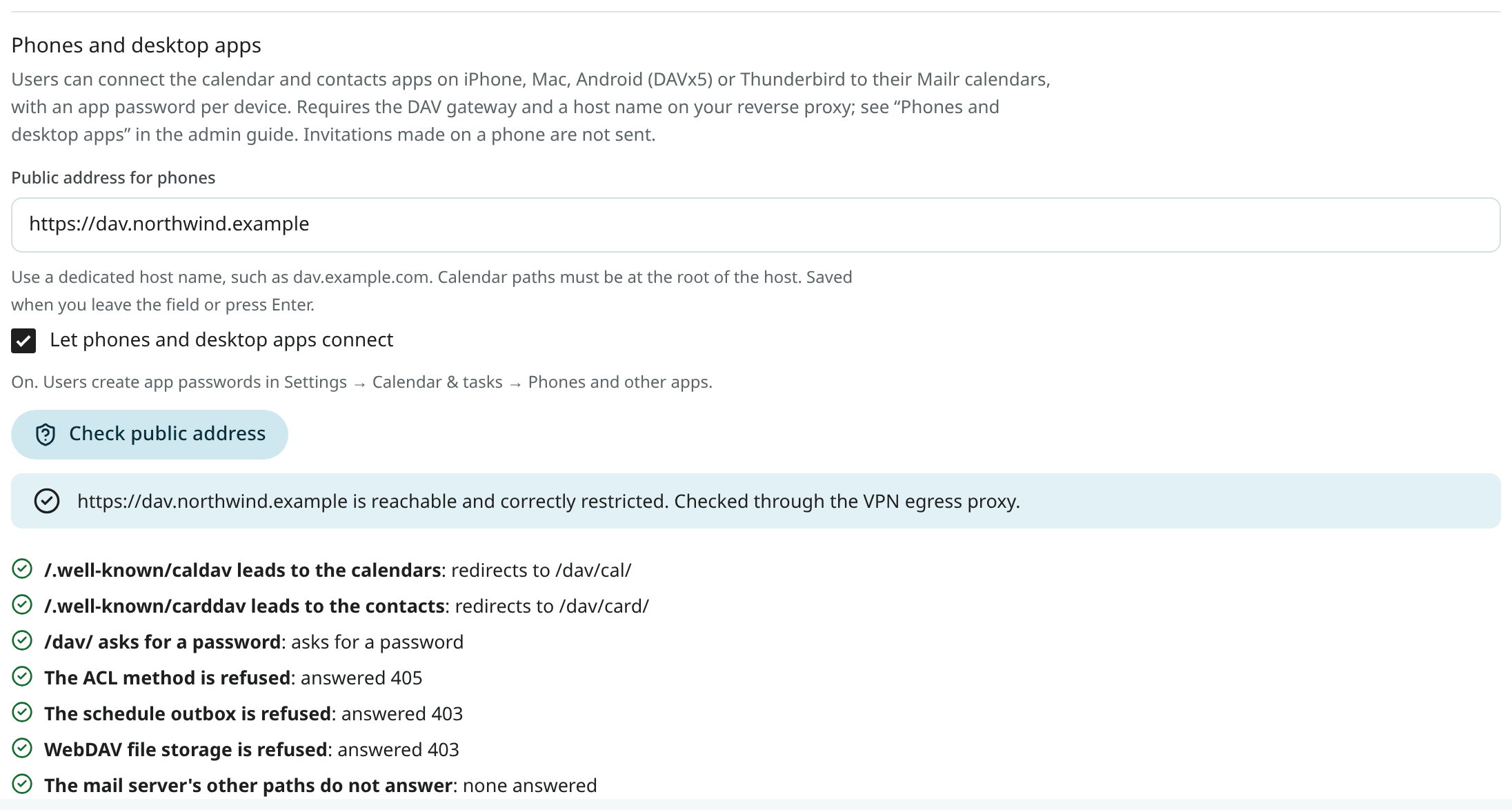
Open Settings → Admin → Calendars. Under Phones and desktop apps, enter the public address
(https://dav.example.com, host only) and click Save, then tick Let phones and desktop
apps connect.
Click Check public address. The address is sent the requests a phone and an attacker would
send, without a password: are the two /.well-known addresses redirected, is a password required at
/dav/, are ACL, the schedule outbox and file storage refused before they reach the mail
server, and is there no answer from the mail server's other paths. Each answer is shown on its own line.
The address is fetched the same way as remote content from mail: through the
VPN egress proxy when you set one up, never directly while MAILR_REQUIRE_EGRESS is on, and only
to a public address. When the fetch is not allowed under those rules (no working egress proxy, or the name
points to an address inside the local network on this server), the check is not run. The reason is
shown instead, with curl commands and the expected answers. Run them from outside your network, for
example from a phone with Wi-Fi off.
Real client addresses
An address is locked out of the mail server after repeated failed sign-ins. Behind a proxy, every phone
would seem to come from the proxy, and one attacker could lock out everyone. With phone access on,
the mail server is set to take the client's address from X-Forwarded-For; with phone access off,
this setting is turned back off.
That header is trusted from anyone who reaches the mail server. So the mail server's HTTP port may
be reached from outside only through the gateway, and the header is set at the gateway. The
device's address is taken from your reverse proxy's X-Forwarded-For, and only from the address in
MAILR_DAV_TRUSTED_PROXY. Set that variable correctly: when it is wrong, your proxy's address is
passed on for every phone, and a lock-out affects everyone. The gateway is not on the mail
server's list of addresses that are never locked out.
Group calendars and address books on phones
Members of a group see the group's calendars on their devices too, with the same rights as in Mailr. On the mail server, every group would also get an empty calendar and address book of its own, writable by every member. They are kept out of the way: each group has a calendar named Not used, which holds free/busy data only, so it is left out of calendar apps, and while phone access is on, no address books are made on the mail server on its own (each user's Contacts book comes from Mailr).
Turn phone access off
Untick Let phones and desktop apps connect. Every app password is paused at once. Then stop
the gateway (docker compose stop dav-gateway, and remove phones from COMPOSE_PROFILES) and
remove the proxy host. Users' passwords work again if you turn phone access back on.
The settings are the instance settings calendars.phone_access and calendars.phone_url.
Both are in the answer of GET /admin/calendars, and "phone_access" and "phone_url" can be sent
to PUT /admin/calendars next to "builtin". The check is run with POST /admin/calendars/phone-check. Users' app
passwords: GET /me/dav, POST /me/dav/app-passwords with {"name": "…"}, and
DELETE /me/dav/app-passwords/{pid}, for the signed-in user only (API tokens cannot use them).
Turn them off
Untick Give users a Mailr calendar. The Mailr calendars are removed from every user's settings, Calendar and Tasks, and they are no longer synced. Nothing is deleted: the events and tasks stay on the mail server. When you turn the setting on again, every user gets the same calendar back with everything in it.
Backups
The events, tasks and contacts of the Mailr calendars are stored by the mail server, in the Stalwart data volume. They are in two backups:
- A nightly snapshot of the Stalwart volume. You set up this job on the host; see Snapshot the Stalwart volume for a command and a schedule.
- The daily calendar export. Every user's calendars, task lists and address books, and every
group calendar once, as
.icsand.vcffiles under/data/exports/calendars/and on the backup target. See Calendars and contacts.
To put an export back, run mailr calendars restore. After restoring the Stalwart volume, run
mailr calendars resync --all, so that every calendar is compared in full. Both are described in
Restore calendars and contacts.
Ownership, invitations and devices
- Each user's calendar belongs to their mail server account. Someone who can read a calendar shared with them sees the owner's display name, never their address in Mailr or their user number.
- No invitations or reminder emails are ever sent by the mail server on its own; invitations are sent from Mailr through its usual approval step.
- Phones and desktop calendar apps can be connected to the Mailr calendar once phone access is on. In the Mailr Android app it appears like any other calendar either way.