Search
Press / or click the search box at the top. Type words, operators, or both, and press Enter. The
same syntax, based on Gmail's, is used in the search box, filters, layouts and the API. A filter
always matches the same mail as the same search.
Search scope
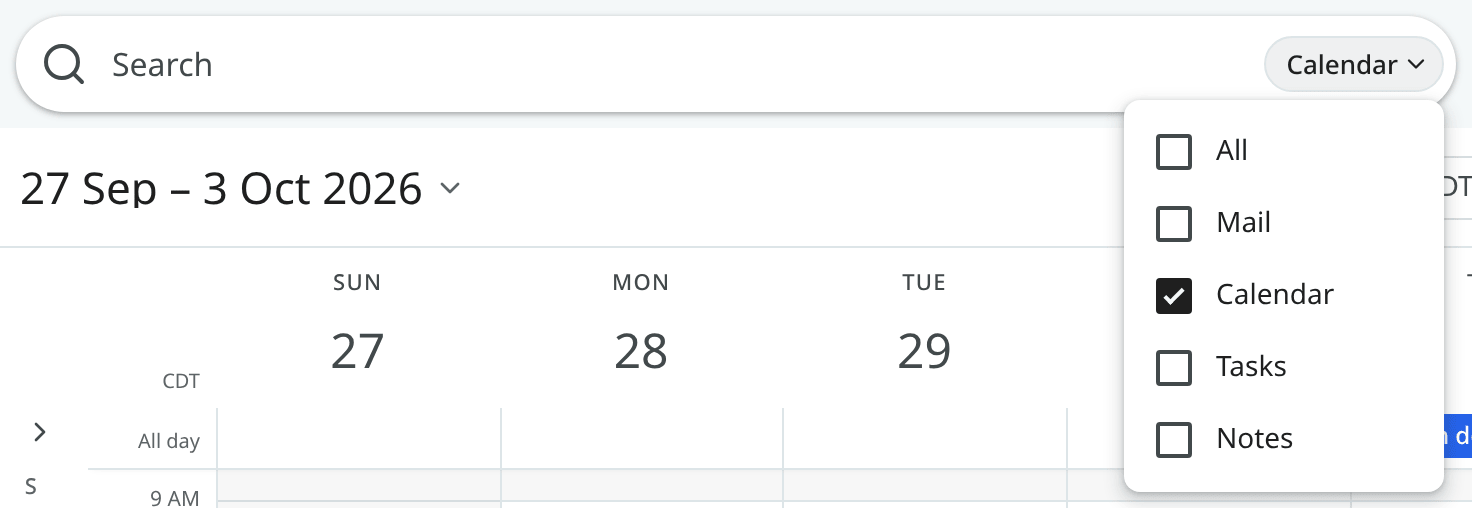
The search box has a chip on its right: All, Mail, Calendar, Tasks or Notes. It is set to the app you are in, so in Mail it shows Mail and in Calendar it shows Calendar. Press Esc in the box to switch it to All, or click the chip to pick another place. When you change the chip after a search, the search is carried over.
| Chip | Results |
|---|---|
| All | Mail results, with the matching notes, events and tasks above them. The app you searched from comes first. |
| Mail only. | |
| Calendar, Tasks, Notes | That app's own results, as you type. |
When only notes, events or tasks match, the mail part shows No mail matches in one line.
On a phone, the chip appears while you type in the box.
Words
Words without an operator are searched for in the subject, the sender and recipients, attachment names and the
text of each message. Quoted history is left out, so an old reply does not match every later
message. Put a phrase in quotes to match it exactly: "landing page".
A word of three or more letters also matches part of a word in the subject or the sender, so
invo finds "Invoice". A word of one or two letters matches whole words only: Q3 finds
"Q3 report" but not "FAQ3".
The text of an email attached to a message (see Attached emails) is searched too, but it ranks below a message's own text. When a conversation matches only inside an attached email, its row says In an attached email.
Spam and Trash are left out unless the search includes in:spam, in:trash or in:anywhere.
Operators
The most-used operators are:
| Search | Matches |
|---|---|
from:dana |
Mail from Dana (name or address). from:me is mail you sent. |
to:me, cc:, bcc: |
Mail by recipient. |
subject:"weekly update" |
Words in the subject. |
label:clients |
A label and the labels nested under it. |
in:inbox, in:sent, in:snoozed |
A place. |
is:unread, is:starred, is:important |
A state. |
has:attachment, filename:pdf |
Attachments, by presence, name or type. |
newer_than:7d, older_than:1y |
Relative dates (d, m, y). |
after:2026/09/01, before:2026/10/01 |
Absolute dates. |
larger:5M, smaller:100K |
Message size. |
category:promotions |
An inbox category. |
list:thegrid.example |
A mailing list. |
account:work@example.com |
Mail of one of your mail accounts, by its address: mail that arrived through it, and mail you sent from its addresses. In an account's own folder, this operator is added to your search (see Several mail accounts). |
Some operators are specific to Mailr and match triage signals:
| Search | Matches |
|---|---|
is:needs_reply |
Conversations where someone waits for your answer. |
is:waiting |
Conversations where you wait for someone else. |
has:deadline |
Mail with a deadline for you, such as a bill due. |
is:follow_up |
Conversations with a "remind me if nobody replies" set. |
is:nudged |
Conversations that came back with no reply. |
is:vip |
Mail from your VIP senders. |
has:recording |
Conversations linked to a meeting recording. |
While you type in the search box, people are suggested after from:, to:, cc: and bcc:,
labels after label:, and folders after in:. Pick one to complete the word.
The search operator reference lists every operator and value.
Combining terms
- Terms are combined with AND:
from:dana has:attachment. OR(or|) between terms:from:dana OR from:marco.{ }is an OR group:{from:dana from:marco}.( )groups terms:(from:dana brief) OR invoice.- An operator applies to a whole group:
from:(dana OR marco). -excludes a term or group:-label:reading.- Address operators take comma lists:
from:dana@lumencoffee.example,marco.silva@bluefin.example.
Notes to yourself
from:me to:me matches the mail you sent to yourself. The search contains no addresses, so it
works in every account.
Refine and save
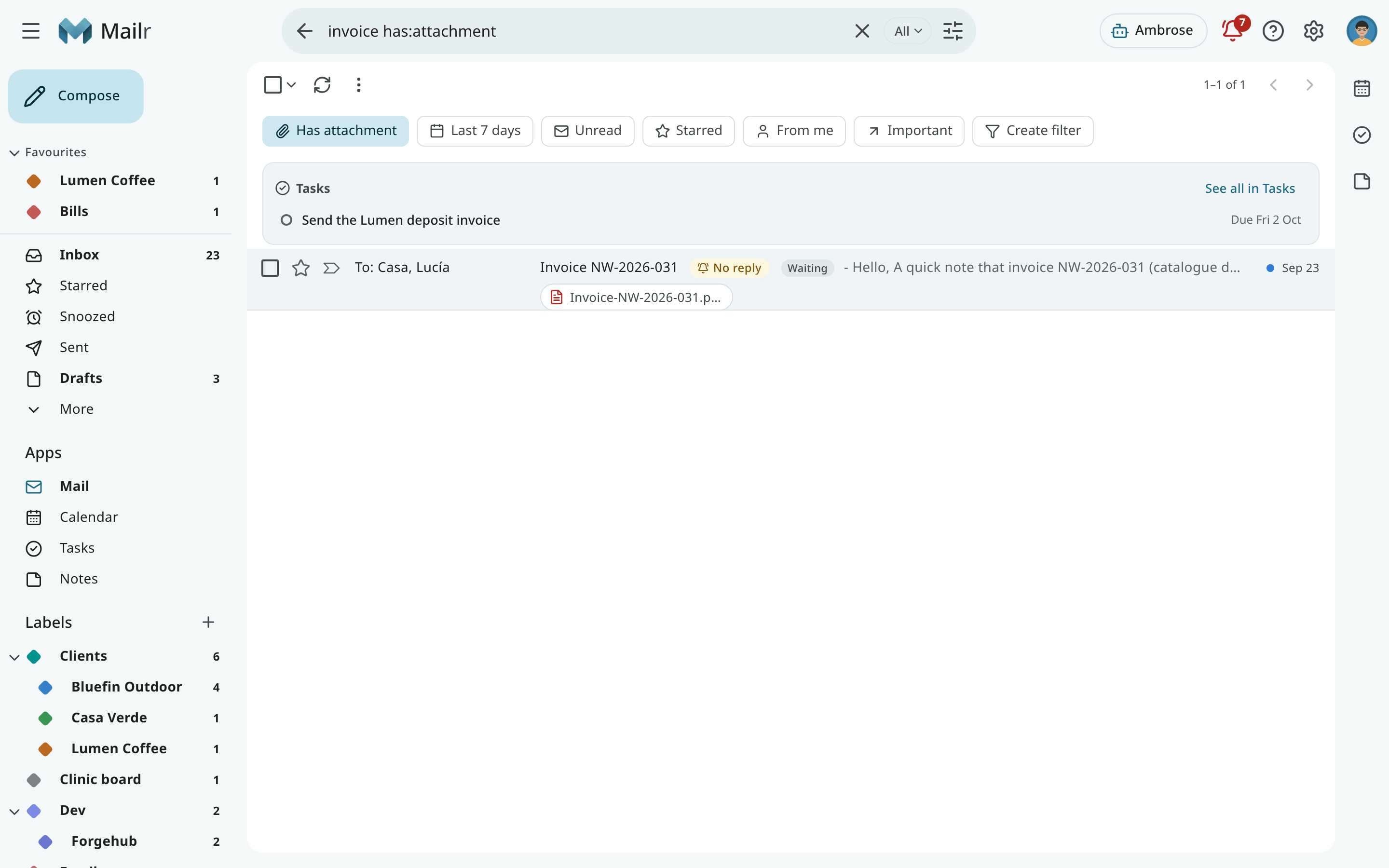
Under the search box, use chips to add a term with one click: Has attachment, Last 7 days, Unread, Starred, From me and Important. Use Create filter to turn the search into a filter.
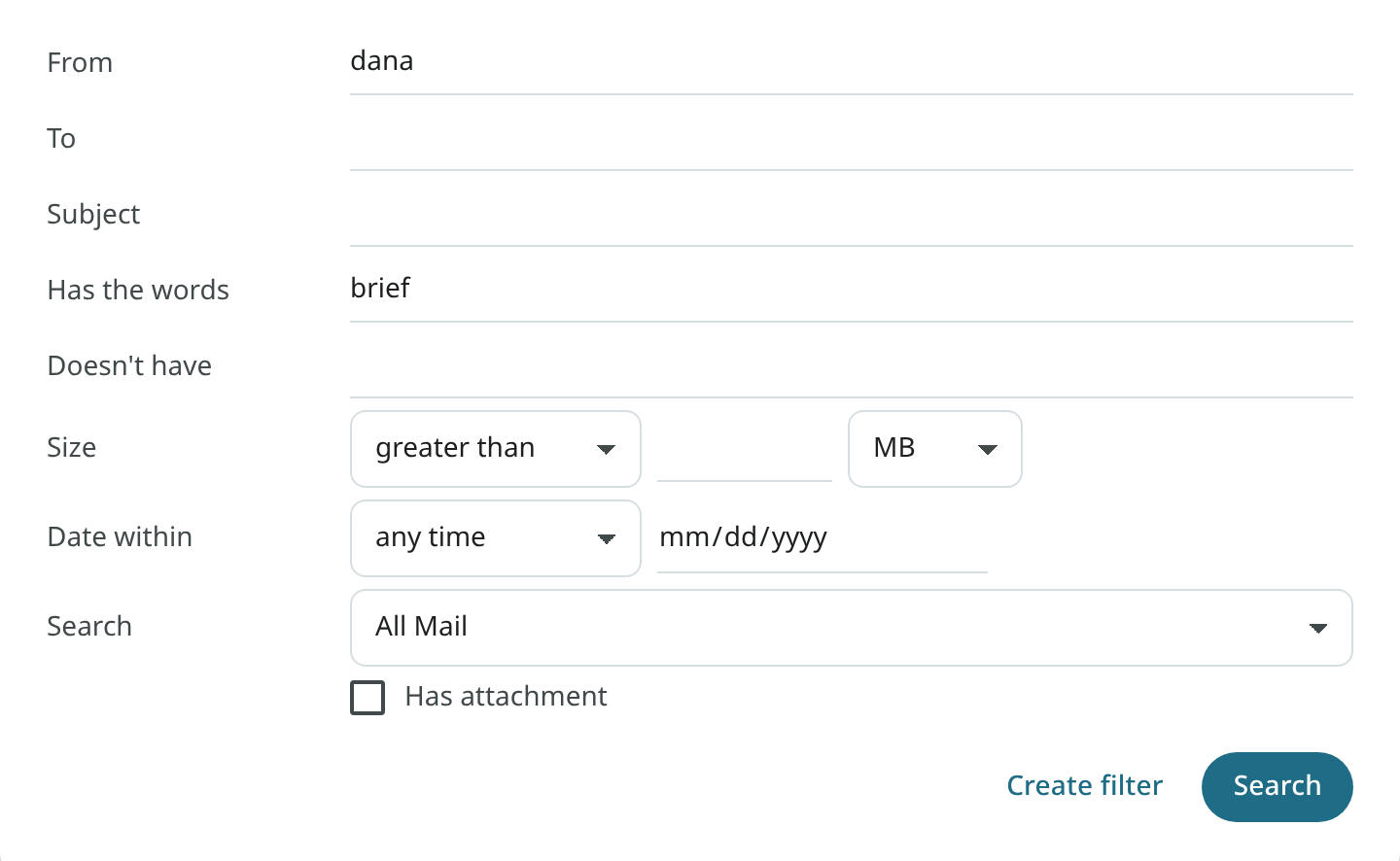
Use Show search options to open the advanced form: From, To, Subject, Has the words, Doesn't have, Size, Date within, a place to search, and Has attachment. The matching operators are added to the search box.
The right-click menu of a row has Find mail: more from this sender, from this domain, with these people, or with this subject.
Search by meaning
When you remember what an email said but not its words, ask Ambrose: "find the thread where the vendor promised a refund". Ambrose searches by meaning as well as by words, and answers with links to the passages found. See Ask Ambrose.