Notes, lists and tables
The Notes tab holds the same notes, checklists and tables as the web app. Open the menu at the top left for Notes, Lists, Tables, labels, Shared with me, Archive and Trash. Tap Edit next to Labels to rename, recolour, reorder or delete labels.
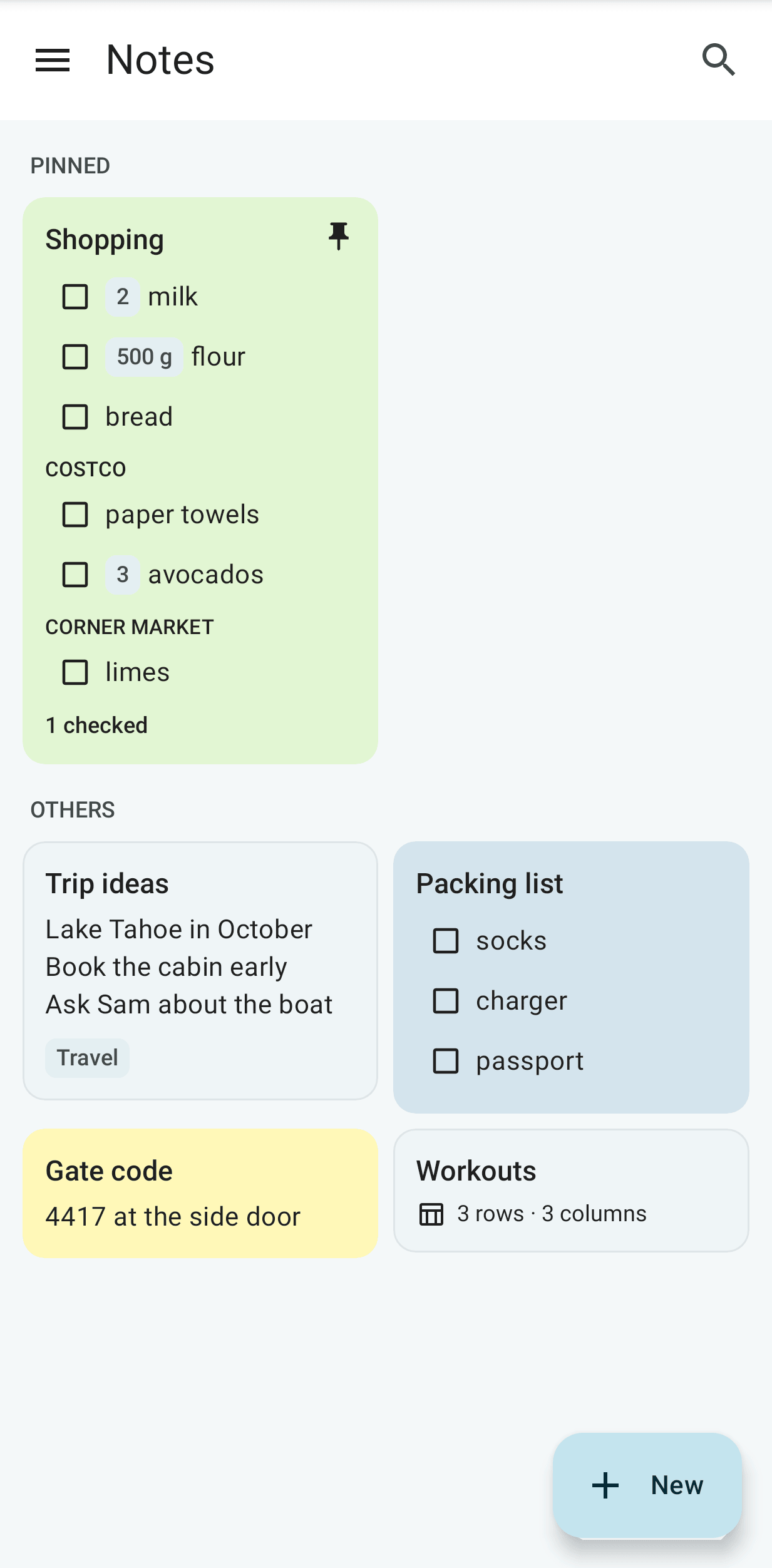
The grid
- Pinned notes come first. A list card shows its first unchecked items with their quantities, and an item can be checked on the card.
- Long-press a card for Pin, Archive, Colour, Labels, Move earlier, Move later, Make a copy and Delete. With TalkBack, Pin, Move earlier and Move later are offered as actions on the card.
- Tap New for a new note, a new list, a new table, or one made from a template.
- Pull down to sync now. Tap the search icon to search titles, text, items and table rows.
Lists
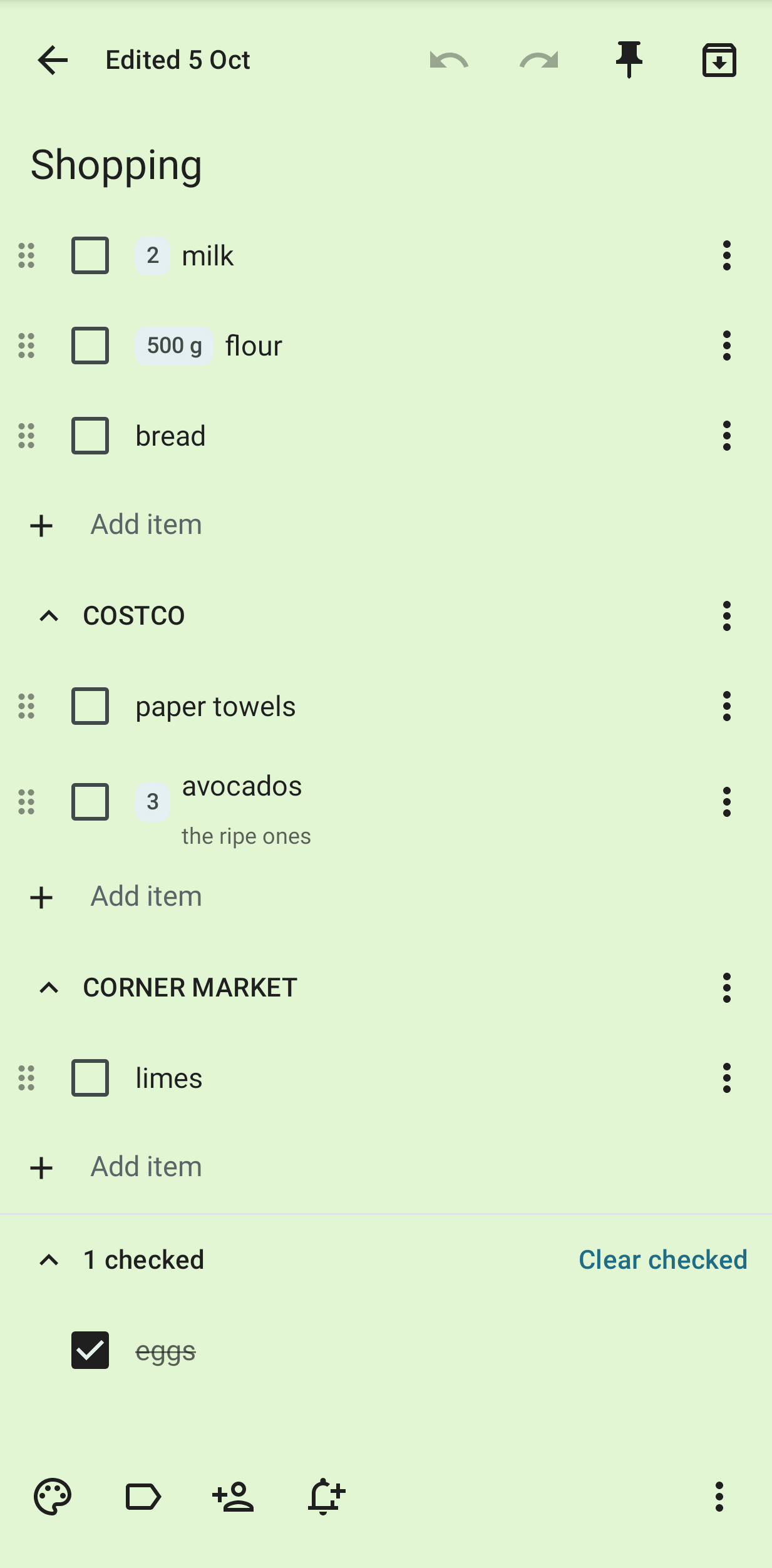
- Tap a box to check an item. Swipe an item right to check it, or left to delete it.
- Type in Add item and press the keyboard's Enter.
2 cans of tomatoes, breadbecomes two items, the first with the quantity 2 cans. A line that is onlyCostco:becomes a section. See Notes and checklists for the whole grammar. - Tap an item's text to edit it. Tap a quantity to change it with − and +.
- Long-press the handle at the left of an item and drag it to another place or section. Each item's ⋮ menu has Move up, Move down, Move to section, Make it a task and Delete.
- Tap a section's name to fold it. Its ⋮ menu has Rename, the order of its items (learned or by hand), Move up, Move down and Delete.
- Checked items are folded into n checked at the bottom. Tap Clear checked to remove them.
- With Suggest usual items on, regularly bought items are shown under the add line. Tap one to add it; tap its × to hide it for now or for good.
The bottom bar has Colour, Labels, Share and Remind me. The ⋮ menu has the switch between note and list; it also has the shopping switches, Uncheck all, Make a copy, Version history, Ask Ambrose and Delete. When the separate Notes app is on the phone, the menu also has Open in Notes app. Widgets, recent-note shortcuts and sharing to notes are in the Notes app.
- Tap Export to send the note as Markdown to another app.
- Tap Save as template to keep the note as a template. Under New → From a template, saved templates have a delete button; the starters stay.
- Tap Add to home screen to put the note on the home screen. Tap it there to open the note in Mailr.
Repeating lists, Local models only and list presence
- With Repeat… in a list's ⋮ menu, a list is set to start over weekly on a day or every few days: the checked items are unchecked at 4 in the morning, and the history is kept. The list is then marked "Repeats weekly on Sunday · next Sun 11 Oct". See Repeating lists.
- With Local models only in the ⋮ menu of a note, a list or a table, it is kept away from hosted models. Only the owner can turn it off; for anyone else, the setting is shown on and locked, with the reason.
- While someone else has a shared list open, "Dana is in this list" is shown, and her checks are shown with her name for a moment.
Reminders on notes
Under Remind me are Later today, Tomorrow and Next week. A reminder belongs only to the person who set it, also on a shared note. It is shown on the phone and on the web, and a reminder dismissed in one place is dismissed everywhere. When the Notes app is installed, note reminders are shown only in the Notes app, so only one notification is posted.
Sharing
Share lists who has the note and at what level: View, Edit, or Edit and share. Add people and groups from the server, change a level, or remove someone. On a note someone shared with you, tap Remove from my notes to take it off your list. See Notes and checklists.
History
Earlier versions of the note are listed under ⋮ → Version history. Open one and tap Restore this version. After every change on the phone, a short message with Undo is shown.
Undo and redo
The top bar of an open note has Undo and Redo. Touch and hold one to see its name. Changes are undone one at a time and redone in the same steps:
- Typing is undone a word at a time, or up to a pause of about a second. A paste, a spelling correction or a dictated phrase is one step.
- On a list, a tick, an added or deleted item, a move, a section change, Clear checked, a colour and labels are one step each.
- An undo is saved like any edit. Without a network it is queued with the other changes and sent when the phone is back online.
- After an undo, nothing can be redone once you make a new change.
- After an undo or redo of text, the cursor is in that field, right after the text that came back or went in, so the place of the change is visible.
When one change removes more than three lines, or clears the note, a Text removed message is shown
with Undo. With a keyboard attached, undo is Ctrl + Z and redo is Ctrl + Shift + Z or
Ctrl + Y. The Notes app has the same buttons.
Tables
A table is a list of cards: the first column in bold and one or two more columns under it. Views are switched with view chips, and the active filters are shown as chips; tap a filter's × to see the rows without it. The view's totals are in the bar at the bottom.
- Tap a row to open its form. Each field is saved when you leave it, with Undo. Dates can be
typed as words such as
today,frior12 oct. - The row's changes are listed under History in the form. Restore the row to an earlier point, or put one value back.
- Tap + for a new row. With Save and add another, the form stays open.
- Swipe a row left to delete it. Long-press rows to select several and delete them together.
- The table's ⋮ menu has Export CSV (the view, sent to another app), Make a copy and Add to home screen.
Columns, views and restoring a whole table to a point in time are on the web.
Offline use
Notes, lists and tables stay on the phone. Items can be checked, added and edited, and rows added, while offline. Offline · 3 changes waiting is shown in a banner, and cards with unsent changes have a dashed edge. Inside a list, the line Offline · 2 changes waiting is shown, and the last-seen usual items stay there to tap. The changes are sent in order when the network is back. The time of each check is kept. If someone changed the same item meanwhile, Keep theirs, Use mine and Keep both are shown on the item.