Keyboard shortcuts
Mailr has Gmail's keys for mail, and similar keys in the Calendar, Tasks, Notes and Recordings apps.
Press ? in any app to see every key for the page you are on. Turn shortcuts off or on with
Keyboard shortcuts in Settings → Look (keyboard_shortcuts).
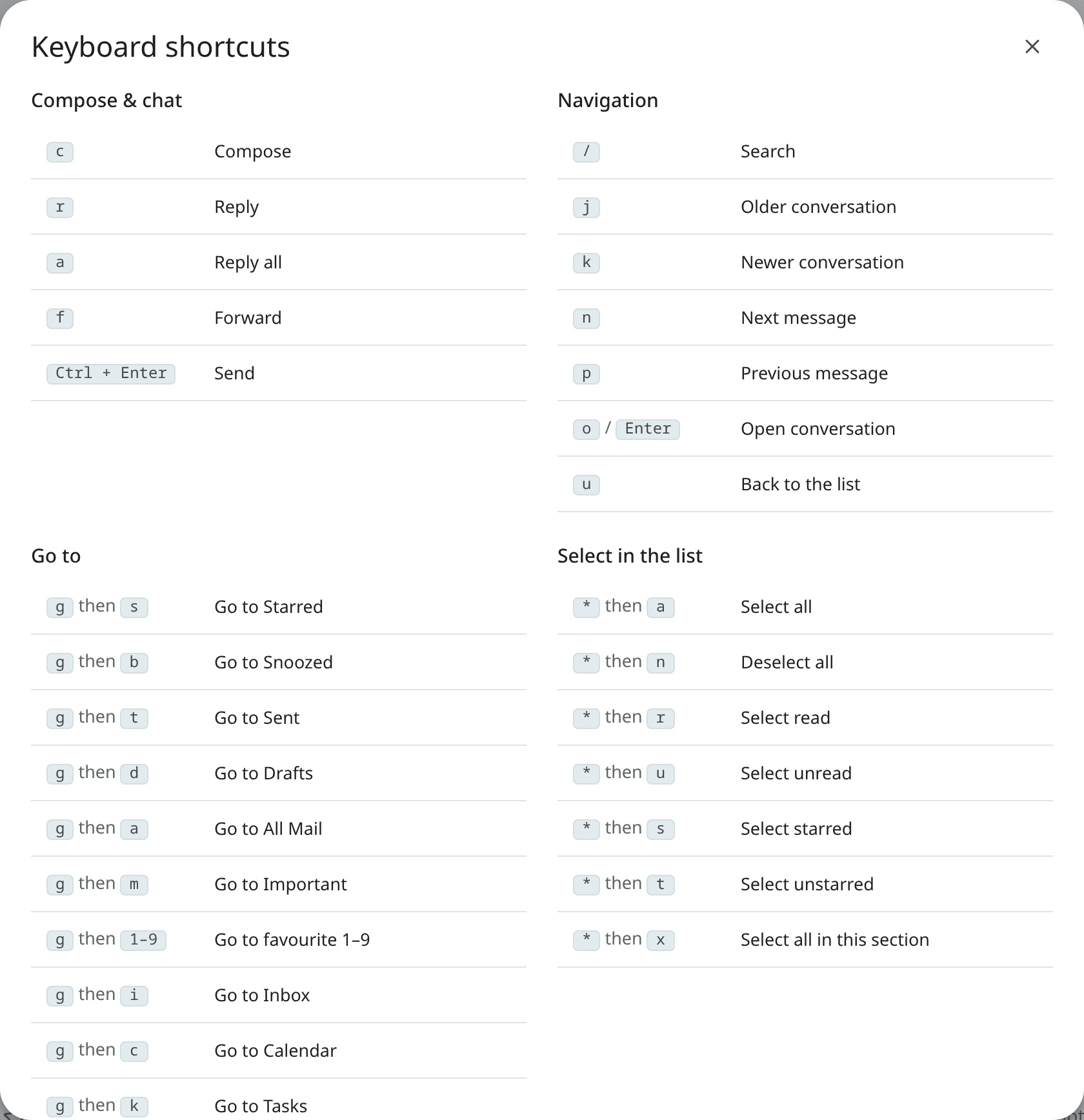
Every key, app by app, is listed in the shortcut reference.
The most-used ones are c to compose, r to reply, e to archive, / to search, g then i for
the Inbox and Ctrl + . for Ambrose.
Key conventions
- Keys written as
g then imean: pressg, release it, then pressi. - Each app's keys work only in that app. In Settings, only the keys listed under Everywhere in
the reference work, so a mail key such as
#never changes mail you cannot see. - When a link, a button or another control has the focus,
Enter,Space,Tab, the arrow keys,DeleteandBackspacework on that control as usual: withEnteryou follow the link or press the button, and withTabyou move on. Letter keys remain shortcuts. - Letters depend on
Shift, not Caps Lock:ris Reply with Caps Lock on. - A button's tip is shown while you point at it or it has the keyboard focus. It goes when the
focus or the pointer moves on, when you press
Esc, and when you switch to another tab or window. - In the calendar, you move through the page with
Tabas usual, and between events with the arrow keys (see the calendar guide). - In Tasks,
Space,TabandShift + Tabchange a task only while the focus is on the task list or nowhere in particular. In the task pane and the sidebar, these keys work as usual for moving the focus and pressing buttons.
The command palette
Press Ctrl + K (⌘K on a Mac) to open the command palette in every style: type to find a view, a
label, an action or a setting. Use ↑ and ↓ to move through the list, and Enter to run the item
marked ↵. The mark is on the first item at first and moves with the selection.