Inquire Mode - Semantic Search
Inquire Mode transforms your entire recording library into an intelligent knowledge base that you can search using natural language questions. Instead of hunting through individual recordings or trying to remember which meeting contained a specific discussion, you can simply ask questions and receive comprehensive answers drawn from all your relevant recordings.
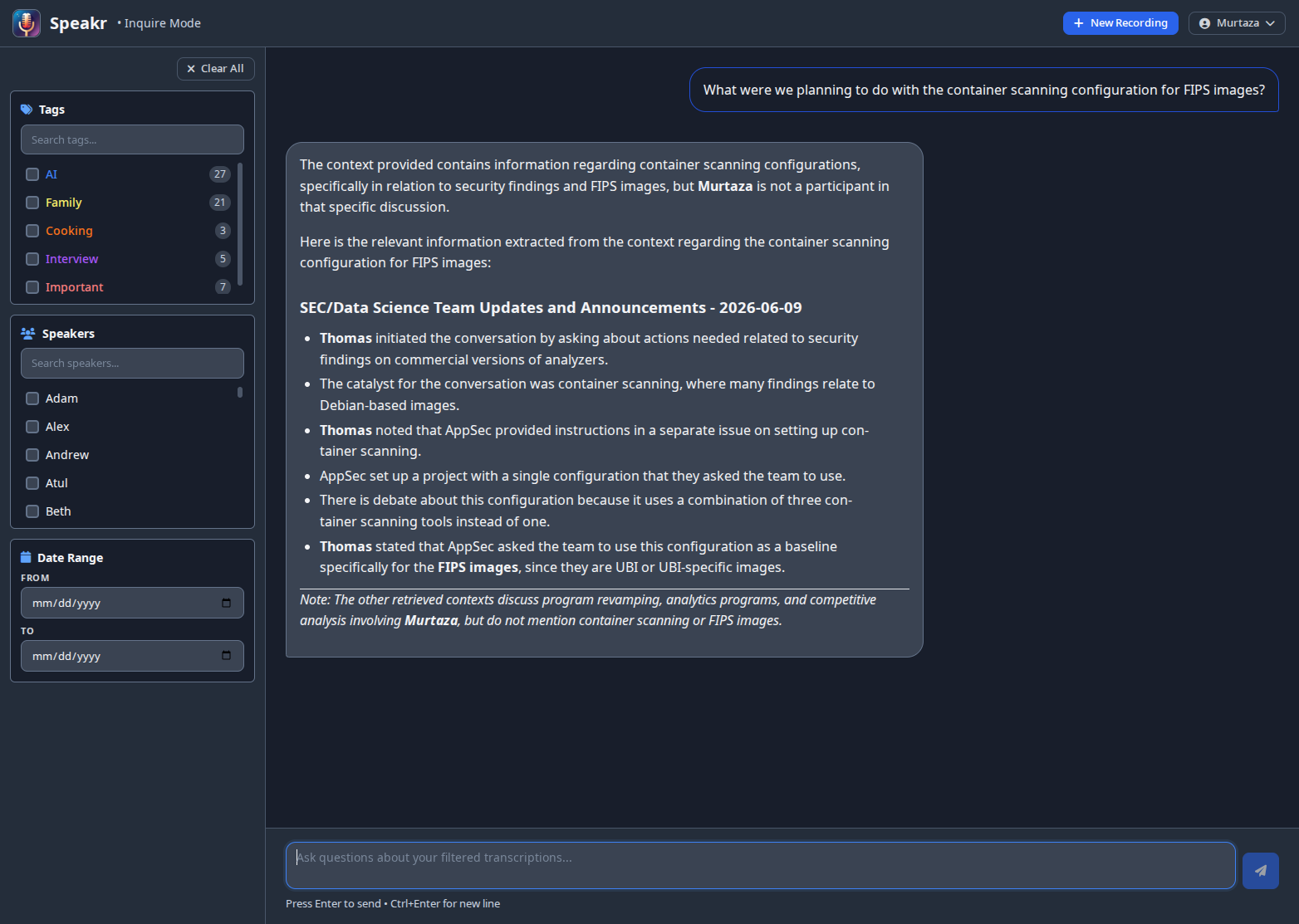
Understanding Inquire Mode
Think of Inquire Mode as having a knowledgeable assistant who has listened to every recording in your library and can instantly recall and synthesize information from any of them. When you ask a question, the system searches across all your transcriptions, understands the context and meaning behind your query, and provides a coherent answer with citations back to the source recordings.
This semantic search capability goes far beyond simple keyword matching. The system understands concepts, relationships, and context. If you ask about "budget concerns," it will find discussions about financial constraints, cost overruns, funding issues, and resource limitations - even if the exact phrase "budget concerns" was never spoken.
Getting Started with Inquire Mode
Access Inquire Mode by clicking the Inquire button in the top navigation bar. The interface opens with a clean search area at the top and powerful filtering options on the left side. Your search results appear in the main content area, organized and formatted for easy reading.
The beauty of Inquire Mode is its simplicity. You don't need to learn special search syntax or commands. Just type your question as you would ask a colleague, and the system handles the complexity of finding and synthesizing the relevant information.
+ New Recording from Inquire mode
Inquire mode runs as a separate Vue application, so it can't embed the main app's upload modal directly. The + New Recording button in the inquire header redirects to /?upload=1; the main app reads that query parameter on mount, opens the upload modal automatically, and strips the parameter from the URL so a refresh doesn't re-trigger. Result: one click from "I need to add a recording" to the upload modal, same as if you'd hit + New Recording from anywhere else in the app.
Using Filters to Focus Your Search
The left sidebar contains filters that help you narrow your search to specific recordings before asking your question. This is particularly useful when you have a large library and want to focus on certain contexts.
The tag filter lets you select recordings with specific tags, which is perfect when you want to search within a particular project, client, or type of meeting. If you've tagged your recordings consistently, this becomes a powerful way to segment your searches. The system shows how many recordings match each tag, helping you understand the scope of your search.
The folder filter, shown when folders are enabled, limits the search to recordings in the selected folders. When tags and folders are both selected, only recordings that are in one of the selected folders and carry one of the selected tags are searched.
Speaker filtering allows you to focus on what specific people have said across recordings. This is invaluable when you need to track commitments from a particular person, understand someone's perspective on various topics, or prepare for a meeting with specific individuals.
Date range filtering helps you focus on recent discussions or search within a specific time period. This is particularly useful for tracking how discussions have evolved over time or finding information from a specific quarter or project phase.
Asking Effective Questions
The key to getting great results from Inquire Mode is asking clear, specific questions. The system works best when you provide context and be specific about what you're looking for.
Instead of searching for single words like "deadline," ask complete questions like "What are the upcoming deadlines for the mobile app project?" This helps the AI understand not just what information you want, but why you want it and how to present it most usefully.
The system excels at different types of queries. You can ask for summaries of specific topics across multiple meetings, request lists of action items or decisions, search for specific statements or commitments, analyze patterns or trends in discussions, or identify problems and proposed solutions.
Understanding Your Results
When Inquire Mode returns results, it provides a synthesized answer that draws from all relevant recordings. The response isn't just a list of search hits - it's a coherent narrative that combines information from multiple sources into a unified answer.
Each piece of information includes a citation in the format (Recording ID: XX) that links directly to the source recording. Clicking these links takes you to the full recording where you can see the complete context. This transparency ensures you can always verify the information and dive deeper when needed.
The system intelligently organizes information, grouping related points together and presenting them in a logical flow. If multiple recordings discuss the same topic, the answer will synthesize these discussions, showing how the conversation evolved over time while maintaining clear attribution to each source.
Practical Applications
Inquire Mode shines in numerous real-world scenarios. When preparing for meetings, you can quickly review what was previously discussed about agenda topics, what questions remained unresolved, and what commitments were made. This ensures you walk into meetings fully informed without spending hours reviewing old recordings.
For project management, the system helps track decisions across multiple meetings, identify all action items assigned to group members, and monitor how project requirements or priorities have changed over time. You can ask questions like "What risks have been identified for the product launch?" and receive a comprehensive list drawn from all relevant discussions.
Research and analysis become dramatically more efficient. Whether you're analyzing customer feedback patterns, tracking competitor mentions, or identifying recurring themes across interviews, Inquire Mode can surface insights that might otherwise remain buried in hours of recordings.
The system also serves as an excellent compliance and documentation tool. You can quickly find specific commitments made to clients, locate discussions about regulatory requirements, or verify what was agreed upon in negotiations. The citation system provides an audit trail back to the original recordings.
Advanced Search Strategies
As you become more comfortable with Inquire Mode, you can develop sophisticated search strategies. Start with broader questions to understand the landscape of available information, then drill down with increasingly specific queries. This iterative approach helps you discover information you might not have known to ask about directly.
Combine filters strategically. For instance, when preparing for a client meeting, filter by that client's tag and the relevant date range, then ask about outstanding issues or commitments. This focused approach yields highly relevant results without noise from unrelated recordings.
Pay attention to how the system interprets your questions. If results aren't quite what you expected, try rephrasing with different terms or adding more context. The system learns from the patterns in your recordings, so using terminology consistent with your actual discussions often yields better results.
Technical Considerations
Inquire Mode's power comes from its semantic understanding capabilities. When embeddings are enabled (with sentence-transformers installed), the system creates mathematical representations of meaning that allow it to understand concepts beyond simple keyword matching. This means it can find relevant information even when different words are used to express the same ideas.
Speakr defaults to the all-MiniLM-L6-v2 embedding model, a deliberately lightweight choice that balances performance with resource efficiency. This model generates 384-dimensional vectors and runs comfortably on CPU-only systems, which is crucial since most Speakr deployments are on standard servers or personal machines without dedicated GPUs. The default provides solid semantic understanding for conversational content while remaining responsive even when processing hundreds of recordings. Administrators who want a different trade-off can override the model via the EMBEDDING_MODEL environment variable, or offload embedding generation entirely to an OpenAI-compatible API provider (vLLM, OpenRouter, OpenAI, and similar) by setting EMBEDDING_BASE_URL. See Model Configuration for details.
The system processes recordings in chunks, allowing it to search through even very long recordings efficiently. Diarized transcripts are chunked segment-aware: each chunk holds whole speaker turns rendered as Speaker: text lines, packed to roughly 1,400 characters, with a one-turn overlap between consecutive chunks. Because boundaries are size-based rather than per-turn, a rapid back-and-forth exchange stays together in a single chunk with every speaker labeled inline. Each chunk also stores its dominant speaker and start and end timestamps, which is what allows search results and Inquire citations to point at the moment in the recording where something was said. Administrators can keep the older plain character-window behavior with CHUNKING_STRATEGY=legacy; either way, existing indexed chunks are untouched by an upgrade until a recording is reindexed. The chunk size is tunable via CHUNK_TARGET_CHARS.
A note on changing embedding models: vectors from different models are not comparable, even when their dimensions happen to match. After switching EMBEDDING_MODEL or EMBEDDING_BASE_URL to a different model, re-embed the library (the admin dashboard's reprocessing tools, or reindex recordings individually) so search quality does not silently degrade.
Performance scales well with proper setup. The initial indexing of recordings happens automatically after transcription, and subsequent searches leverage this pre-computed index. Response times typically range from a few seconds for focused searches to slightly longer for complex queries across large libraries.
Searching from Other Tools
Semantic search is also available through the API: GET /api/v1/search?mode=semantic (see the API Reference). The same request without mode=semantic runs a keyword search over every recording, which works without Inquire mode.
Agentic Inquire (Beta)
Administrators can enable an agentic mode with ENABLE_INQUIRE_AGENT=true (requires Inquire Mode to be enabled). Instead of a single retrieval pass, an AI agent works iteratively: it searches your transcripts, lists recordings, and reads transcripts, summaries, or notes as needed, thinking between steps until it can answer. The interface shows each step live (what was searched, what was read, how many matches), a Stop button to interrupt, and a collapsed activity line on every answer so you can always see how a conclusion was reached. Answers cite their sources as compact numbered markers such as "2 @ 14:05": clicking one opens that recording and starts playback at the cited moment, and a Sources list at the end of each answer maps every number to its recording. The numbering stays stable through the conversation, so a follow-up like "tell me more about 3" refers to exactly what you saw.
A few examples show the difference from classic Inquire. Ask "what did we decide about the pricing change, and did anyone disagree?" and the agent will search for the pricing discussions, read the relevant transcript sections across several meetings, and answer with each position cited back to where it was said. Ask "summarize everything client X asked for this quarter" and it will list the recordings involving that client, read their summaries, and consolidate the requests with one citation per item. Ask "when did I first mention the migration plan?" and it will search, compare dates, and hand you a link that starts playback at that sentence. Classic Inquire retrieves passages in one pass and answers from whatever that single search surfaced; the agent keeps working until the question is actually answered, which is the difference you feel on questions that span recordings or need a fact checked rather than paraphrased.
The agent respects your privacy settings. Under Account, the Inquire Privacy section controls what the agent may read: transcripts are always available (they are the minimum for Inquire to function), summaries are optional and on by default, and your notes are optional and off by default. A disabled content type is removed from the agent's toolbox entirely. Only your own notes are ever used, never notes on recordings shared with you. The active filter selection is a hard boundary: the agent can narrow its search within your filters but can never reach recordings outside them.
Long conversations are handled automatically. When the conversation grows past the context budget, older turns are folded into a summary the assistant keeps; a divider appears in the chat where this happened, and clicking it shows exactly what the assistant still remembers. A small meter next to the input shows how full the context is once it passes the halfway point.
Agentic answers involve several model calls per question, so they take longer (typically ten to thirty seconds for multi-step questions) and consume more tokens than the classic pipeline. Usage is tracked separately in the admin dashboard under the inquire_agent operation type. The agent works with any OpenAI-compatible endpoint: it uses native tool calling when the endpoint supports it and falls back to a prompted protocol when it does not. If the agent fails for any reason, the classic single-shot pipeline answers instead. See config/env.transcription.example for the tuning variables (step limits, timeouts, context budget, and availability defaults).
Making the Most of Inquire Mode
To maximize the value of Inquire Mode, maintain good recording hygiene. Ensure your recordings have clear audio quality for accurate transcription, use speaker identification to track who said what, and apply consistent tags to organize your content. The better your input data, the more powerful your searches become.
Take advantage of the iterative nature of search. Start with a general question, review the results, then ask follow-up questions to drill deeper. The system maintains context within a session, making it easy to refine your search based on initial results.
Remember that Inquire Mode complements, not replaces, the standard recording interface. Use Inquire Mode for discovery and synthesis across recordings, but when you need deep focus on a single recording, the standard transcription view with its chat interface might be more appropriate.
Limitations to Keep in Mind
While powerful, Inquire Mode has boundaries. It searches only transcribed text, not audio directly, so any errors in transcription will affect search results. The system cannot infer information that isn't explicitly stated in recordings - it finds and synthesizes what was said, not what was meant but left unsaid.
Language support depends on the configured embedding model. The default all-MiniLM-L6-v2 was trained primarily on English, so non-English content works with varying results; switching to a multilingual model (e.g., paraphrase-multilingual-MiniLM-L12-v2) or a large API model such as openai/text-embedding-3-large significantly improves cross-lingual quality. Very long recordings might be summarized rather than fully indexed if they exceed processing limits. The system requires recordings to be fully processed before they are searchable, so very recent recordings may not appear immediately in results.
Next: Sharing Recordings →