Vector Store Management
The Vector Store tab controls the intelligence behind Inquire Mode, Speakr's semantic search capability that lets users find information across all their recordings using natural language questions. This is where you monitor and manage the embedding system that transforms transcripts into searchable knowledge.
Understanding Inquire Mode
Before diving into management, it's worth understanding what you're managing. Inquire Mode breaks each transcript into overlapping chunks of text, converts these chunks into mathematical representations called embeddings, and stores them in a searchable format. When users ask questions, their query gets converted to the same mathematical format and compared against all stored chunks to find the most relevant information.
This approach goes beyond simple keyword matching. The system understands that "budget concerns" relates to "financial constraints" and "cost overruns" even though the exact words differ. This semantic understanding makes Inquire Mode powerful for discovering information that users might not remember precisely.
Lightweight Image
The lite Docker image (learnedmachine/speakr:lite) ships without the local sentence-transformers model. Two options to enable semantic search on lite: - Set EMBEDDING_BASE_URL to an OpenAI-compatible embeddings endpoint (vLLM, OpenRouter, OpenAI, etc.). Inquire Mode then runs in full semantic-search mode using API-generated vectors. See Model Configuration for setup. - Switch to the latest image tag, which includes the local sentence-transformers model.
Without either, Inquire Mode falls back to keyword-based text search.
The Embedding Model
By default, Speakr uses the all-MiniLM-L6-v2 model. It generates 384-dimensional vectors and runs efficiently on CPU-only systems, which makes advanced search accessible without GPU infrastructure. The default is suitable for English-dominant deployments and small-to-medium recording libraries.
For larger libraries, multilingual content, or higher-quality semantic matching, the EMBEDDING_MODEL environment variable accepts any sentence-transformers identifier (all-mpnet-base-v2, paraphrase-multilingual-MiniLM-L12-v2, and similar). For deployments that prefer not to load embedding models locally, setting EMBEDDING_BASE_URL switches Speakr to an OpenAI-compatible HTTP endpoint, allowing the use of providers such as OpenAI, OpenRouter, or a self-hosted vLLM server. See Model Configuration → Configurable Embedding Model for the full set of supported environment variables and migration guidance.
Changing the model or provider on an existing instance produces vectors that do not match what is stored. Speakr records the active configuration in system_setting on first run and logs a warning at startup if it changes. After such a change, reprocess recordings to rebuild the index.
Processing Status Overview
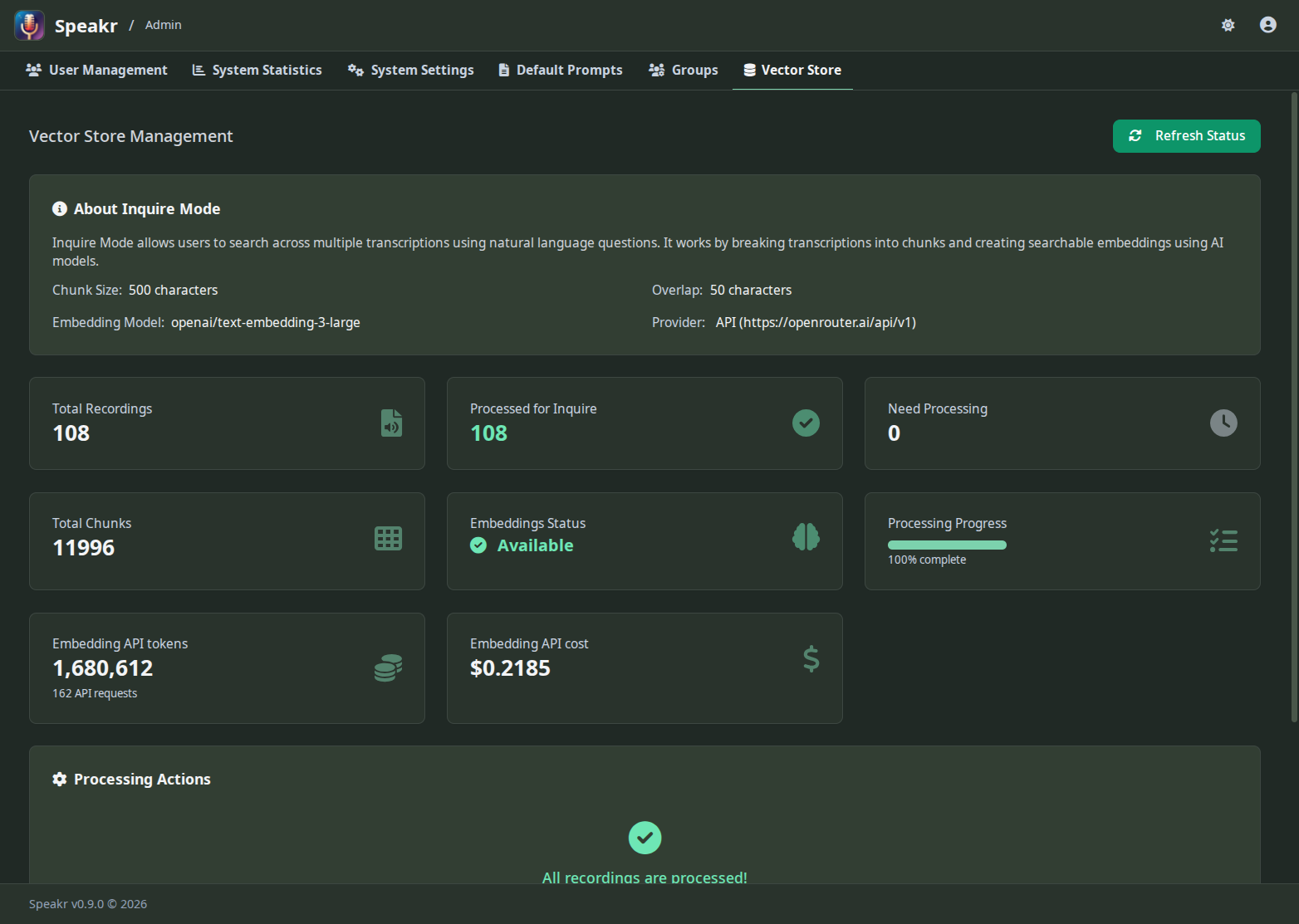
The status cards give you immediate insight into your vector store's health. Total Recordings shows how many audio files exist in your system, while Processed for Inquire indicates how many have been converted to searchable embeddings. These numbers should eventually match, though there's often a lag as background processing catches up.
Need Processing reveals recordings waiting for embedding generation. This number grows when users upload new content and shrinks as the background processor works through the queue. A consistently high number might indicate processing has stalled or your system is overwhelmed.
Total Chunks shows the granular pieces your recordings have been divided into. A typical one-hour recording might generate 50-60 chunks, depending on transcript density. This chunking ensures relevant segments can be found even in very long recordings.
The Embeddings Status indicator provides a quick health check. "Available" in green means everything is working correctly. Other states might indicate the model is loading, processing is running, or attention is needed.
Processing Progress
The processing progress bar shows real-time advancement through the embedding queue. When at 100%, all recordings are processed and searchable. Lower percentages indicate work in progress, with the bar filling as recordings are completed.
This visual feedback helps you understand system status at a glance. A stuck progress bar suggests processing has stopped. Slow progress might indicate system resource constraints. Rapid progress shows everything is working efficiently.
Managing the Processing Queue
The Refresh Status button updates all statistics and progress indicators, useful for monitoring active processing or verifying recent uploads have been queued. The interface doesn't auto-refresh, so manual refreshes ensure you're seeing current information.
When the system shows recordings need processing but progress isn't advancing, several factors might be at play. The background processor might have stopped, the embedding model might have failed to load, or system resources might be exhausted. Check your logs for specific error messages.
The processing system is designed to be resilient. If processing fails for a specific recording, the system marks it and moves on rather than getting stuck. These failures appear in your logs and might require manual intervention to resolve.
Re-Embed All
The Re-embed all button at the top of the Vector Store tab clears every stored embedding and queues every recording for re-processing through the current embedding configuration. Use it after changing EMBEDDING_MODEL, switching from local to API-mode (EMBEDDING_BASE_URL), or changing EMBEDDING_DIMENSIONS, since old vectors generated by the previous configuration cannot be compared meaningfully against new query vectors.
A confirmation modal appears before the action runs. Re-embedding a large library is bandwidth-intensive when API-mode is configured (every chunk goes back to the embedding provider) and CPU-intensive in local mode, so plan for the workload. Embedding token usage from the run shows up on the Statistics tab's separate embedding card so you can attribute the cost cleanly.
If only a subset of recordings is affected by the configuration change (for example, you re-uploaded one folder), reprocessing those recordings individually is more efficient than the global re-embed.
Embedding Token Tracking
The Vector Store tab also shows embedding API token usage and estimated cost when API-mode is configured (EMBEDDING_BASE_URL is set). This is tracked separately from LLM operations because embedding pricing is typically much lower per token but request volume is much higher (every chunk of every recording is one or more requests). The same numbers feed the dedicated embedding card on the Statistics tab — see System Statistics for the per-day and per-month breakdown.
Optimizing Performance
Processing performance depends heavily on your system resources. The embedding model needs about 500MB of RAM when loaded, plus additional memory for processing text. CPU speed directly impacts how quickly embeddings are generated - a modern multi-core processor can handle several recordings simultaneously.
Disk I/O also matters. The system reads transcripts, processes them, and writes embeddings back to the database. Fast storage, particularly SSDs, significantly improves processing throughput. If your vector store is on a different disk than your transcripts, ensure both have adequate performance.
Network latency shouldn't affect processing since everything happens locally, but database performance matters. Regular database maintenance, including index optimization and vacuum operations, keeps queries fast even as your vector store grows.
Troubleshooting Common Issues
When Inquire Mode returns poor results despite processed recordings, the issue might be query formulation rather than the vector store. Encourage users to ask complete questions rather than typing keywords. "What did John say about the budget?" works better than just "John budget."
If processing seems frozen, check whether the sentence-transformers library is properly installed. The system gracefully degrades without it, disabling Inquire Mode rather than crashing, but processing won't advance. Your logs will show whether the embedding model loaded successfully.
Memory errors during processing usually indicate your system is trying to process too much simultaneously. The chunking system prevents individual recordings from overwhelming memory, but processing multiple large recordings in parallel might exceed available RAM.
Scaling Considerations
The vector store grows predictably with your content. Each chunk requires about 2KB of storage for its embedding and metadata. A typical one-hour recording generating 50 chunks needs about 100KB of embedding storage. Ten thousand hours of recordings might require 100MB for embeddings - manageable even on modest systems.
Search performance remains fast even with large vector stores thanks to efficient indexing. However, extremely large instances (hundreds of thousands of recordings) might benefit from dedicated vector database solutions rather than the built-in SQLite storage.
If your instance grows beyond comfortable limits, consider archiving old recordings. The vector store only includes active recordings, so removing obsolete content improves both storage and search performance.
Return to Admin Guide Overview →